


Appointment Booking Web Portal Configuration
Patients are able to book appointments with practitioners using the AEM Appointment Booking Web Portal.
Use AEM to configure the look and feel of the Appointment Booking Web Portal as well as the practitioners, the service charges and schedules that will be available for patients to book online.
Refer to the information provided below to learn more about configuring the Appointment Booking Web Portal in AEM.
Prerequisites
Before you can configure the Appointment Booking Web Portal, please ensure that the following prerequisites have been met:
- Clinicians
have been set up: see
 Clinician Set Up
 - SMS Messaging has been set up and enabled: see
 How to Setup
SMS Messaging.
How to Setup
SMS Messaging.
Appointment Booking Web Portal Configuration
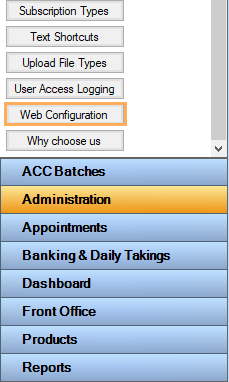
To configure the Web Portal, go to Administration >> Web Configuration.
The Web Portal Configuration window contains 4 tabs:
-
The General Settings tab is used to configure the booking settings and the look and feel of the web page
-
The Clinicians tab is used to configure the clinicians' appointment schedules and the service charges that will be made visible to patients when booking via the Appointment Booking Web Portal
-
The Custom Text tab is used to customise the default text that is displayed on the Appointment Booking Web Portal.
-
The Company Custom Settings tab is used to customise the Web Settings for each Company if there is more than one.
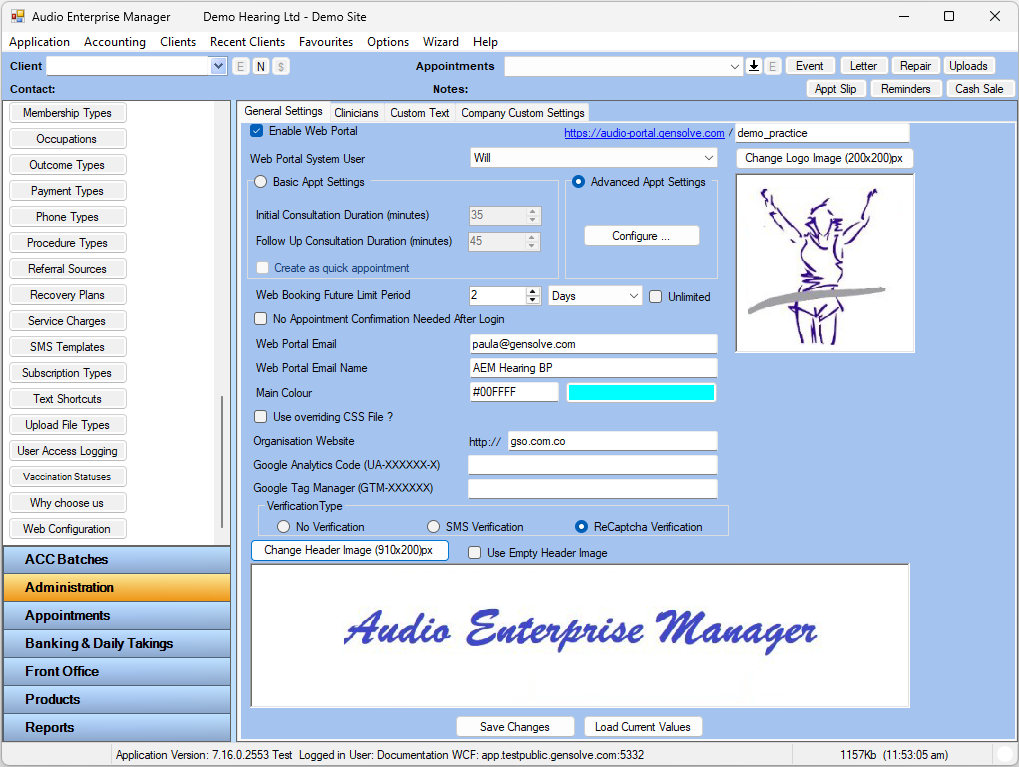
You can customise your own URL to access the Clinic Portal, by ticking the 'Enable Web Portal' box and entering in your clinic name after the first half of the URL address.

Once the configuration is complete, click on the URL (link) to access the Appointment Booking Web Portal.
This is the link to the web page that will be accessed by your clients to make bookings.
We advise registering a dummy client on the portal and booking a test appt to see if you are happy with your Web Configuration set up.
Once you are happy with the booking portal, this is the link/URL that you will give to your Website designer to incorporate as a 'Book Now' button which your clients would click on when on your website, to be directed to your booking portal.
Appointments booked via the Appointment Booking Web Portal are then managed in AEM: see Managing AEM Appointments Booked Online.