


Managing AEM Appointments Booked Online
Appointment booked online
If "Create as a quick appointment" is ticked in the General Settings tab under Web Configuration, appointments booked online will need to be converted to a Client Appointment.
See How to Create a Quick Appointment to learn more about how to convert a quick appointment.
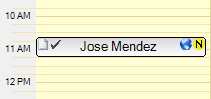
On the Appointment Book, the icon  will indicate
that the appointment was booked online.
will indicate
that the appointment was booked online.
Associating a Client with a Web Portal account
To make an online booking, a patient first needs to register themselves thus creating a Web Portal account. See: Login and Booking Processes within [WEB PORTAL]
When a patient makes an online booking, the system will attempt to match the patient with an existing client in AEM using the First Name, Last Name, Date of Birth and Gender.
If an existing client is matched, the system will associate the Web Portal account with the client.
If no match is found, the system will create a new client and associate the Appointment Booking Web Portal account with the newly created client.
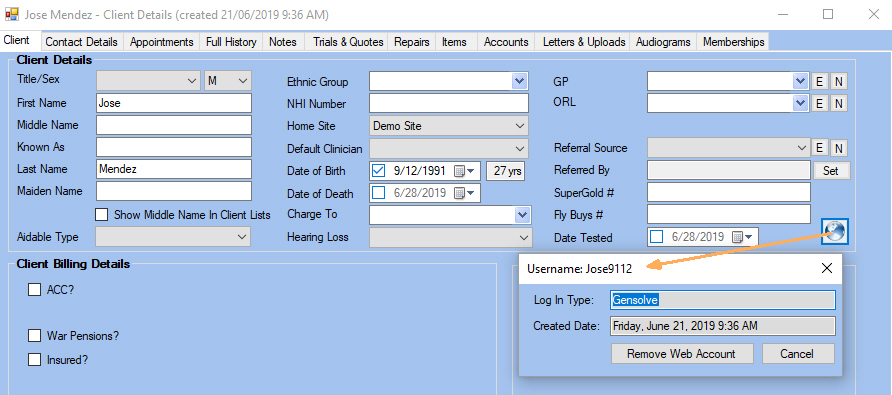 |
Open the Client Details form.
Click on the icon to open
the Client Portal Details window.
In this example, the Log In Type shows that the client logged in to the Web Portal using a Gensolve account. If you have the client in your database already but the client hasn't registered online with exactly the same details as already in the database, you can click on Remove Web Account to disassociate the Web Portal account from this client. Or You can merge the client that was created via the portal with the client that you already have in your Gensolve. See: How to Merge a Duplicate Client |
 |
Open the Client Details form.
Click on the icon to open
the Client Portal Details window.
Click Send Registration Email to send an email to the client which will contain a link back to the Registration page on the online booking portal. In the email, you would give the client the details of their current Client details as saved in your database which they need to match when registering themselves online. (Once the account is created it will be associated with this client using the matching process described above). |
Note: If the client is not a new client, as Gensolve cannot control how clients register themselves or ensure that they register themselves straight away in the same way that they are currently saved in your Gensolve, this step is a necessity to prevent doubling up of clients.