

How to Set up a Student User
Prerequisites
1. Contact our Support staff to turn on the ‘Student’ feature.
2. Create a new System User for the Student. You may wish to create a Role for Students specifically
NOTE: For
more information see: How to Create a System User: How
to Create a System User
How to Create a User
Access Role: How
to Create a User Access Role
Solution
1. Set up a Student
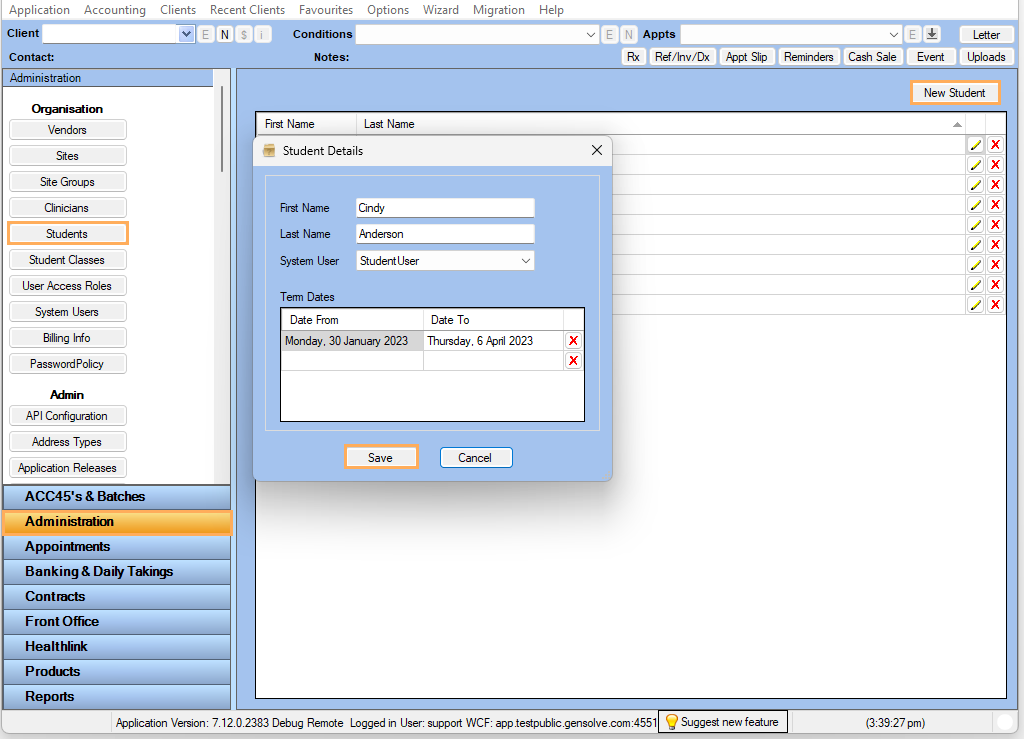
Click on Administration >> Students >> New Student >> Fill in the details: Name, link to the new System User you created, add Term Dates >> Save
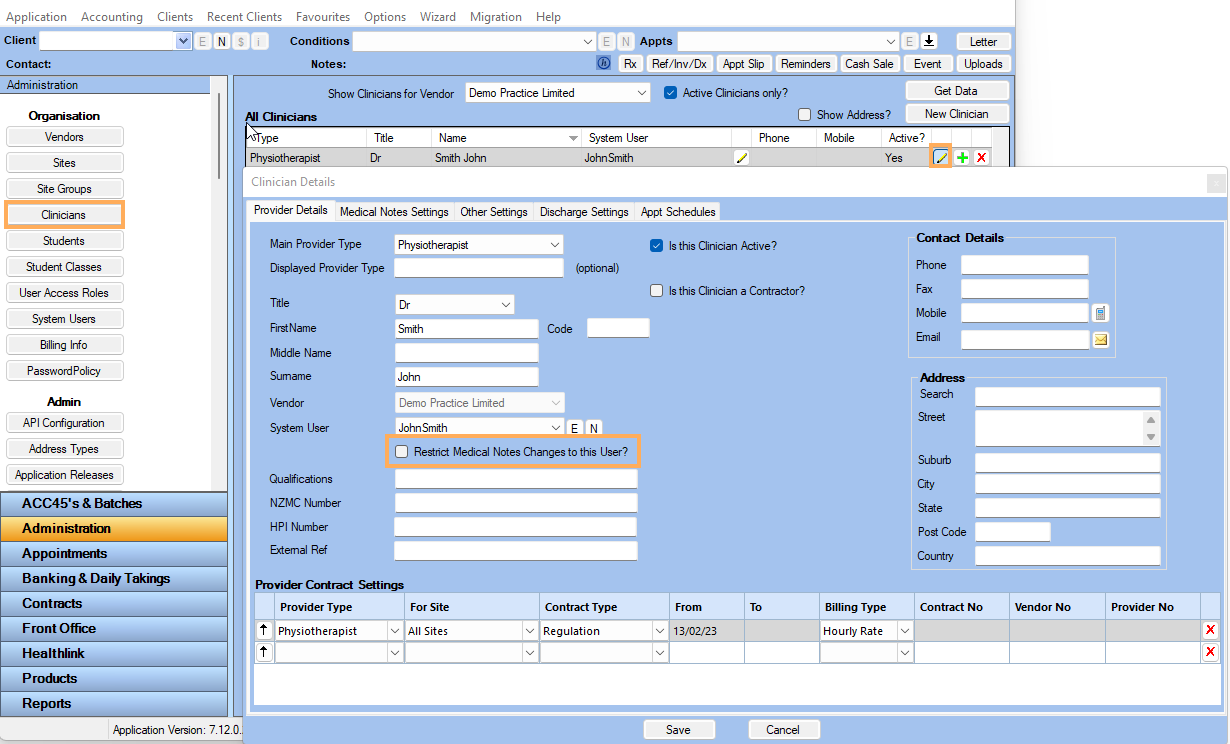
2. Add the Student to the Clinician who is supervising this Student
2.1 Administration >> Clinician >>edit >>untick the ‘Restrict Medical Notes Changes to this User?’ box to allow Student to write medical notes for this clinician's appts
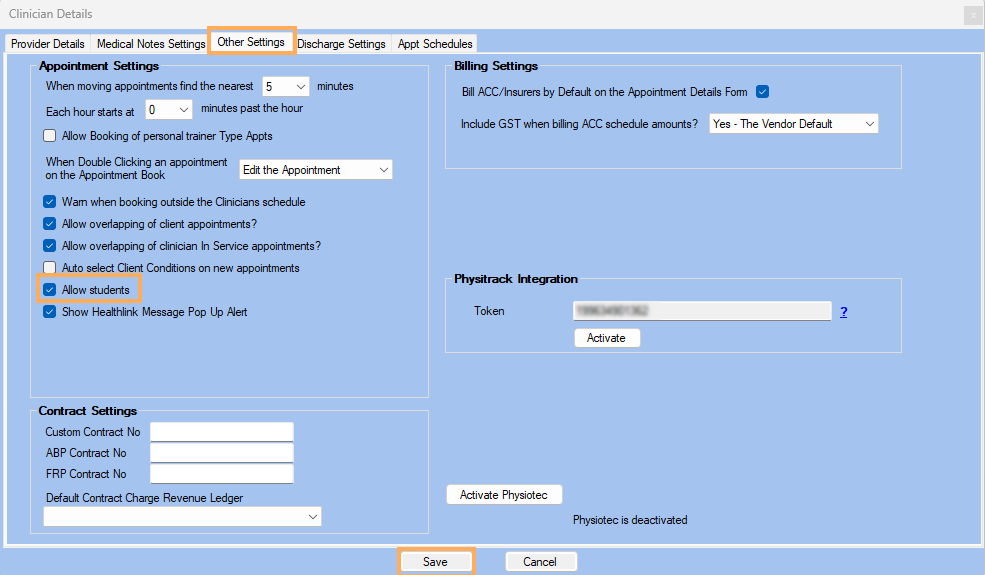
2.2 Go to Other Settings Tab – Tick ‘Allow Students’ >> Save
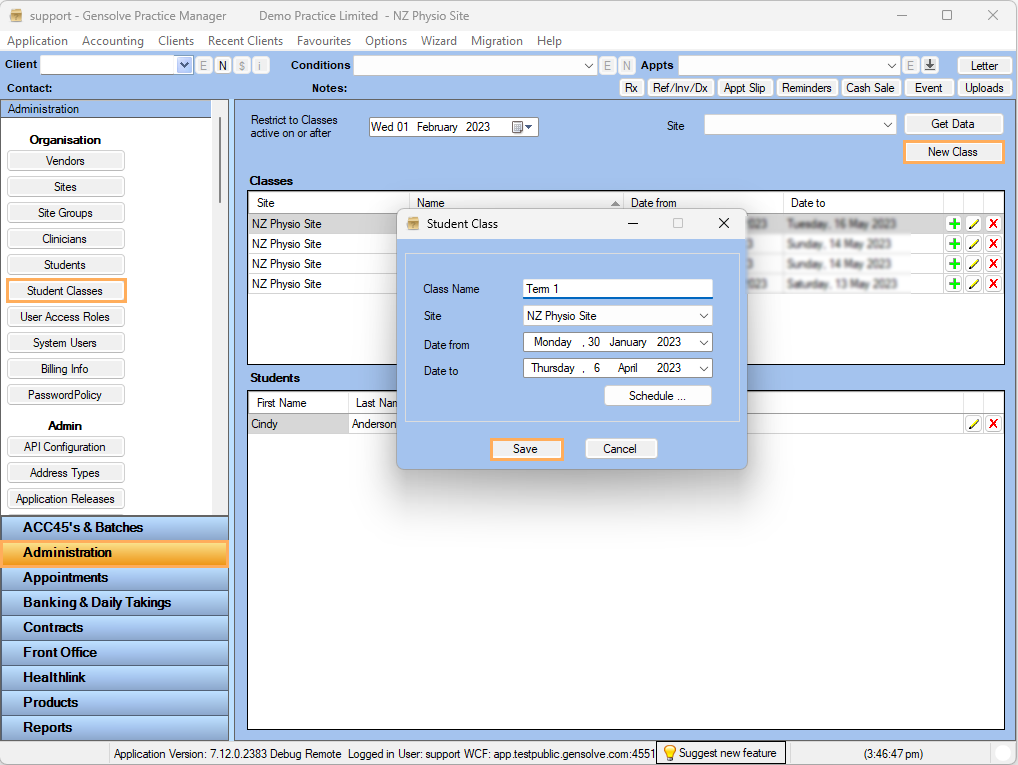
3. Adding a Student to 'Student Classes'
3.1 Administration >> Organisation>>Student Classes >> New Class >> Fill in the Details >> Save >> Student Classes >> New Class >> Fill in the Details >> Save
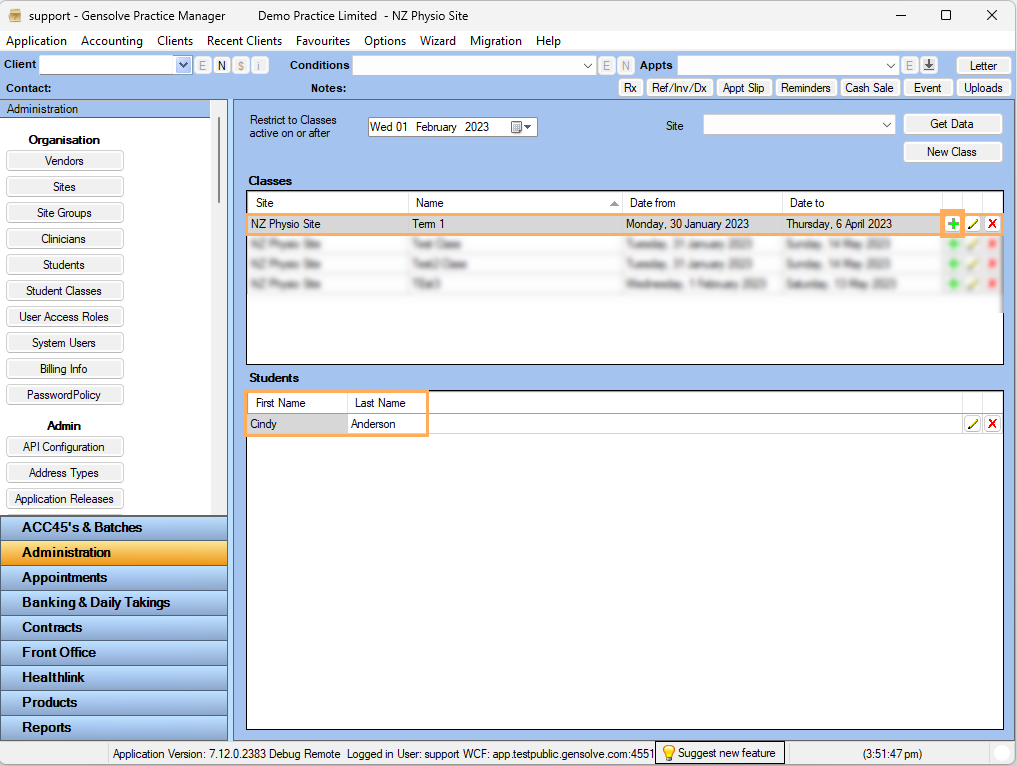
3.2 Select  Symbol >> Add Student >> OK
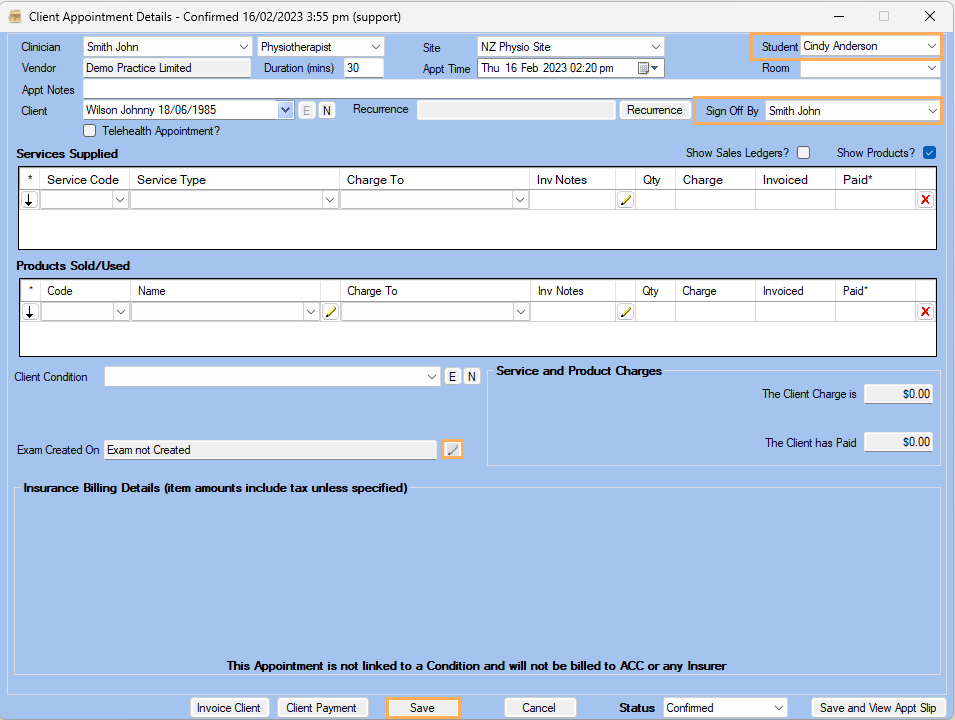
4. Add the Student to the Student box at the top right-hand corner of an Appointment and add the Clinician that is supervising this Student to the 'Sign Off By' box
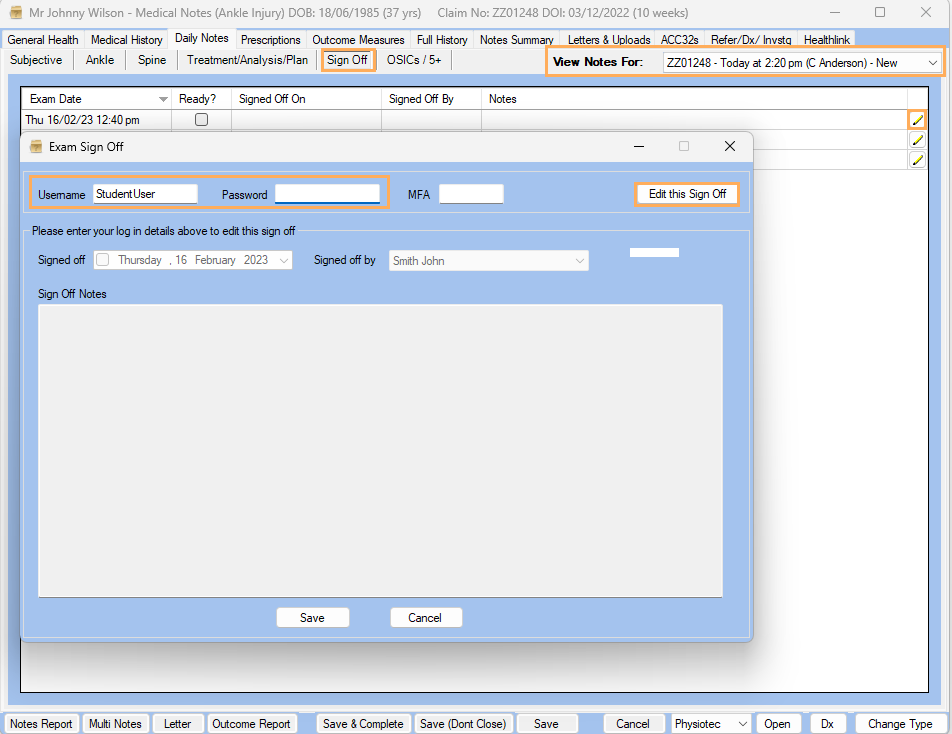
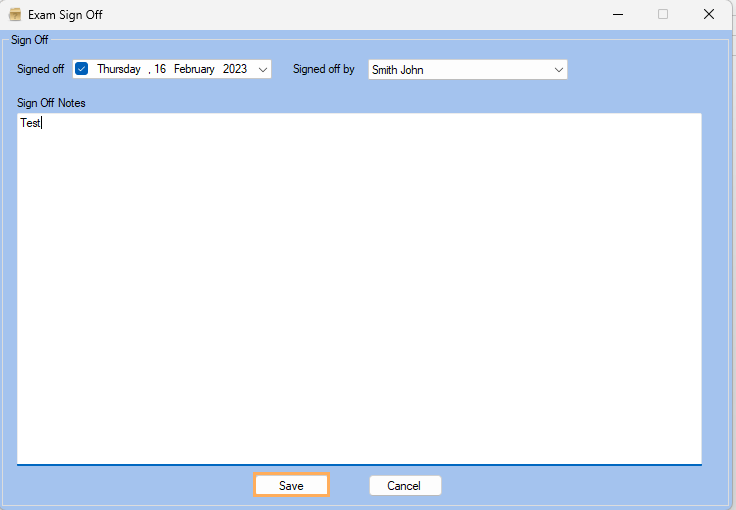
5. Students can create medical notes and once completed the Clinician can Sign Off via the Sign Off tab>>edit icon>>Enter User Name and Password>>Edit this Sign Off to add Sign Off Notes