

New Weekly Class
Follow the Steps below to Create a New Weekly Class
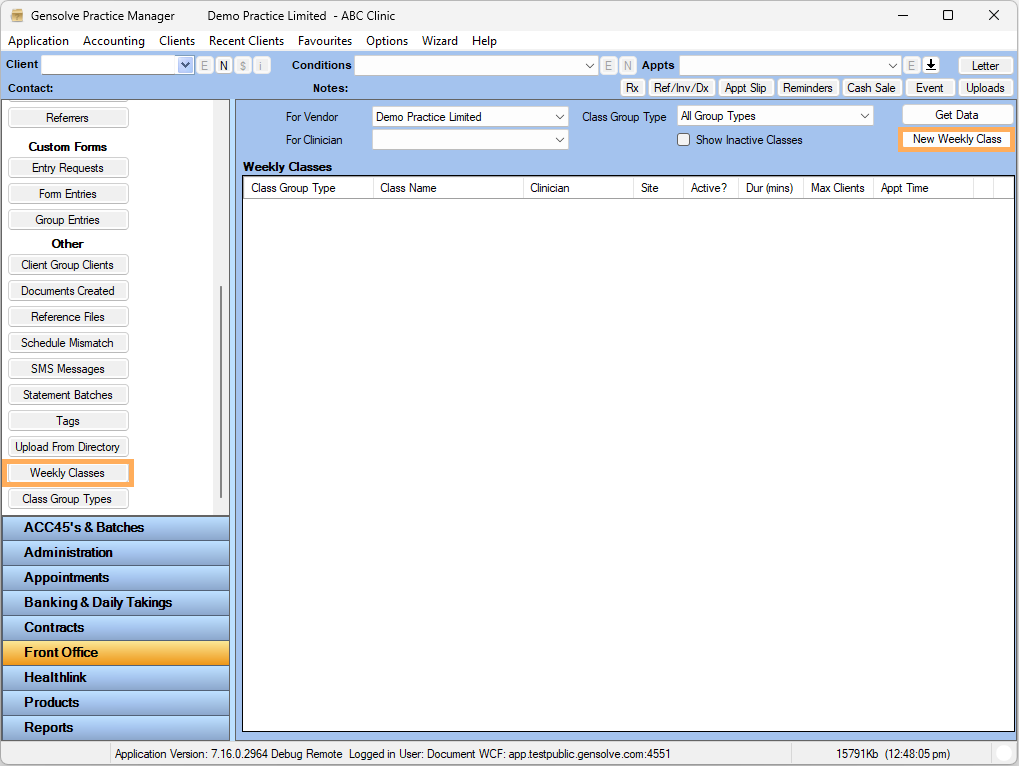
1. Go to Front Office >> Click Weekly Classes >> Click on New Weekly Class
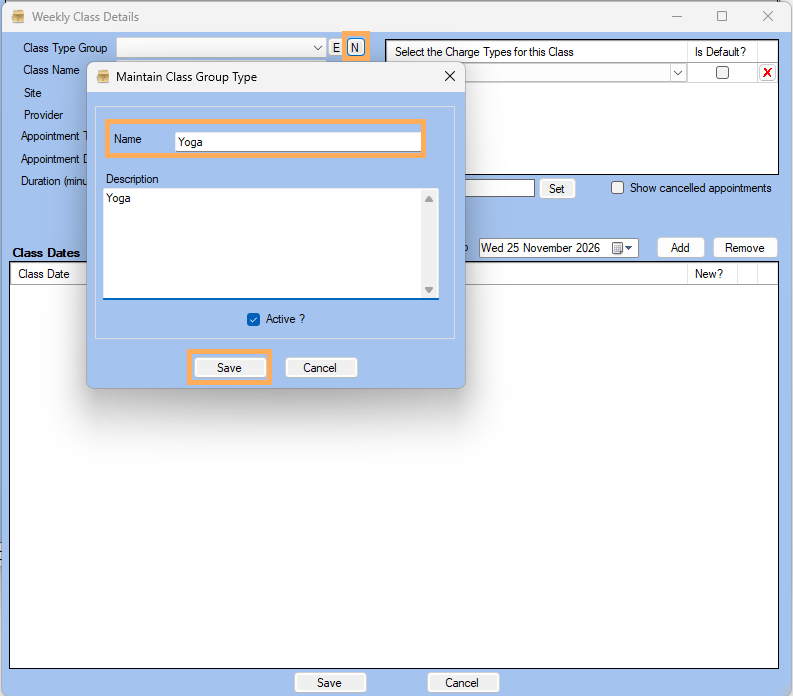
2. Click on  next to Class
Type Group to add the class to a Particular group
next to Class
Type Group to add the class to a Particular group
3. Enter the Class Group Name >> Save
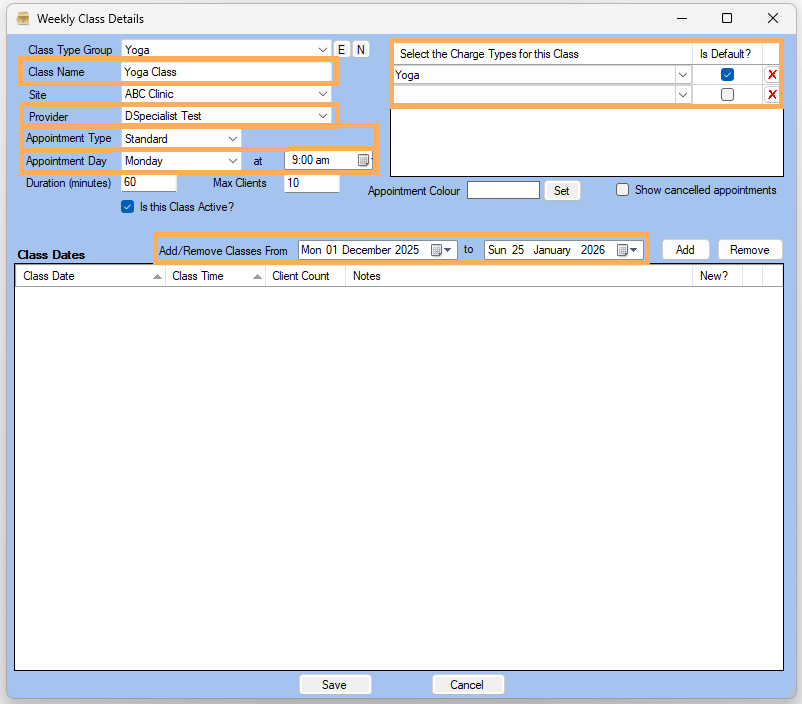
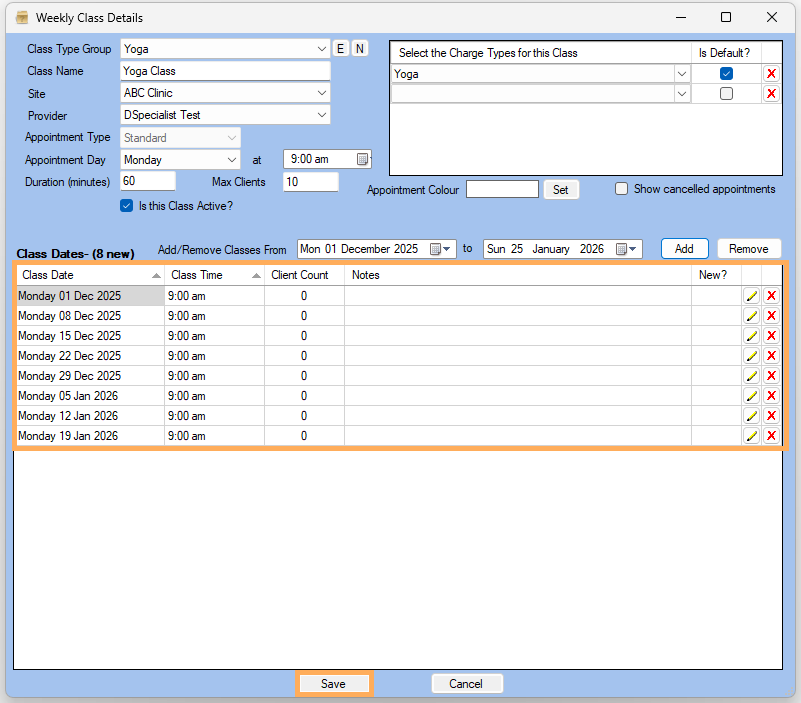
4. Enter Class Name >> Select Provider >> Select Appointment Type >> Select Appointment Day and Time >> Select the Charge Type for this Class
NOTE: Click on Set to override the default colour of the Weekly Class
5. Select the date you want to Add/Remove Classes From and To
6. Class Appointments will be displayed >> Click on Save
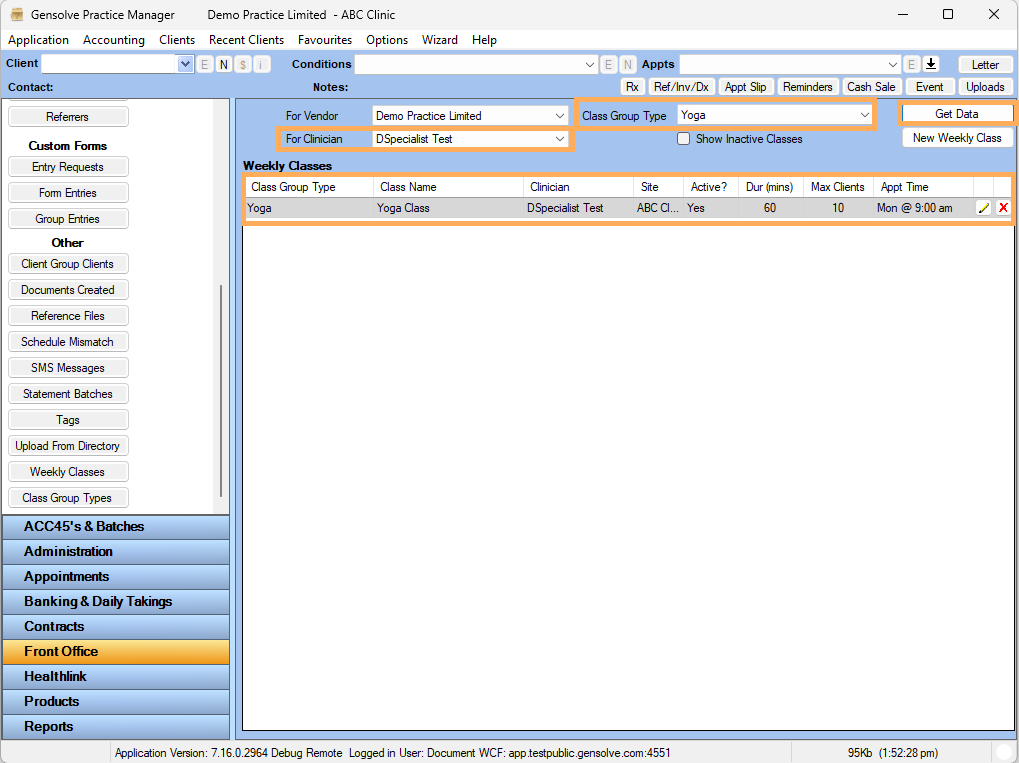
7. Select the Clinician or you can sort by Class Group Type >> Click on Get Data >> Created Weekly Class will display
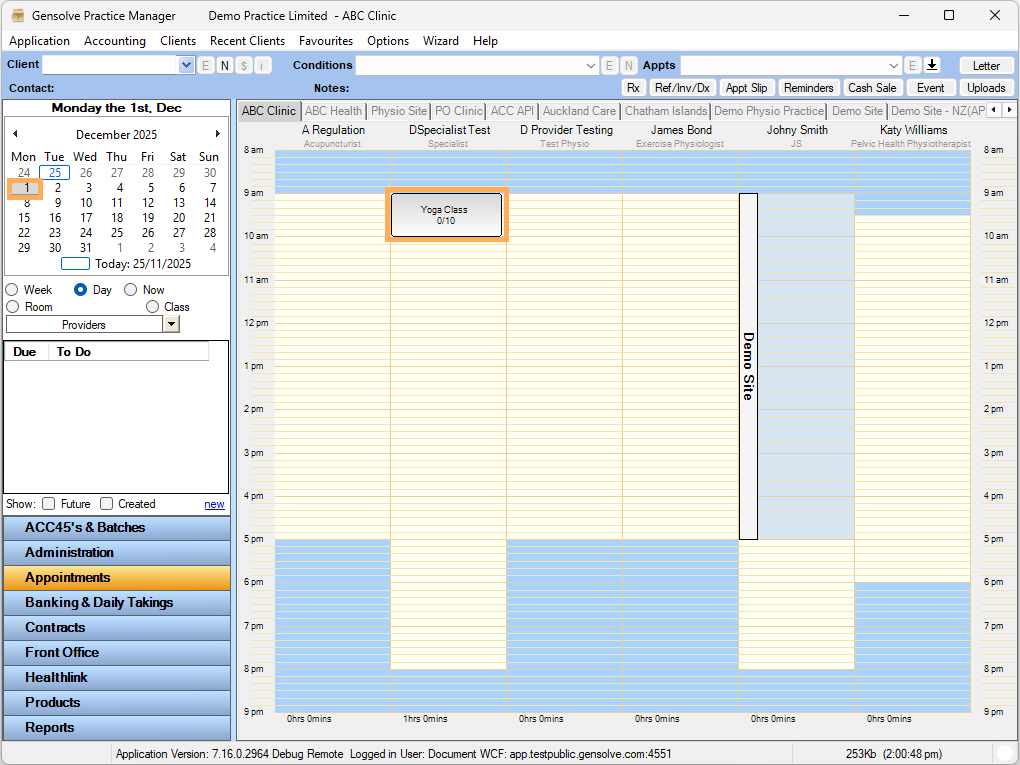
8. Go to Appointments >> According to the Date and Time selected Class will display under that Clinician