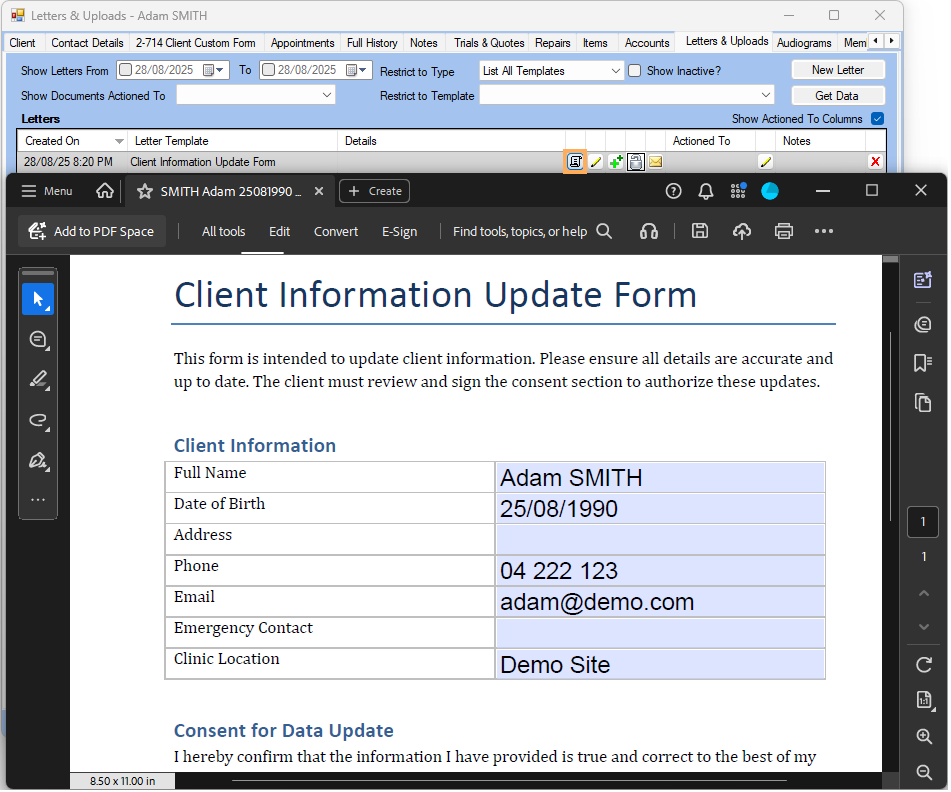


How to Edit a Fillable PDF File with Merge Fields
IMPORTANT: These are not conventional PDFs. They are fillable PDFs, which means they already contain form fields (such as text boxes, check boxes, drop-downs, etc.) created with a licensed PDF editor (for example, Adobe Acrobat or Zoho). For additional help with editing PDFs, we recommend referring to the official documentation of your PDF editor. This guide is designed to help you work with fillable PDFs in GPM.
Follow the steps below to convert a standard PDF into a fillable PDF and add form fields. Once you have a fillable PDF, you can insert merge fields into it. This way, every time you create a letter template using this type of PDF, the merge fields will automatically be filled with the corresponding data.
Converting a Regular PDF into a Fillable PDF
Insert Merge Fields into a Fillable PDF
Converting a Regular PDF into a Fillable PDF
To use merge fields in a PDF, you first need to convert a standard (regular) PDF into a fillable PDF.
Note: This process requires a licensed PDF editor (for example, Adobe Acrobat or Zoho PDF Editor).
1. Open your PDF editor and load the file you want to convert into a fillable PDF.
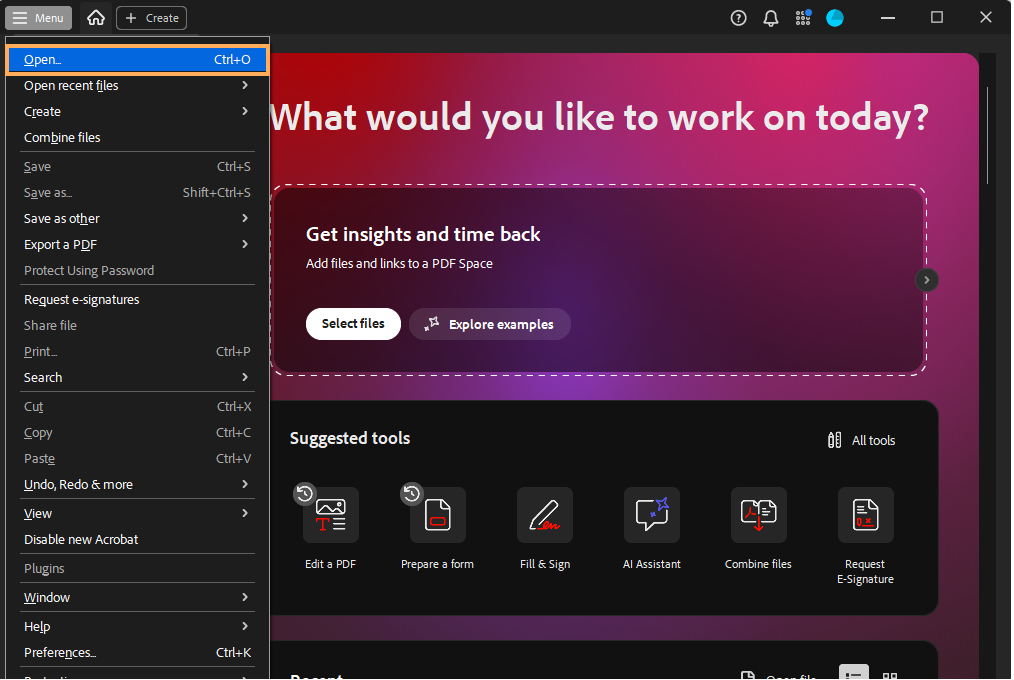
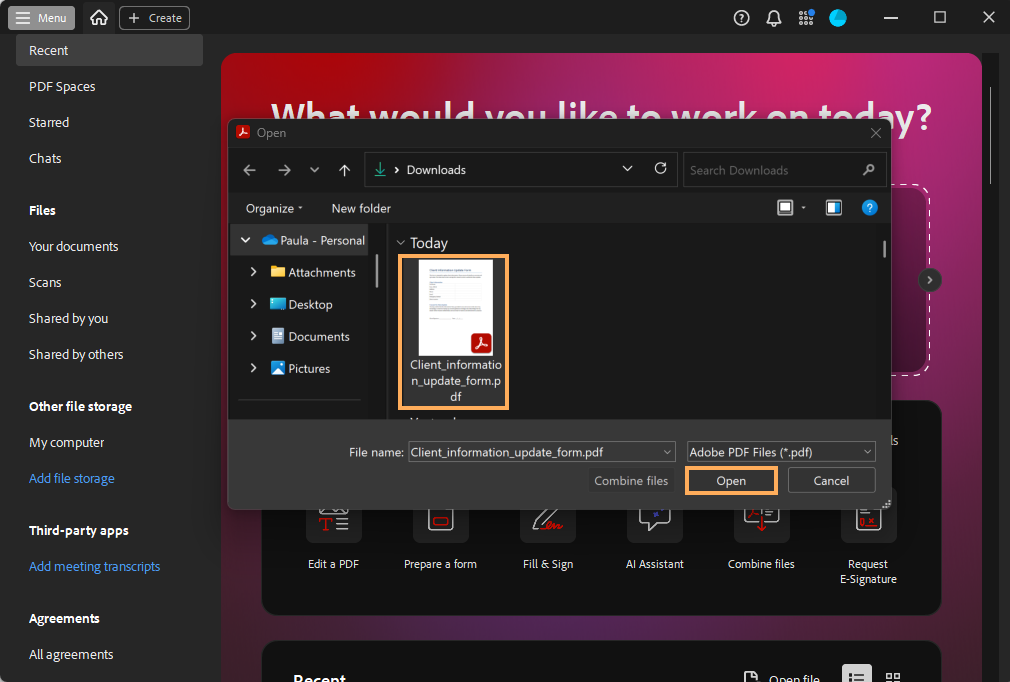
2. Select the file >> Click on Open.
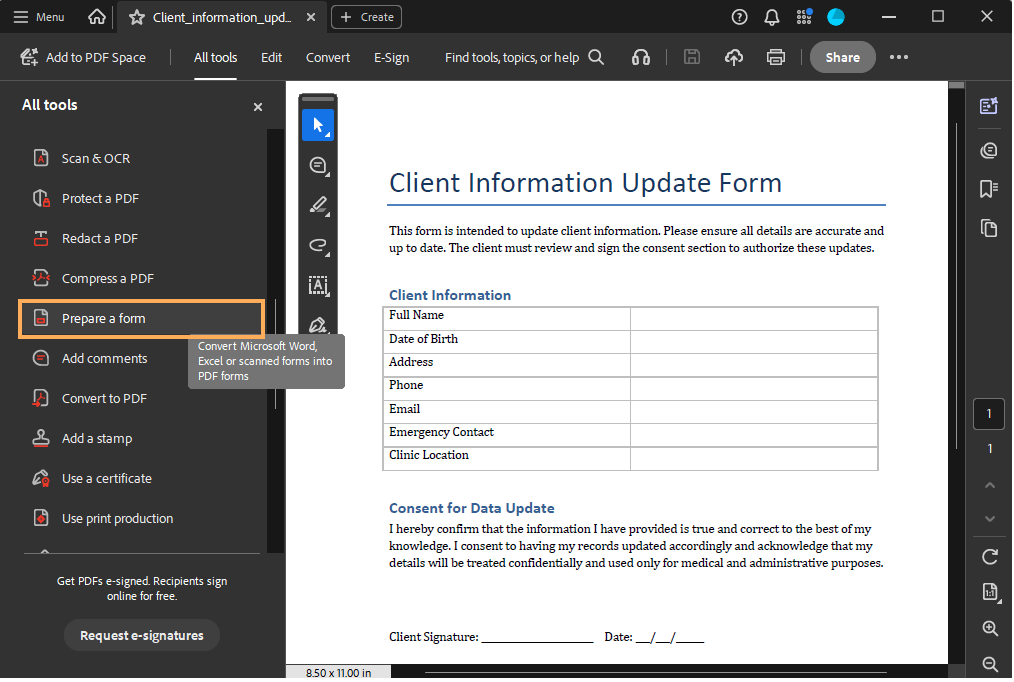
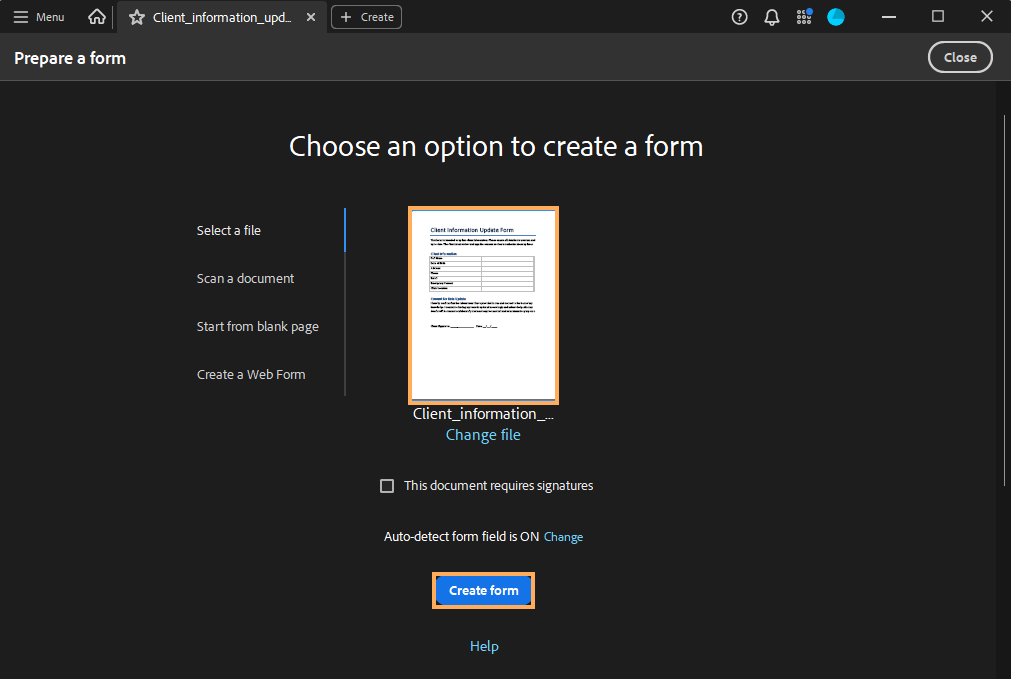
3. Click on Prepare a form.
4. Click on Create form.
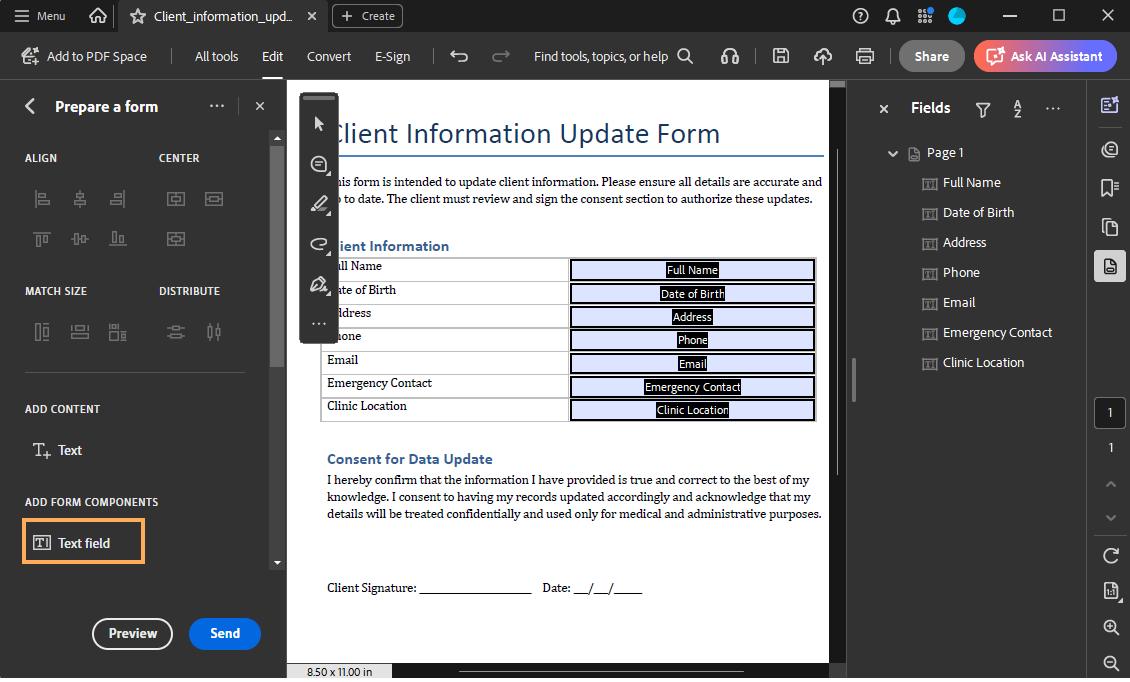
5. Choose the Text field option from the toolbar.
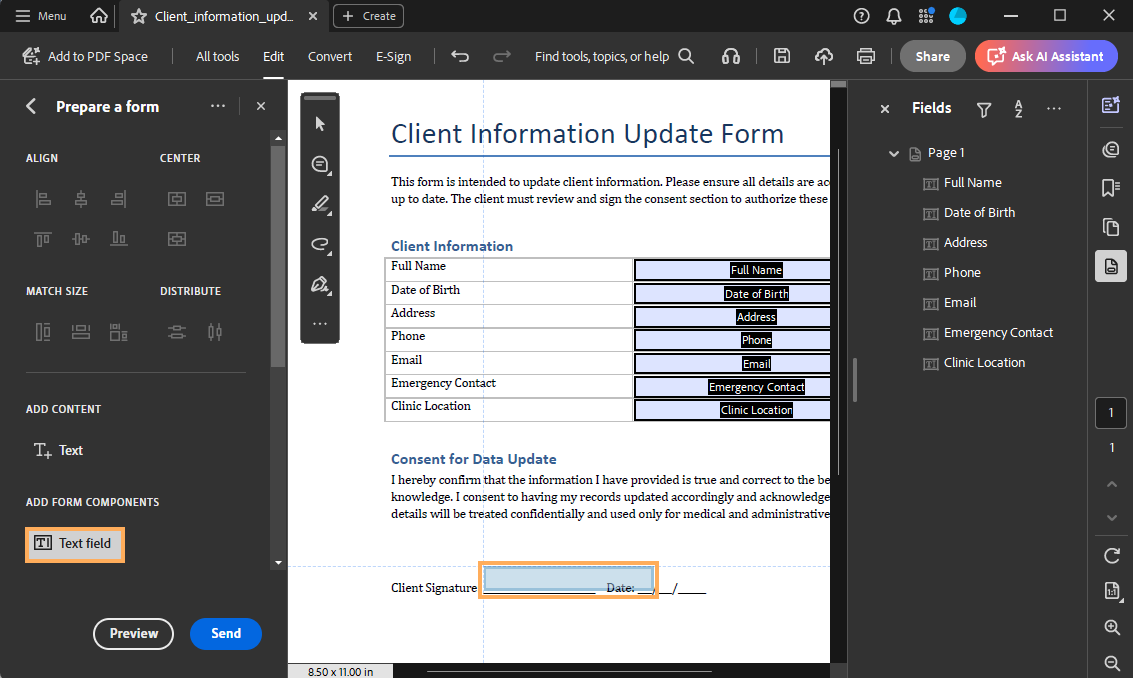
6. Click on the area of the PDF where you want the field to appear
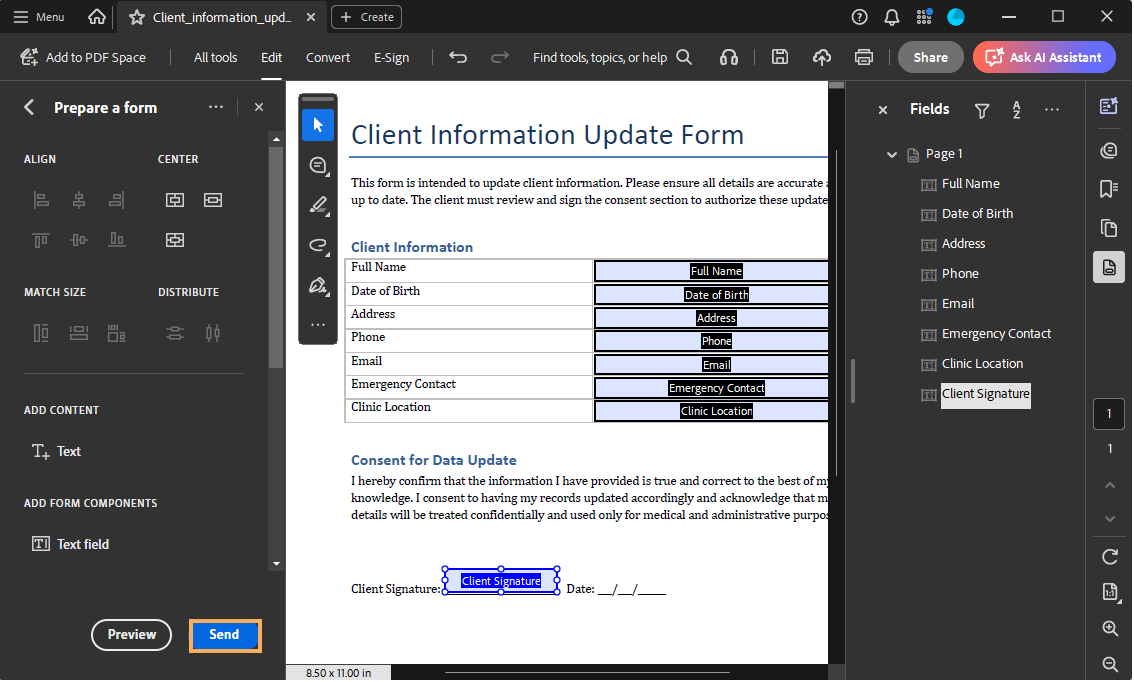
7. Go to the toolbar on the left, set a name for the field (e.g.,
Client_Signature), then use the pointer  to move the field to the desired position and adjust its size..
Note:
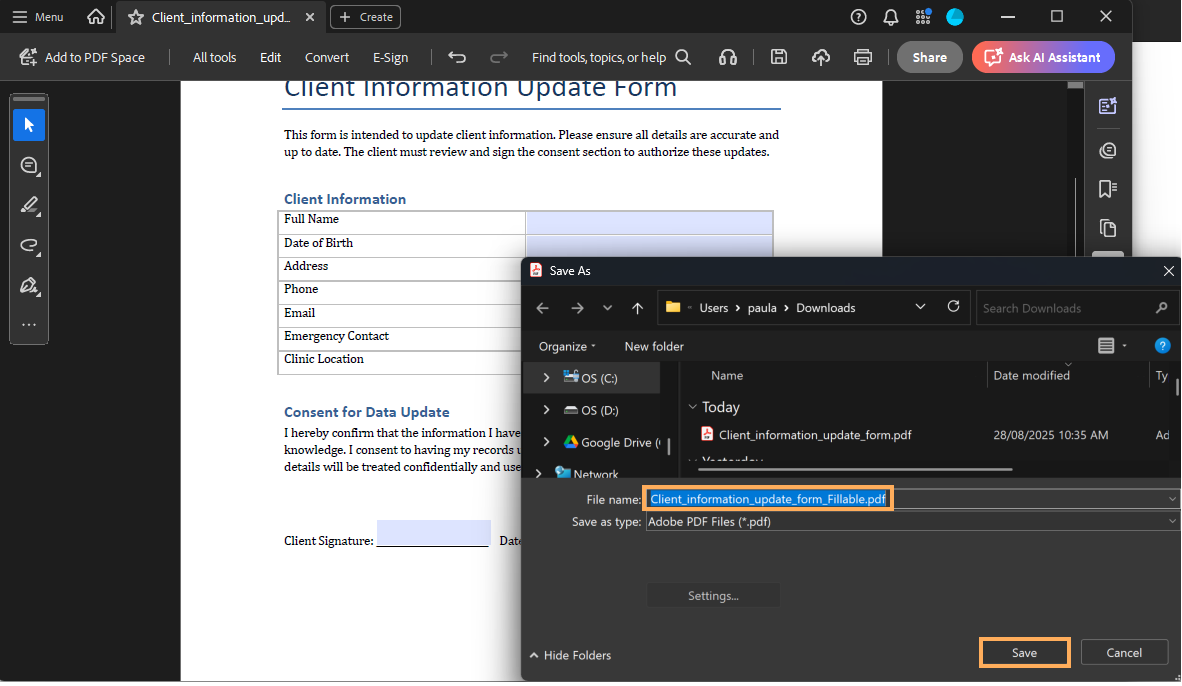
8. Once all the fields are added, press Ctrl + S to save the file.
9. Enter a name and Click on Save.
Insert Merge Fields into a Fillable PDF
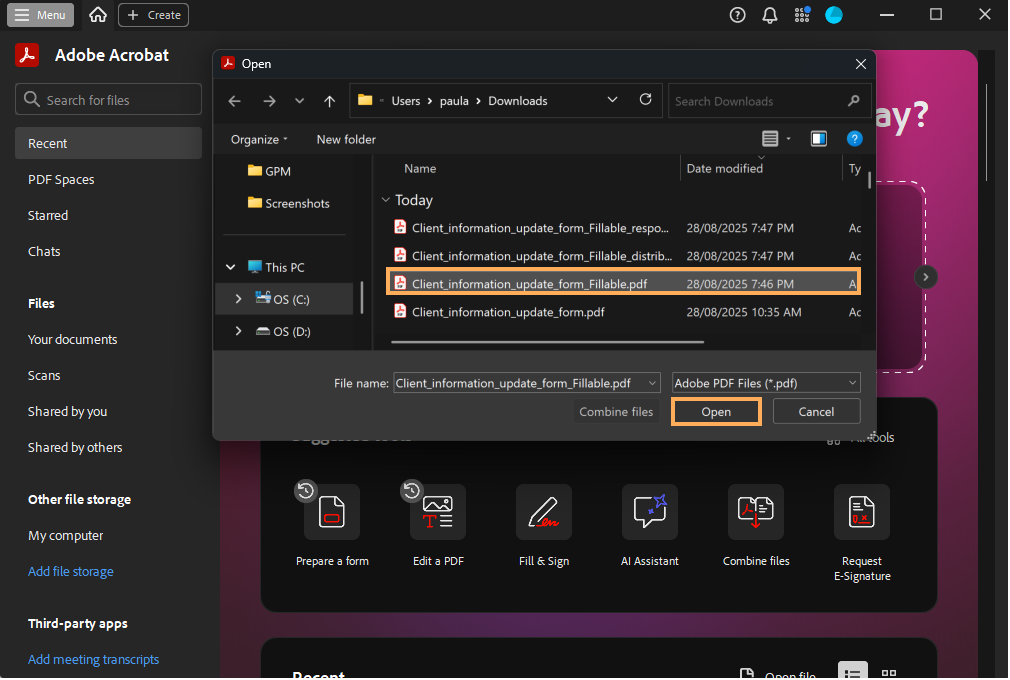
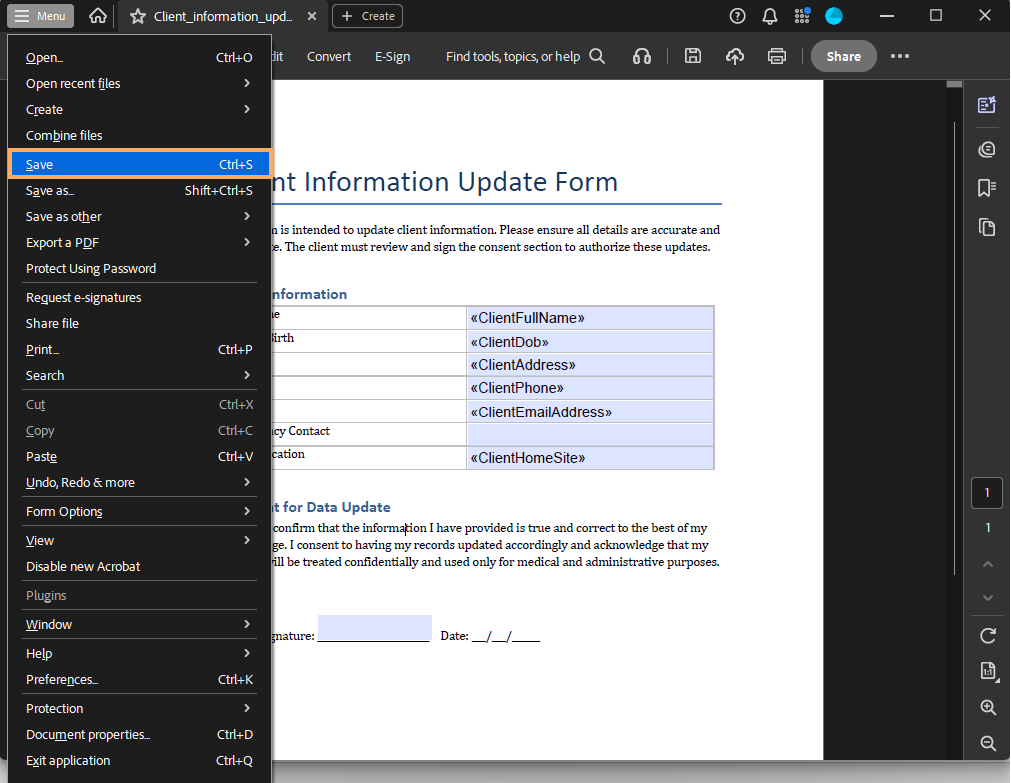
1. Open you PDF Editor >> Click on Menu >> Click on Open >> Select the File and Click on Open
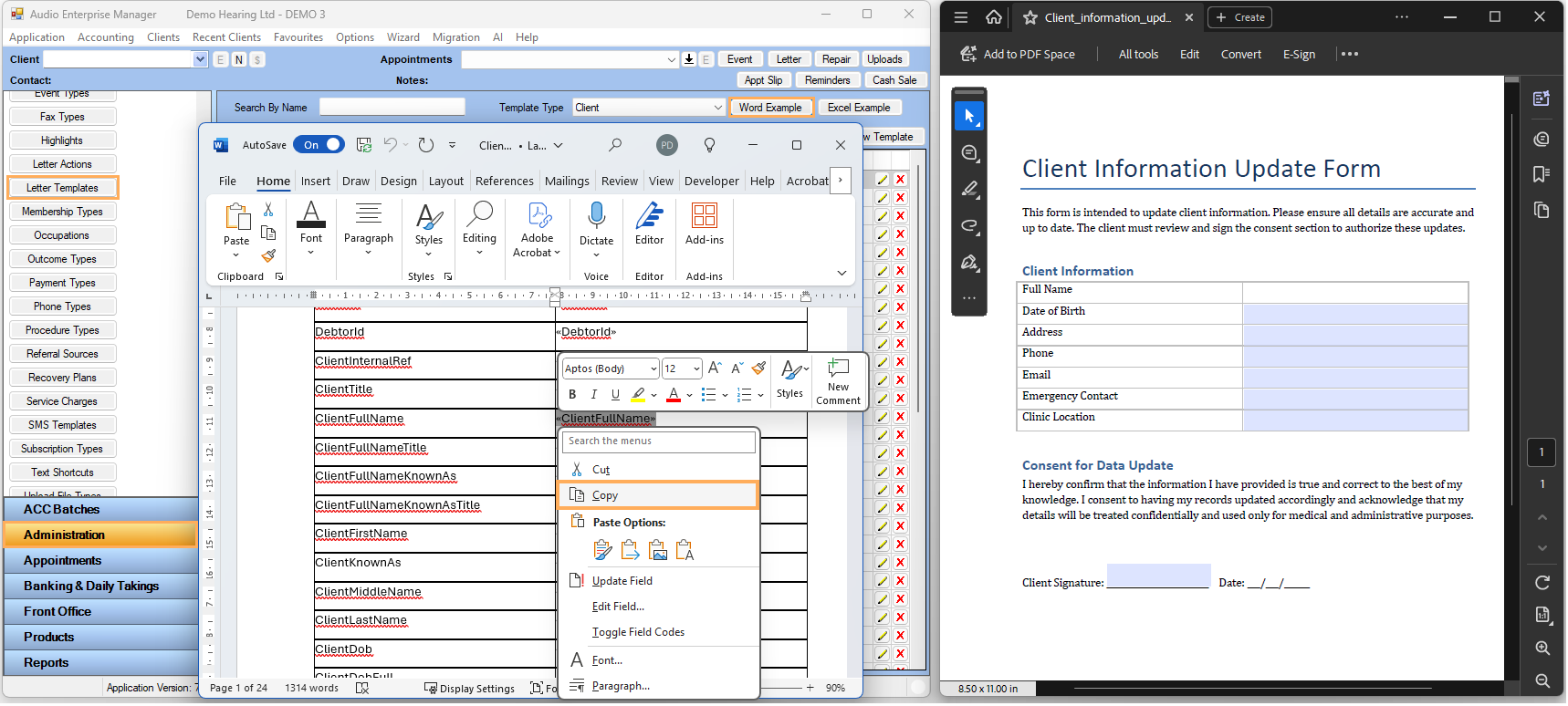
2. Open GPM >> Go to Administration >> Click on Letter Templates >> Select the Template Type >> Click on Word Example to view all available merge fields >> Copy the Merge field
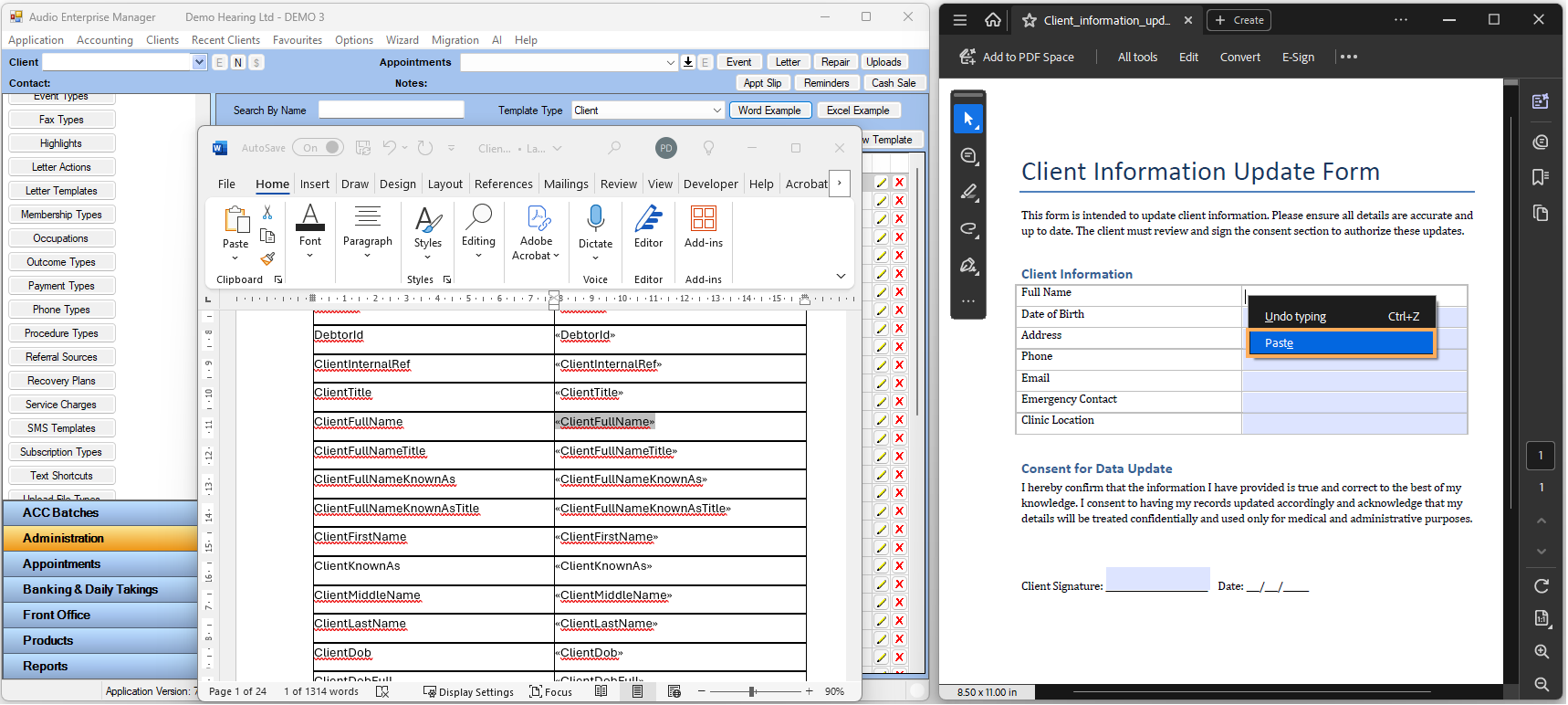
3. In the PDF, paste the copied field into the box.
4. Once all fields have been added >> Click on Save
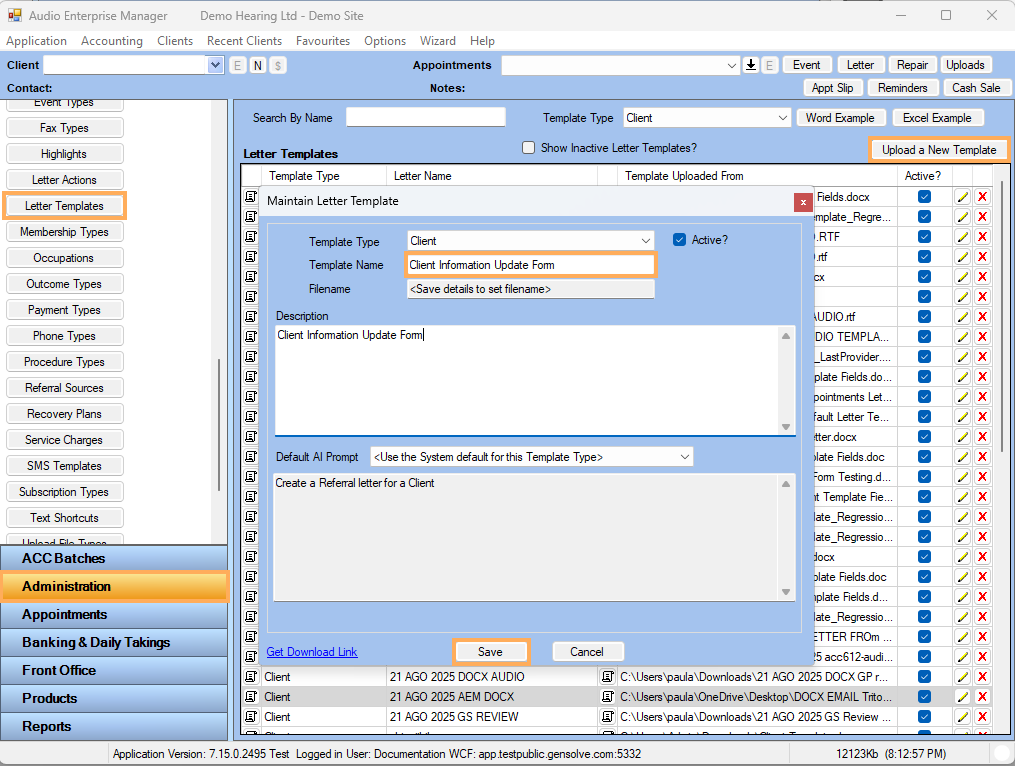
Create a Letter Template by uploading a Fillable PDF
1. Go to Administration >> Click on Letter Templates >> Click on Upload a New Template >> Fill the form >> Click on Save.
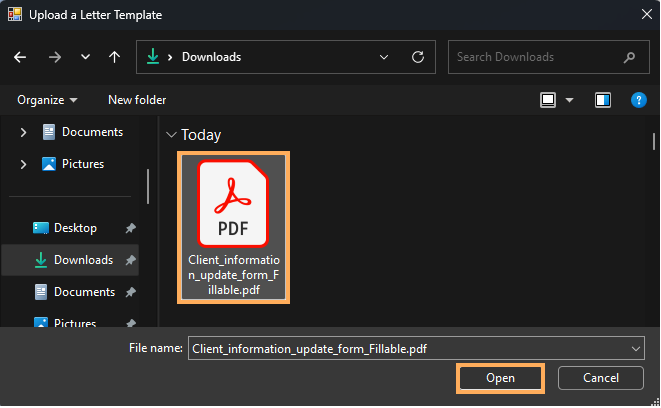
3. Select the PDF with Merge fields and click on Open.
Generate a Client Letter from the Fillable PDF Template
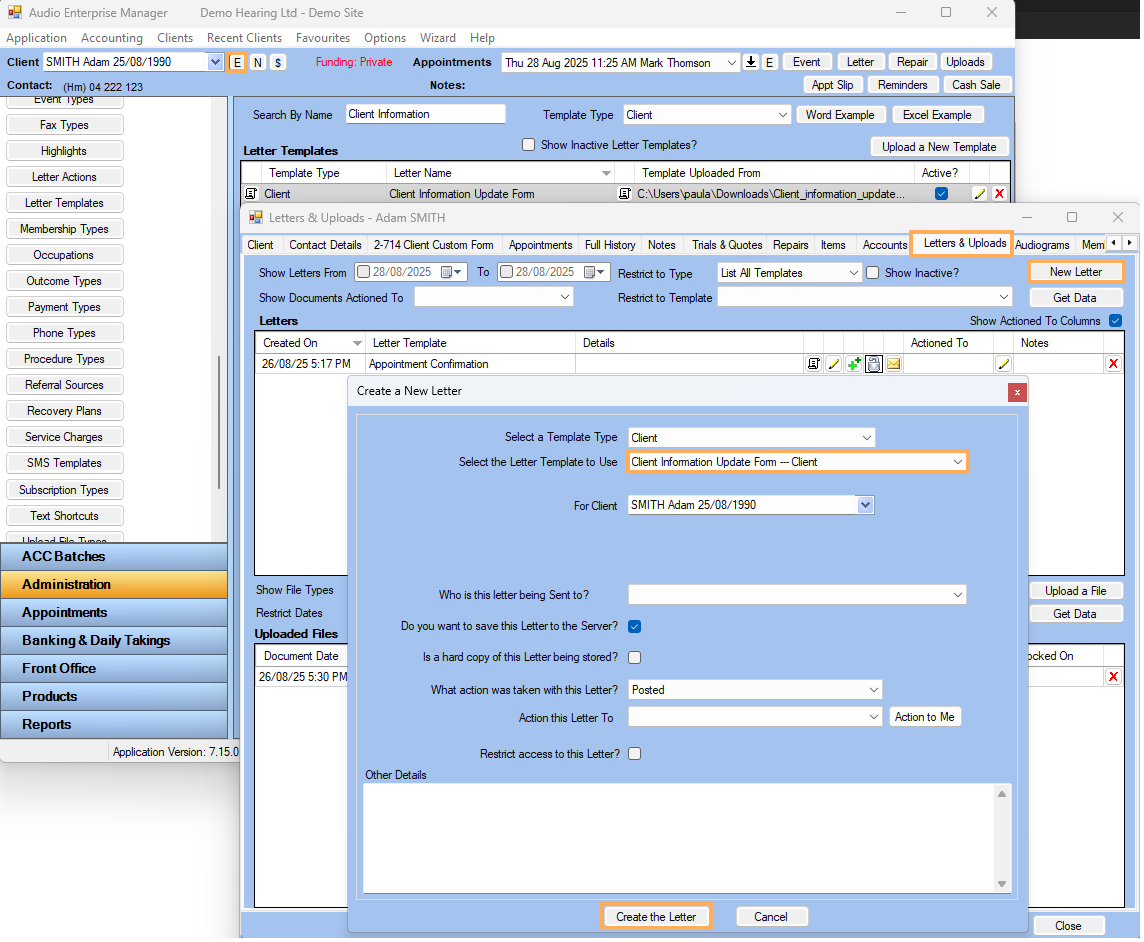
1. Click on  to edit a Client >>
Go to Letter
and Uploads tab >> Click on New
Letter >> Select a Letter
Template >> Click on
Create the Letter.
to edit a Client >>
Go to Letter
and Uploads tab >> Click on New
Letter >> Select a Letter
Template >> Click on
Create the Letter.
2. The PDF will be generated with merge fields populated with
client details. You can also view the PDF by clicking on  icon.
icon.