


Right to Portability
According to GDPR:
Taken from the Information Commissioner’s Office website:
-
The Right to data portability allows individuals to obtain and reuse their personal data for their own purposes across different services.
-
It allows them to move, copy or transfer personal data easily from one IT environment to another in a safe and secure way, without affecting its usability.
-
Doing this enables individuals to take advantage of applications and services that can use this data to find them a better deal or help them understand their spending habits.
-
The right only applies to information an individual has provided to a controller.
See this ico article to keep up to date with latest developments.
On GPM's end:
Process
Gensolve has defined GPM to make clinics able to extract and send clients' information as PDF, XML, .CVS, .DOC or .TXT upon request. In this article, you will learn how to do so.
Steps
-
Create a “GDPR Data Portability” event to record the client request and set a due date for action.
-
Create local client folder on your PC to export data from GPM into.
-
Export Client Details, Conditions and Condition Notes.
Option 1: Screen shot to doc (this is the only way to get absolutely everything).
Option 2: Use Template Merge.
-
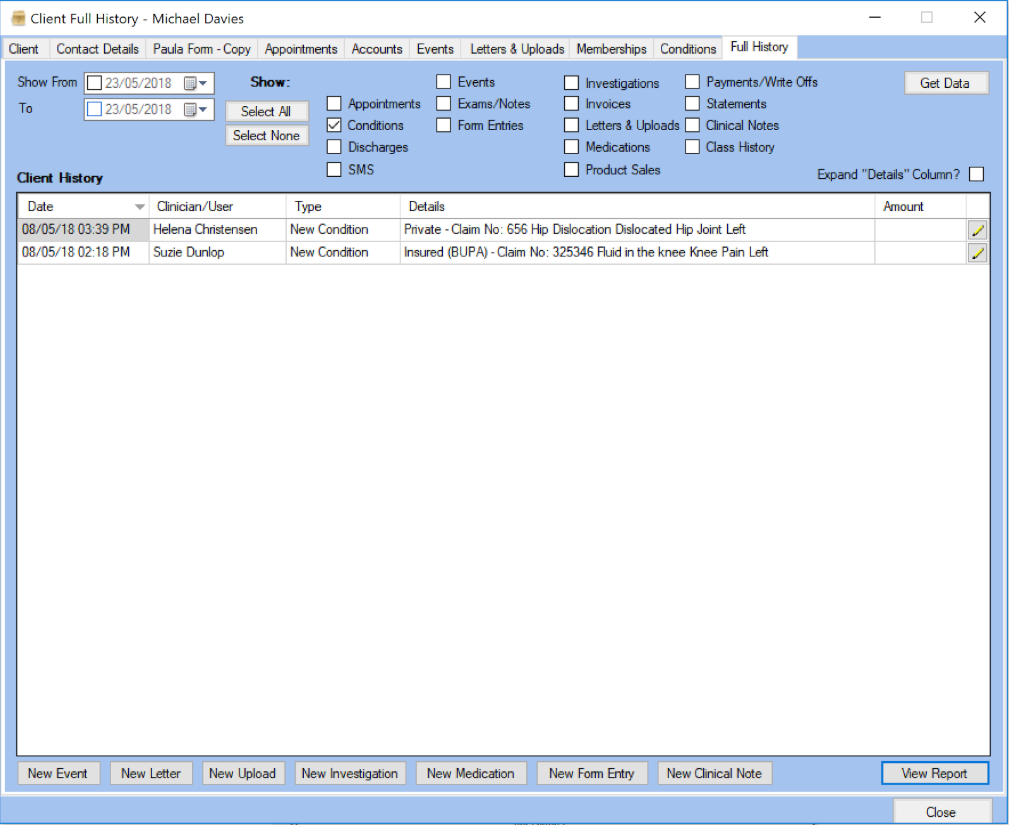
Export related data (conditions, appointments, notes, etc.) from the Full History tab of the a client’s file using either Report feature or F7.
-
Appointments
-
Conditions
-
Discharges
-
SMS
-
Events
-
Exam/Notes
-
Form (Custom) Entries
-
Investigations
-
Invoices
-
Letters & Uploads
-
Medications
-
Product Sales
-
Payments/Write Offs
-
Statements
-
Clinical Notes
-
Class History
-
Zip and password to protect the folder.
-
Upload zip folder to Client Uploads tab.
-
Complete the Todo action / event.
Example
To provide the client with required information, dependent on how much details they desire you have the option to:
-
Open the related records then take Screen Shots, pasting the images into document.
-
View Report.
-
Hit F7 function key on a windows machine (with standard settings) to extract the report directly into an Excel file.
You may also want to take a look at: Exporting client data to Excel using a template, Exporting Custom Forms, Creating and exporting Daily Notes, Exporting Contracts, Exporting Contracts (Provider Hours).
