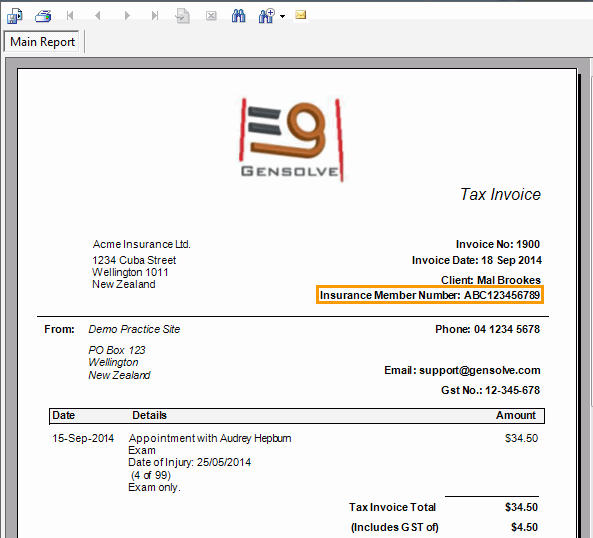


Adding a Custom Field to a Debtor Invoice
You may want to include customised data about a client on an Debtor invoice.
For example, you may want to include the client's insurance member number when invoicing the client's insurer.
-
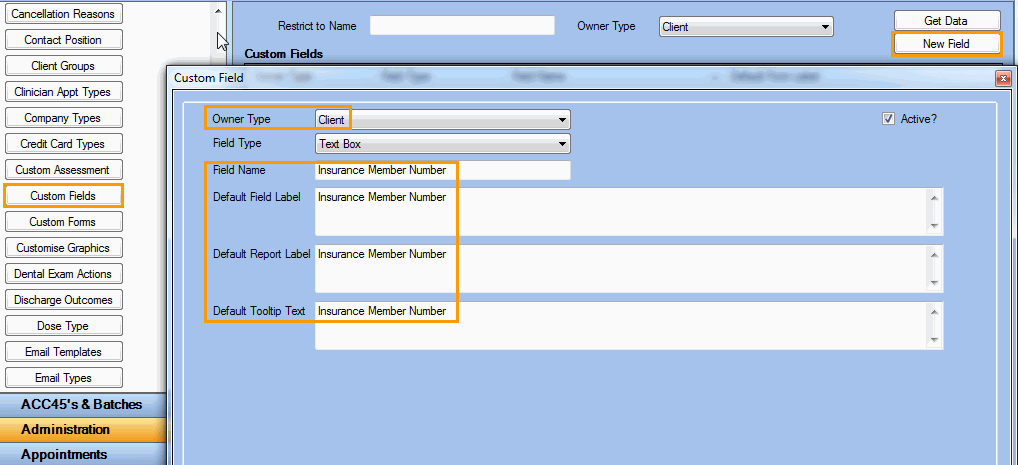
Go to Administration >> Custom Fields and click New Field.
-
Select Owner Type = Client and enter the Field Name, the Default Field Label, Default Report Label and Default Tooltip Text
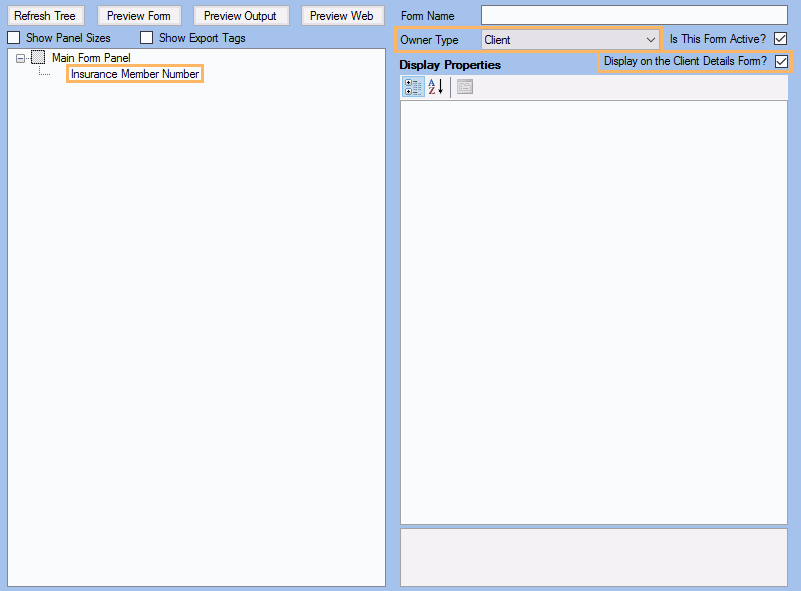
 Create a Custom Form
- Select Owner Type = Client
- Add the custom field to the form
- Check the Display on the Client Details Form? setting
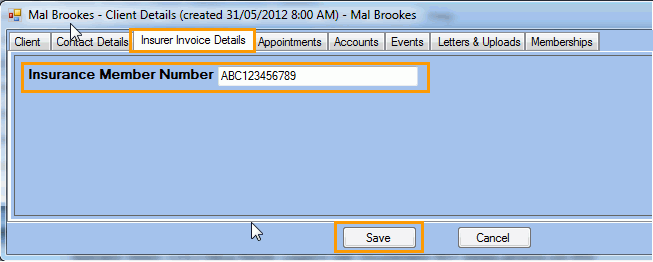
Record a value for the client's custom field
- Select a client and open the Client Details form
- Click on the custom form tab
- Enter a value for the field and click Save.
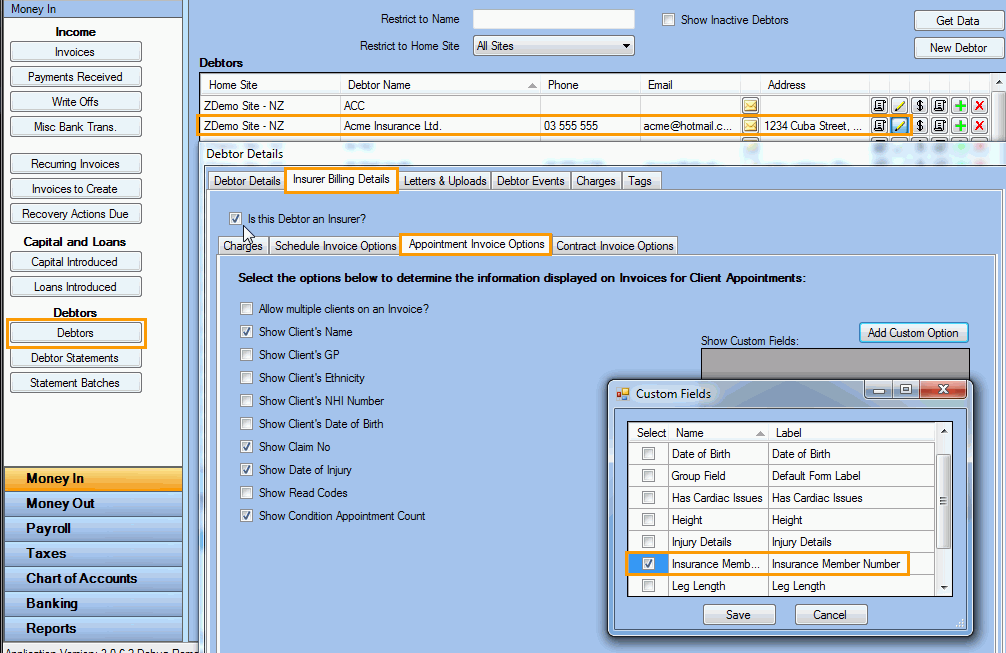
Select the custom field to be shown on the Debtor's invoice
- Go to Accounting Form >> Debtors
- Select a debtor and open the Debtor Details window
- Click on the Invoice Billing Details tab and then click on the Appointment Invoice Options sub-tab
- Click on the Add Custom Option button to select the custom fields to be shown on the invoice
- Click Save.
Create an invoice for the debtor
Prerequisite: you will need to
have created an appointment for the selected client and charged to the
select debtor.
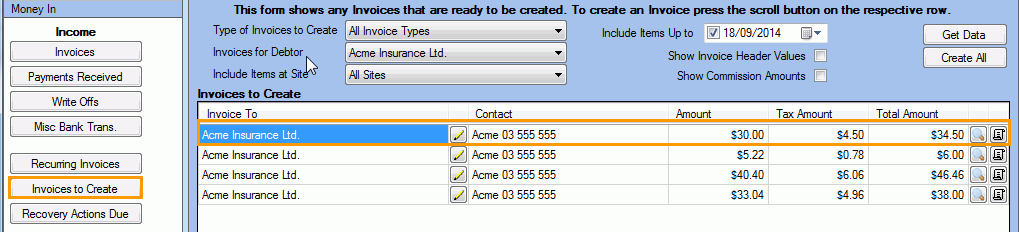
- Go to Accounting Form >> Invoices to Create
- Select the invoice to be created and
generate the invoice
- The custom field is showing on the
generated invoice.