

Managing Custom Fields
Gensolve Practice Manager enables you to create your own customized fields.
You can create Custom Fields once and use them in many custom forms.
For example, custom fields may be useful if you need to record information about a client that is specific to your practice and display that information on a debtor's invoice.
 Create
a new custom field: Watch this tutorial to learn how to create a new
Custom Field
Create
a new custom field: Watch this tutorial to learn how to create a new
Custom Field
Use
a Custom Field in a Custom Form: Watch this tutorial to learn how
add a Custom Field in a Custom Form.
To create and edit Custom Fields go to Administration >> Custom Fields
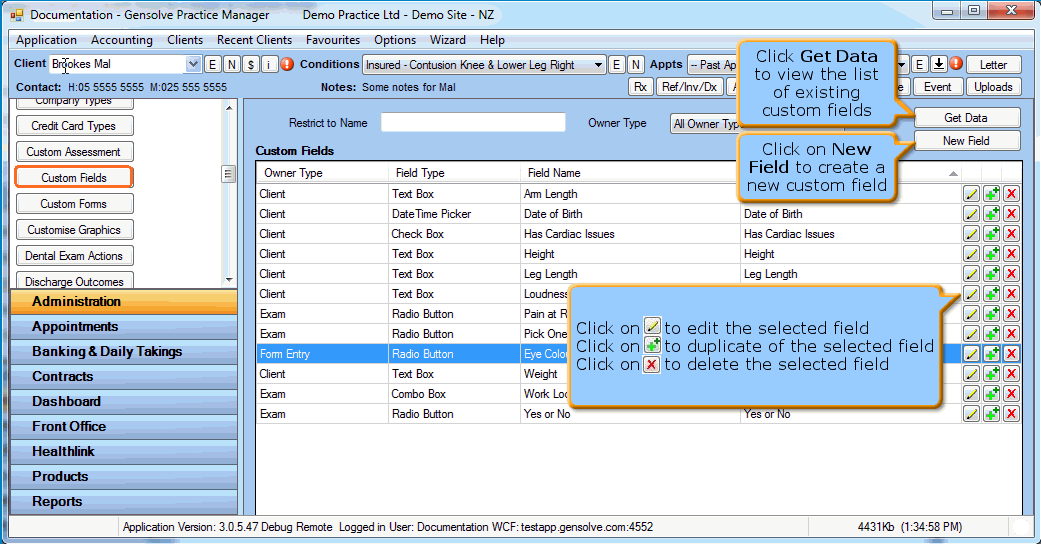
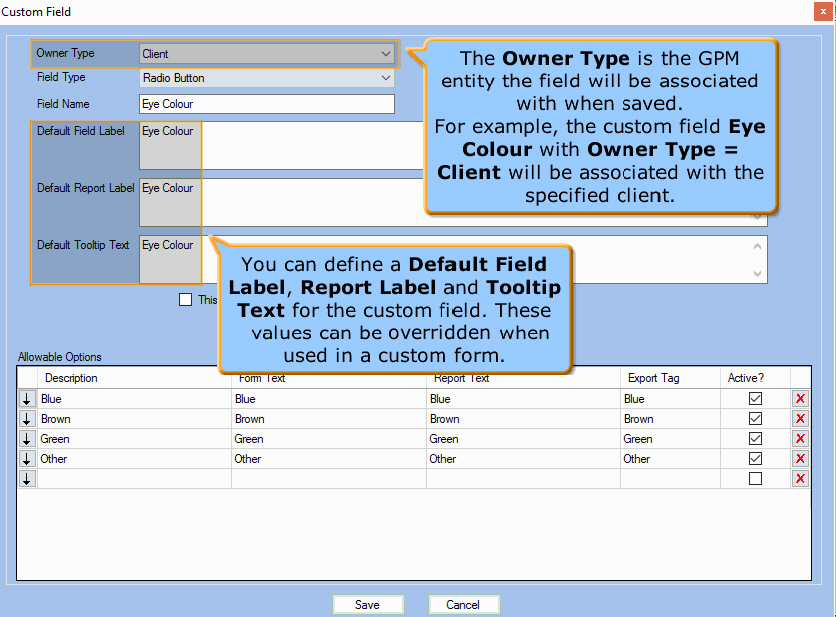
When creating or editing a custom field, you are presented with the following window:
Custom Field Types
As you can see in the window presented above, it is possible to specify the type of the custom field you want to create by clicking on the Field Type drop-down.
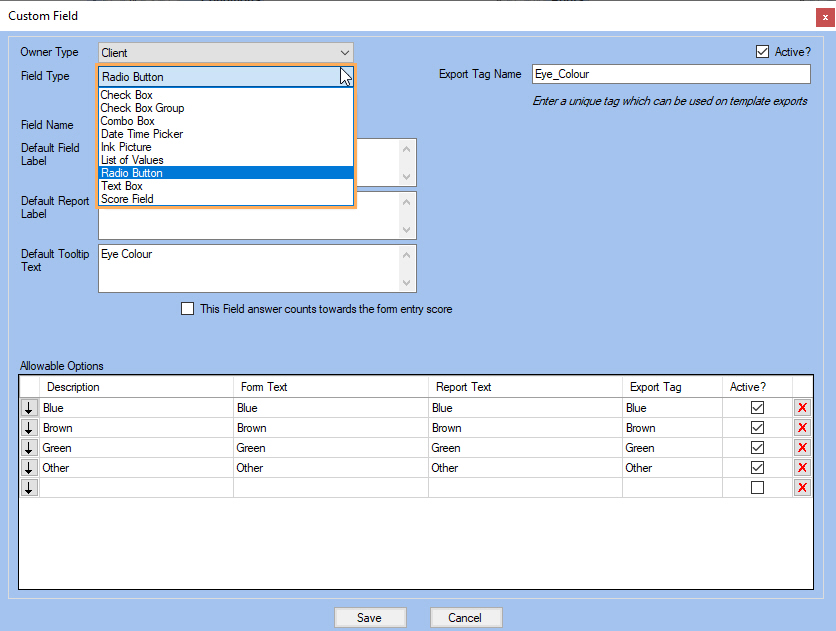
In the following table you can see the different types of custom fields and how they would be displayed in a custom form:
| Field type | Preview Custom field type on a Form | DEFINITION |
|---|---|---|
|
Check Box |
 |
This field provides the user with a check box which she/he can tick or untick. This option is useful when the user is required to make a decision between one of two possible mutually exclusive options. |
|
Check Box Group |
 |
This field provides a list of items which the user can choose by ticking the check box next to its selection. It is useful when the user is allowed to select multiple choices. |
|
Combo Box |
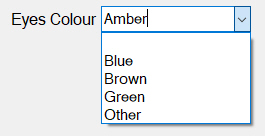 |
The Combo Box is a combination of a drop-down list and a single-line text box. This type of field allows the user to select one of the options from the drop-down or enter a value directly. |
|
Date Time Picker |
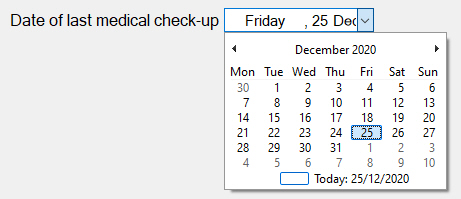 |
This custom field type allows the user to easily pick a date and time. |
|
Ink Picture |
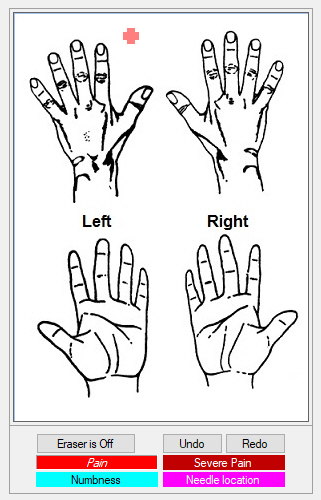 |
The Ink Picture type allows the user to upload an image on which to draw. It also allows the configuration of colour conventions. |
| List of Values | 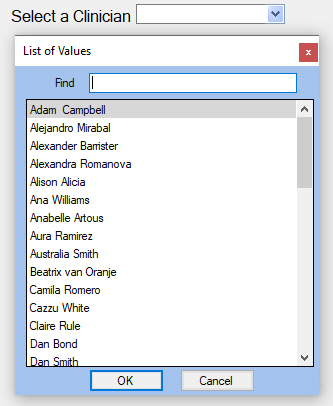 |
This field type allows for a list of values to be retrieved from the application, such as a list of all Providers, Sites or System Users, from which the user must select one item. |
|
Radio Button |
 |
This field allows the user to choose only one of a predefined set of mutually exclusive options. |
|
Text Box |
 |
This field allows the user to enter text freely. |
|
Score Field |
|
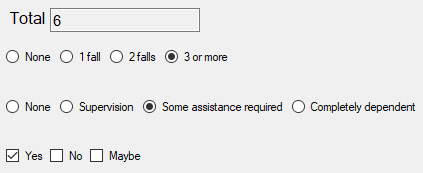
This field shows the total score obtained by means of fields with scores configured in the form. For more information, please refer to Storing Scores on Form Entries. |