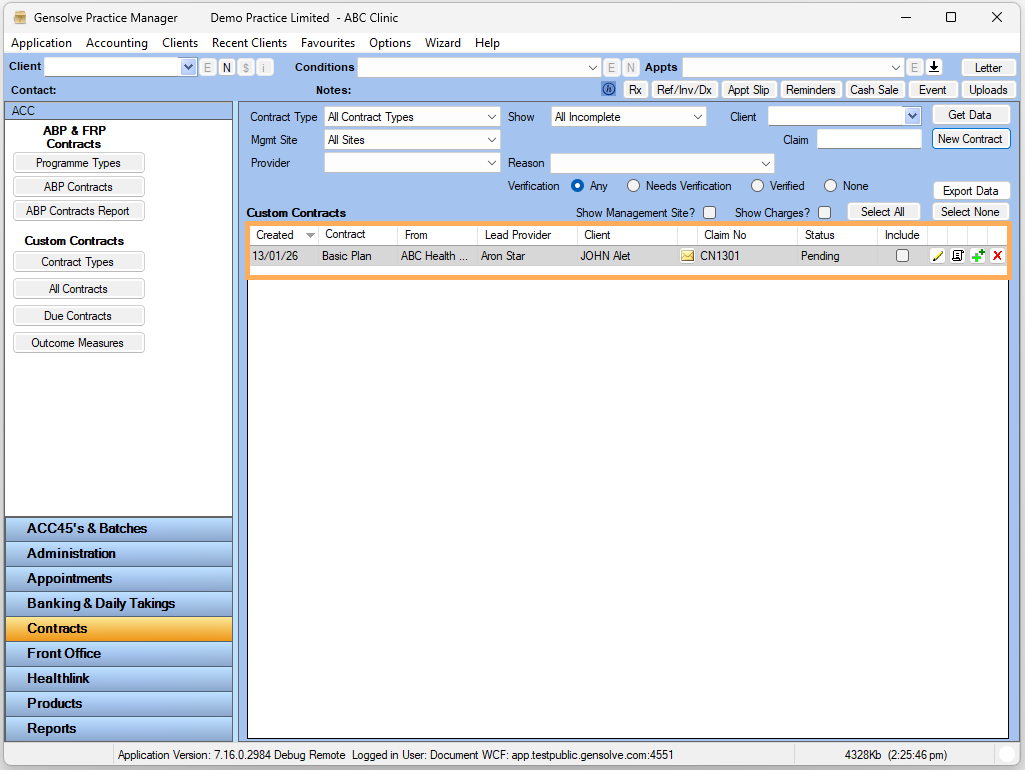


How to Create a Custom Contracts
With Custom Contracts, you can create or assign individual contracts to a client based on specified contract type.
Prerequisites
A contract type has been created: see How to Setup a Contract Type.
Follow the steps below on How to Create a Custom Contract
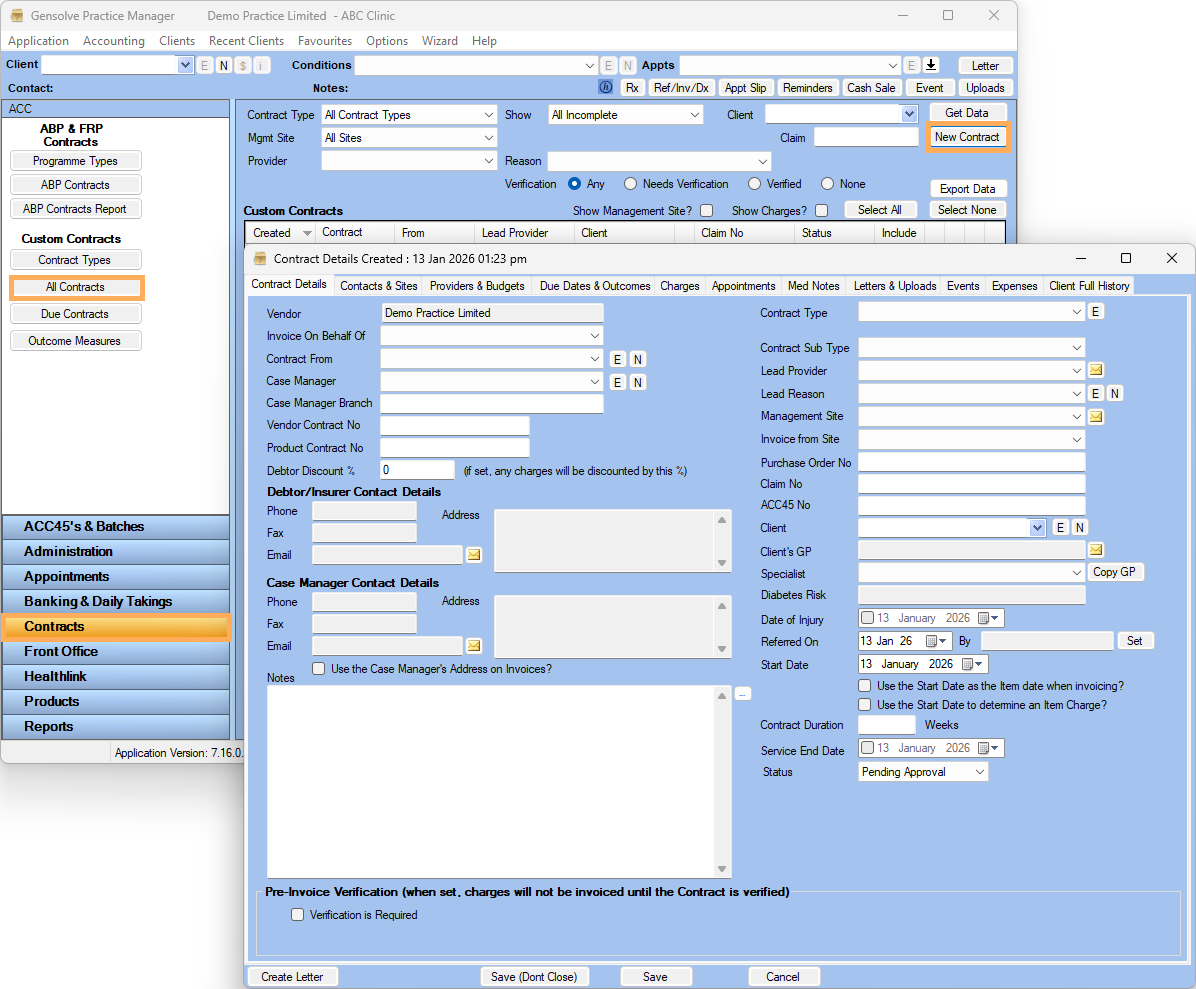
1. Click on Contracts >> All Contracts >> Click on New Contract
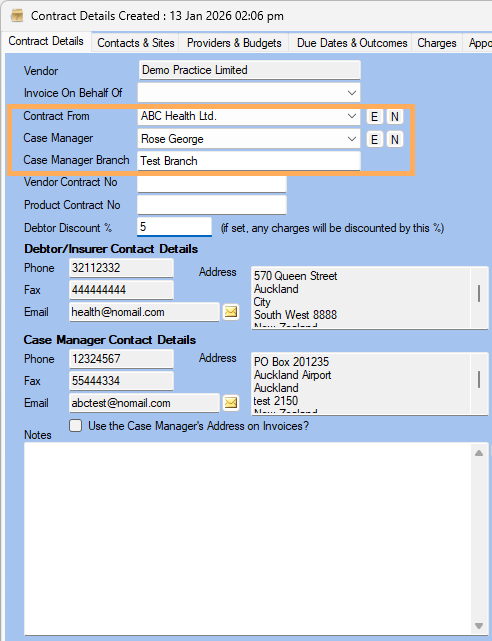
2. Select Contract From >> Select Case Manager
NOTE : If the Case Manager selected has a Case Manager Branch it will display automatically
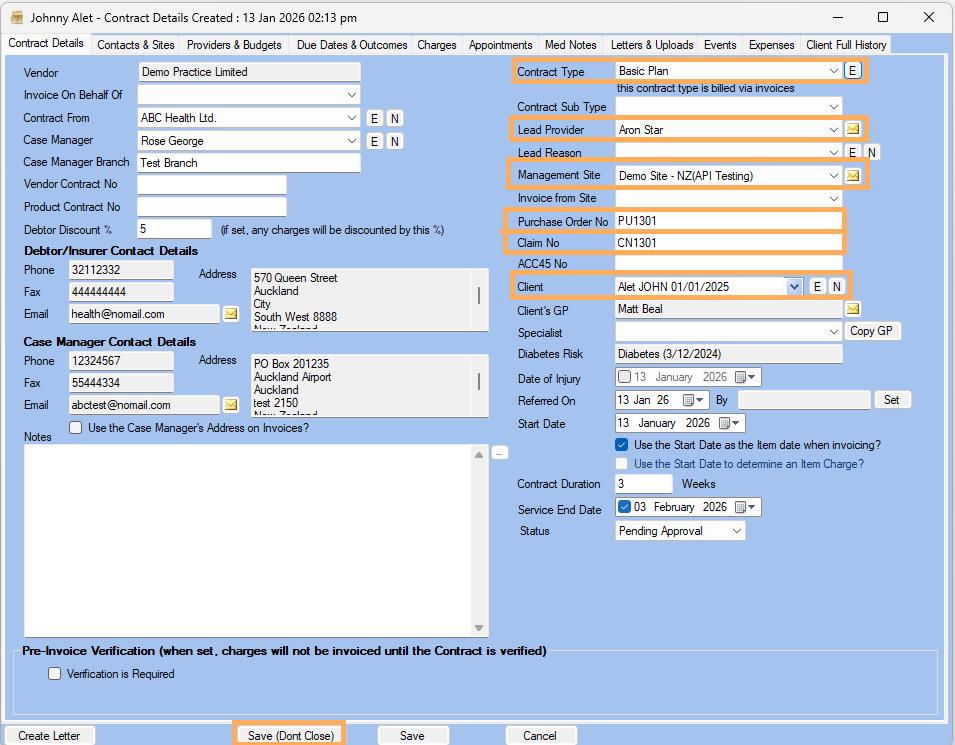
3. Select the Contract Type >> Select the Lead Provider >> Select Management Site
4. Enter Purchase Order Number >> Enter Claim Number >> Select Client >> Fill in other details as required
5. Click on Save (Dont Close)
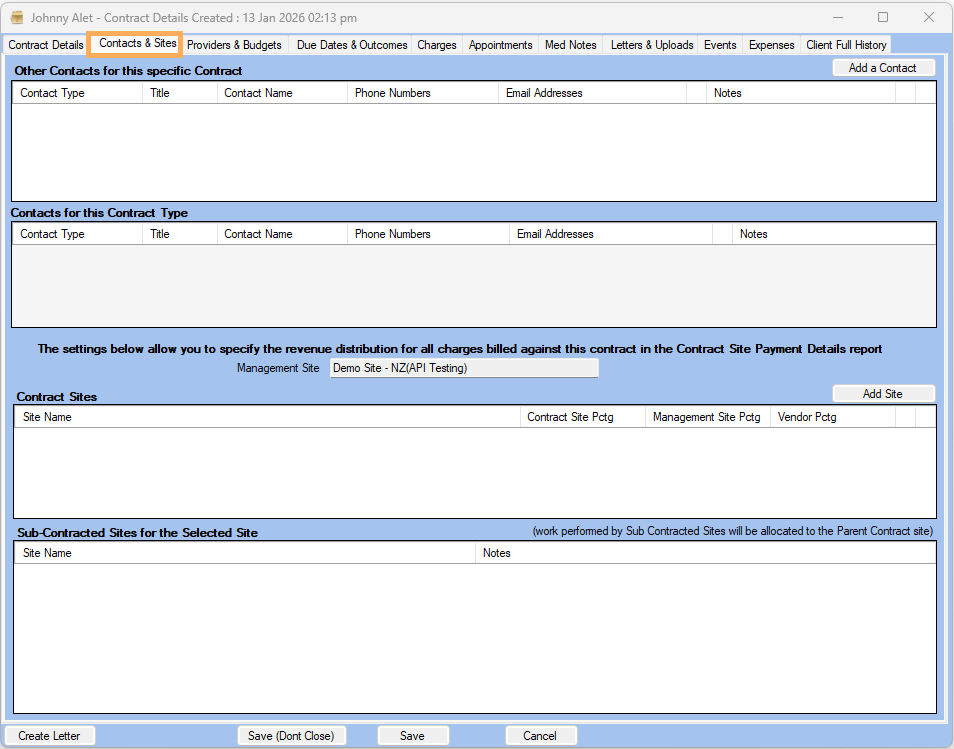
6. Go to Contacts & Sites Tab >> Add a Contact or Add Site if needed
NOTE: This section is only used if the revenue is required to be split between different contracted sites
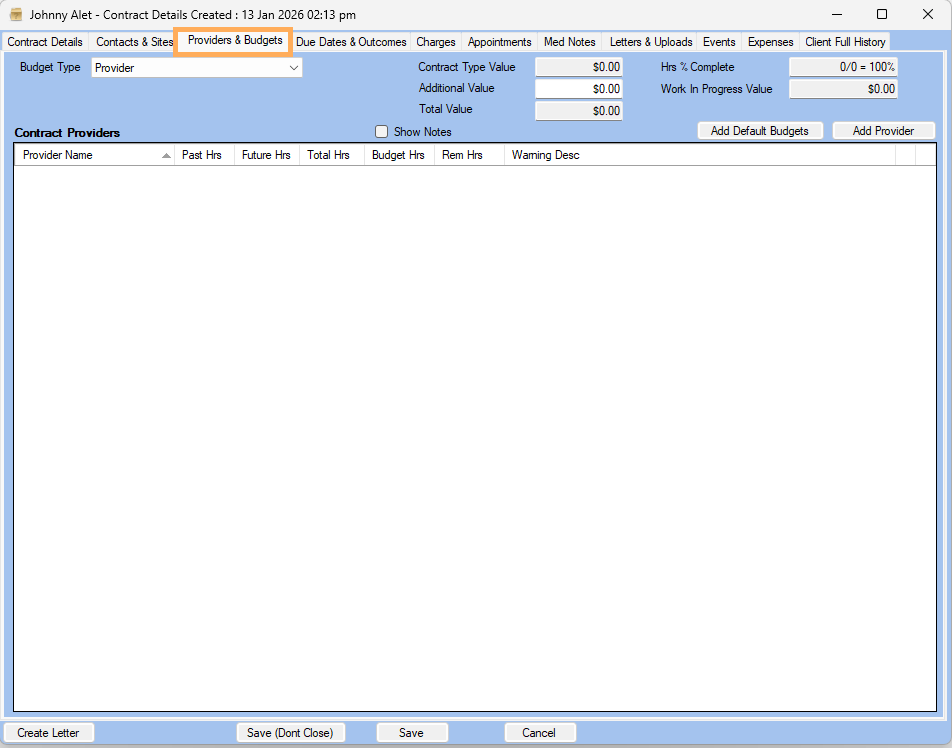
7. Go to Providers & Budgets Tab >> Select a Specific Budged Type (Budge Group or Provider) >>Fill in the details as required
NOTE : For more information please check the Link : Contract Budget Types
This area allows you to optionally add in budgeted hours for Providers so that warnings can appear when the specified budgeted hours have almost been used up. If the budgeted hours have been reached, you will not be prevented from going over the budgeted hours if you ignore the resulting warning that will pop up
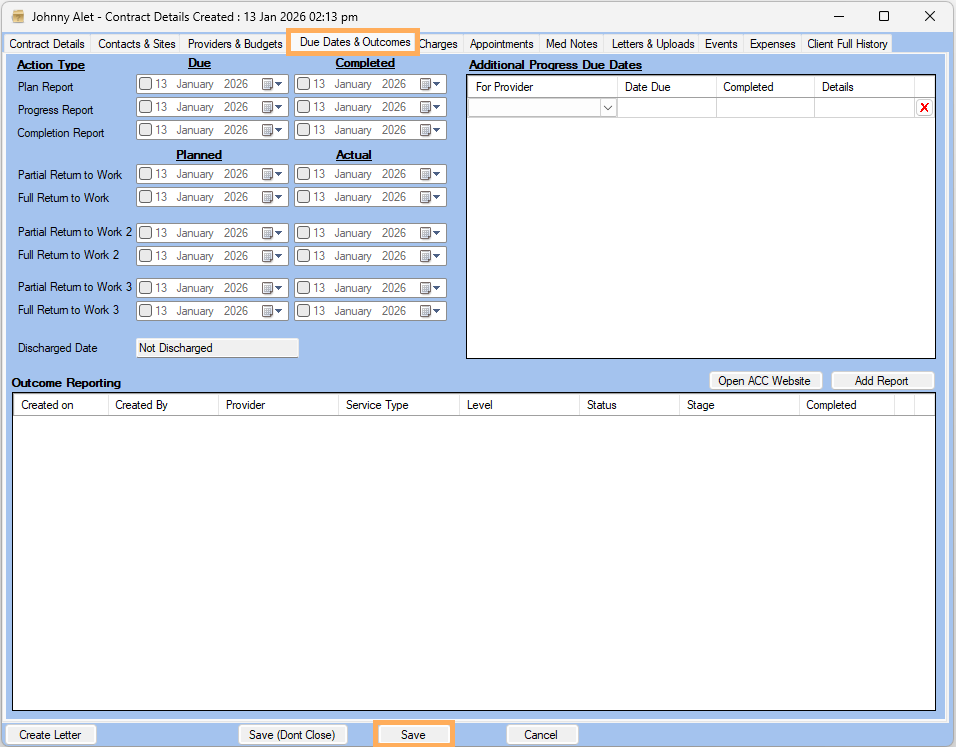
8. Go to Due Dates & Outcomes Tab >> Action Type area allows you to enter Due and Completed Dates >> Additional Progress Due Dated allows to add additional due dates for another provider as required >> Fill in the Details as required
NOTE : For more information please check the Link : Contract Due Dates
9. Click on Save
10. The New Custom Contracts is displayed