

ACC Claim Query and Condition Creation
You can now query an ACC Claim directly from Gensolve using the ACC API, with the returned information available for creating/viewing Clients and ACC Conditions.
Prerequisites: ACC Digital Certificate
- When you are performing ACC Information Lookups for Payments, Invoices and Conditions you are required to have a valid Digital Certificate installed, and part of the process will be to verify that Certificate if prompted. You must contact ACC if you are having issues with your Digital Certificate Installation. Gensolve cannot contact ACC on your behalf.
Contents
 How to
Access the ACC Claim Query
How to
Access the ACC Claim Query
Performing
an ACC Claim Query for an Existing Client
Performing
an ACC Claim Query for a New Client
Create
a ACC Condition Using the ACC Claim Query
How to Access the ACC Claim Query
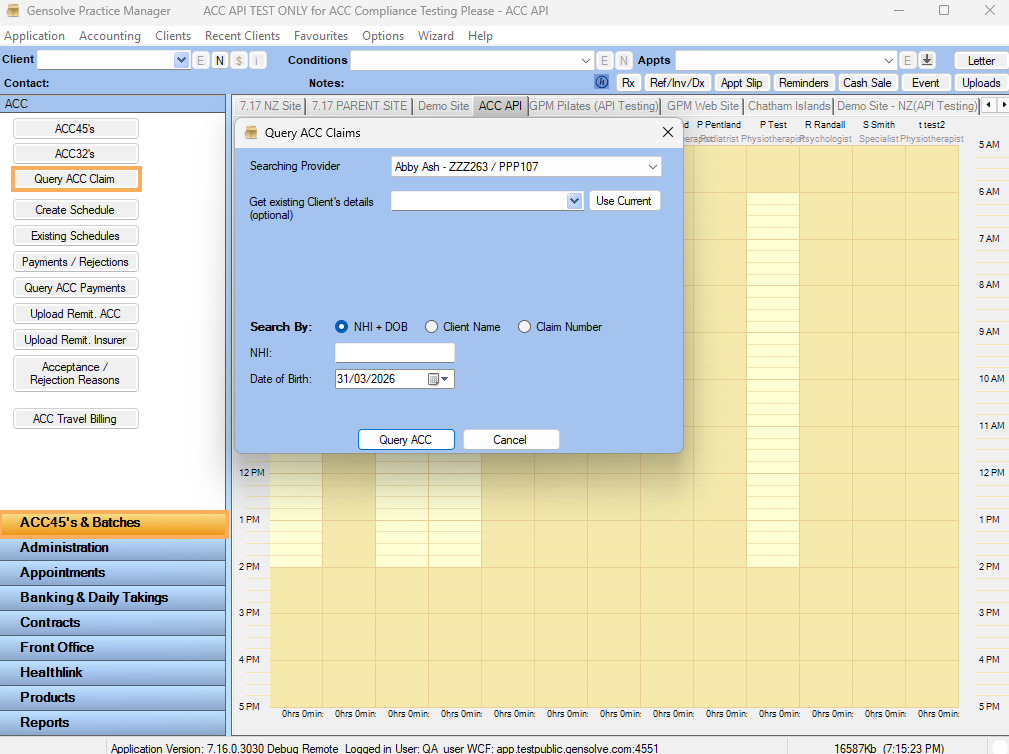
- Go to ACC45's & Batches >> Query ACC Claim.
- The Query ACC Claim screen will open.
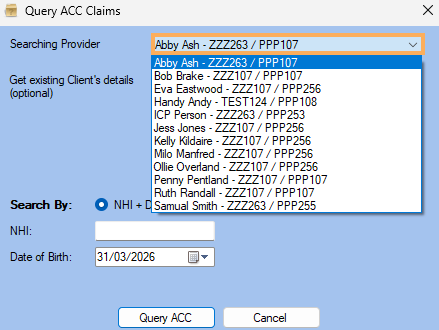
- Select the Provider from the Searching Provider drop-down list. Note: The Providers Contract and Provider No's are displayed next to the providers name.
Performing an ACC Claim Query for an Existing Client
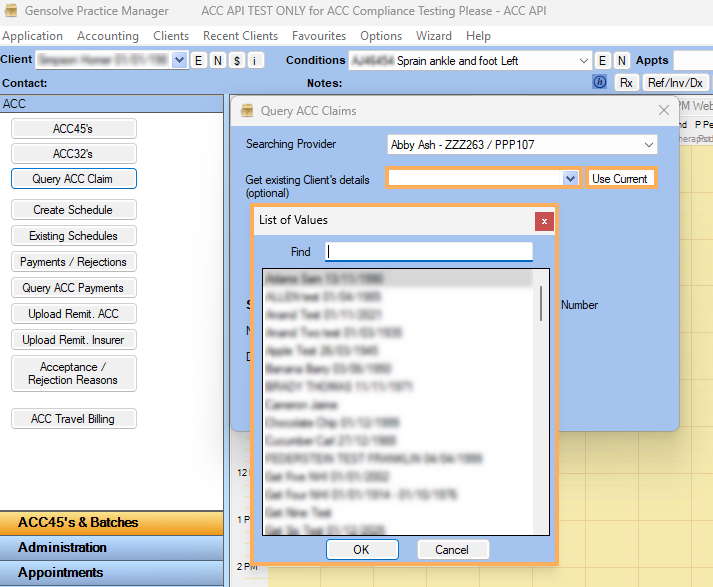
- If querying ACC Claims against existing Clients, search for a Client, or click on >> Use Current.
-
Client information is added to the Query ACC Claim screen click >> Query ACC. Note: You can search by Client Name or Claim Number if the NHI and DOB are not currently on the Client's file.
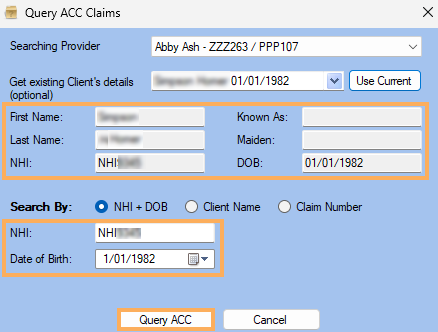
-
The Windows Security "Credential Required" window may appear >> click Allow. You will need to have already installed your ACC Certificate as per the prerequisites noted at the top of this document.
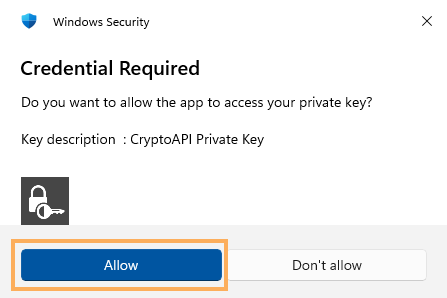
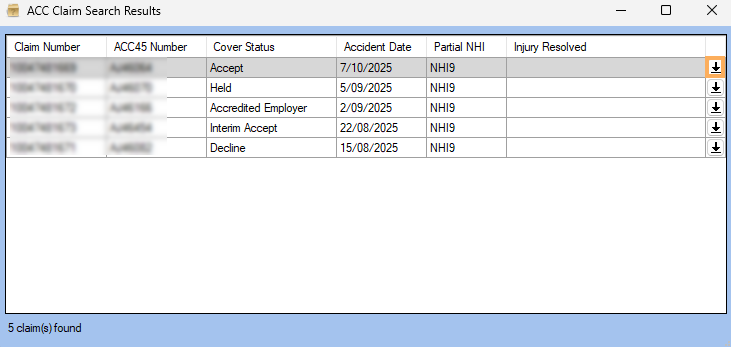
- The Claim Search Results
window will open. Any ACC
Claims registered against the Client
details sent to ACC
will be displayed. To work with a Claim
listed click >>

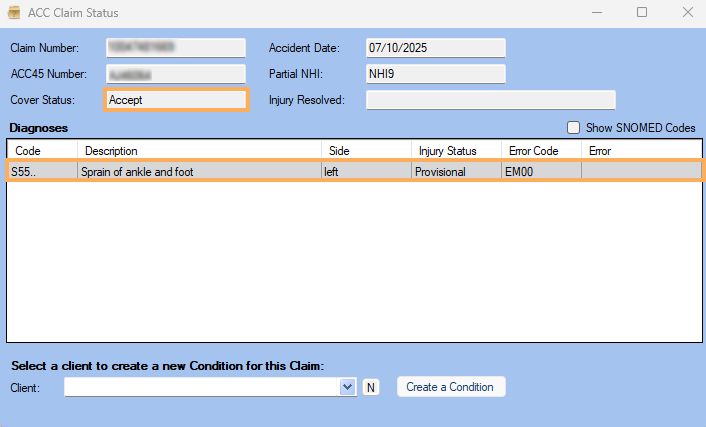
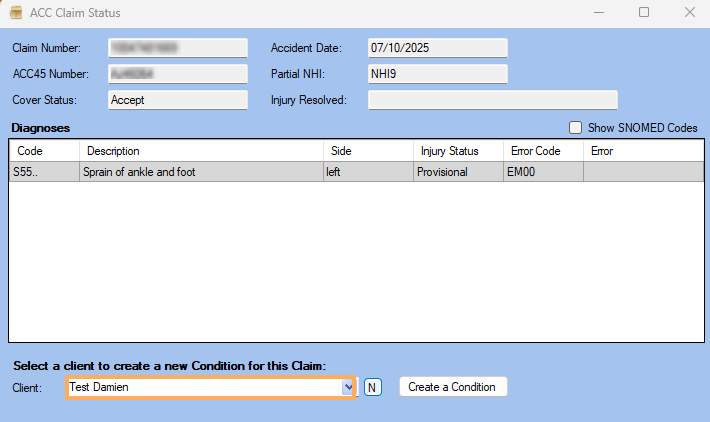
- The details of that ACC Claim will open in the ACC Claim Status window, showing:
- Cover Status
- Diagnoses
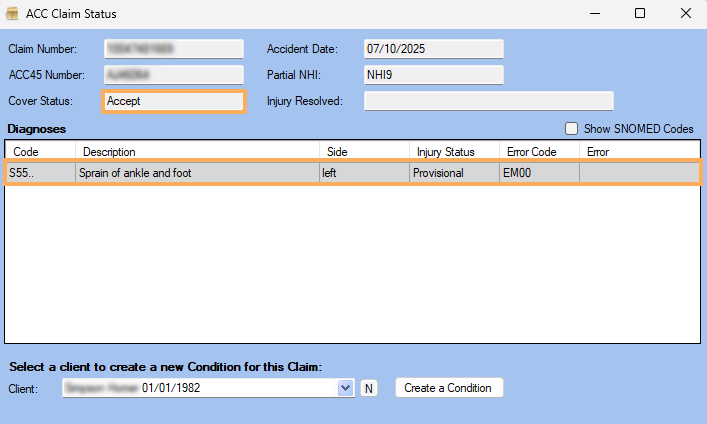
-
If a new Condition needs to be created click, see the below section Create a ACC Condition Using the ACC Claim Query. Alternatively close the window >> click X
Performing an ACC Claim Query for New Clients
Note: It is now possible to Query a ACC Claim, Create the new Client and Create a new Condition using this functionality.
-
Follow the steps to access the ACC Claim Query, as shown in the first section on this page.
-
Select the Provider
-
Ignore the existing Client selection options
-
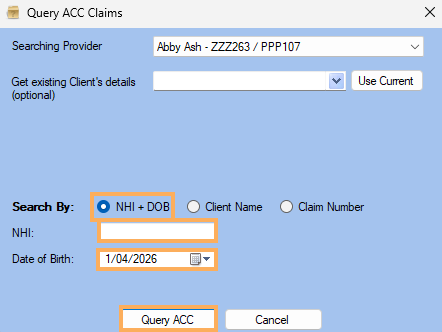
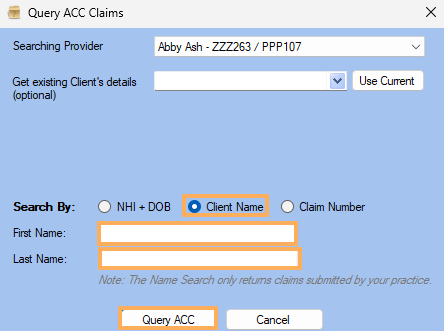
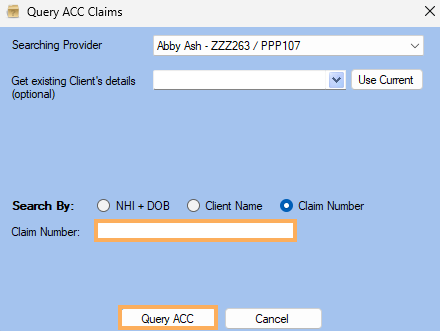
You can search by:
-
NHI and Date of Birth (Note: You must include both). Enter the Client's NHI Number and DOB >> Query ACC
-
Client Name. Enter the First Name >> Last Name >> Query ACC (Note: the Name search will only return Claims submitted by your practice, you cannot use this method to create New Clients and search for ACC Claim numbers due to ACC Privacy Controls).
-
ACC Claim No. Enter the ACC Claim Number
-
The Windows Security "Credential Required" window may appear click >> Allow. You will need to have already installed your ACC Certificate as per the prerequisites noted at the top of this document.
- If there are multiple ACC
Claims found click >> to select
the one you wish to work with.
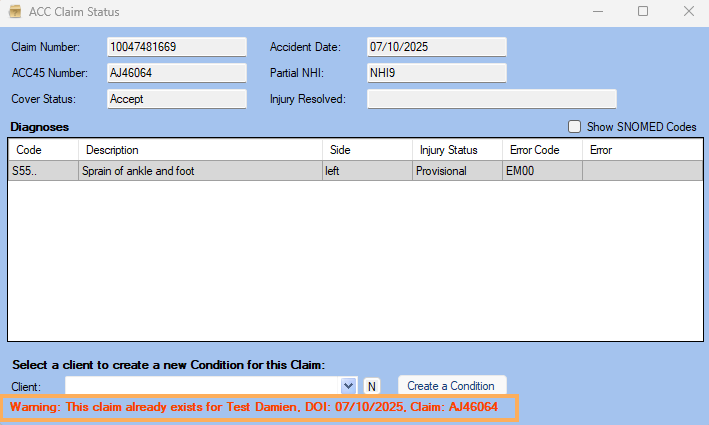
- The ACC Claim Status Screen will open, showing the Cover Status and Diagnoses.
- If however the ACC Claim number already exists in your system you will be warned as below.
Using the ACC Claim Status Information to Create a New Client
-
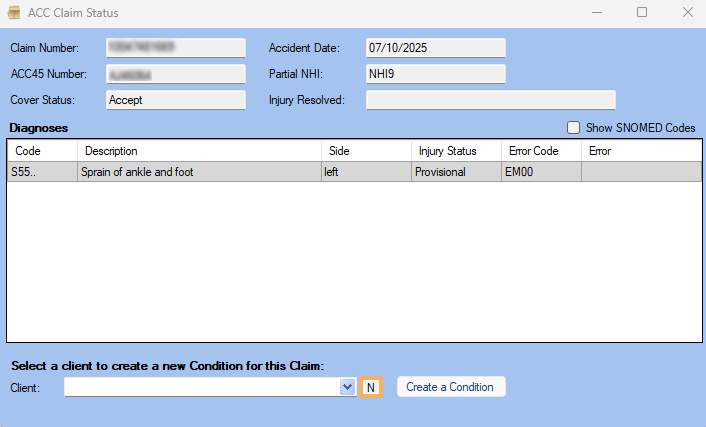
Once the Performing an ACC Claim Query for New Clients has been completed, click >>
 from the ACC Claim Status
screen
from the ACC Claim Status
screen
-
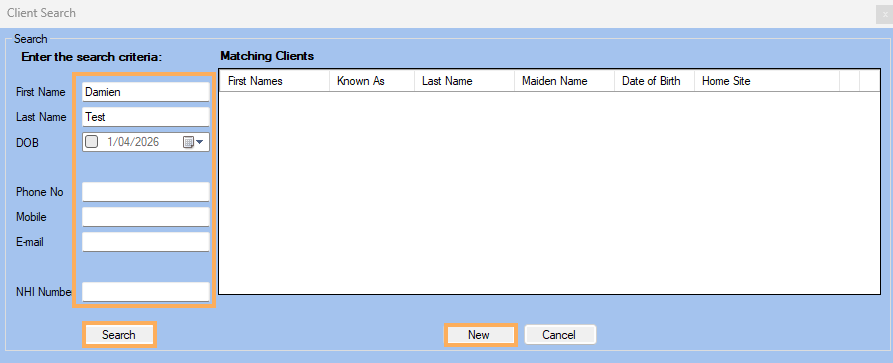
The Client Search window will open. You can search by Name or using the other options on the below image, click >> Search >> New
-
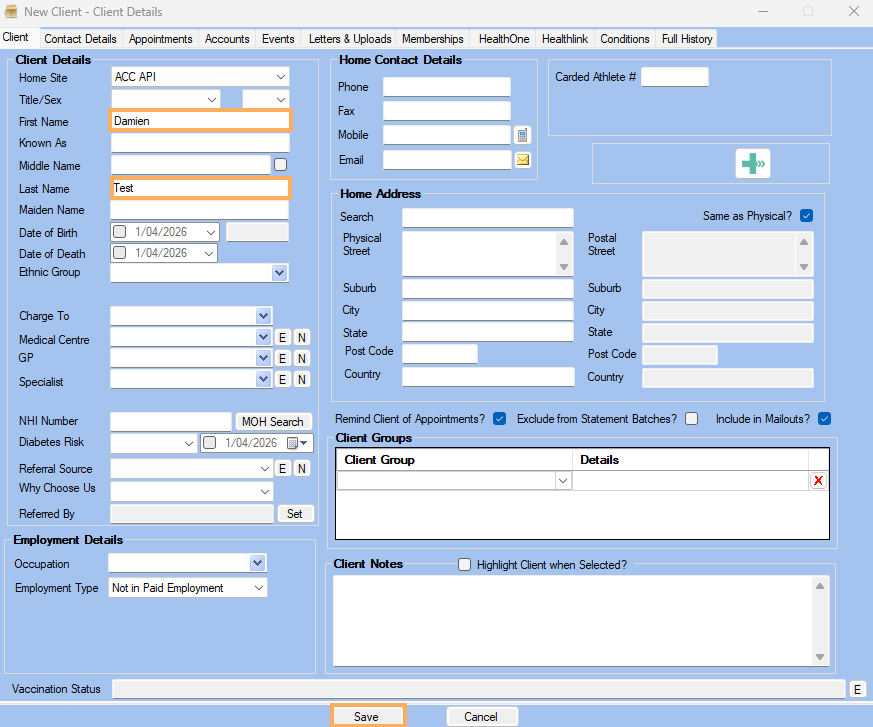
The New Client - Client Details window will open. Fill in the details as required by your practice when creating new clients, click >> Save. (Note: The below screen shot shows the bare minimum that can be used to create a new client. We recommend following your practice's process when completing this step.)
-
You will be returned to the ACC Claim Status window. The Client details will have updated the Client field. See the next section on how to Create a ACC Condition based on the details in the ACC Claim Status window.
Create a ACC Condition Using the ACC Claim Query
-
Complete either the steps for using the ACC Claim Query for Existing or New Clients (detailed above)
-
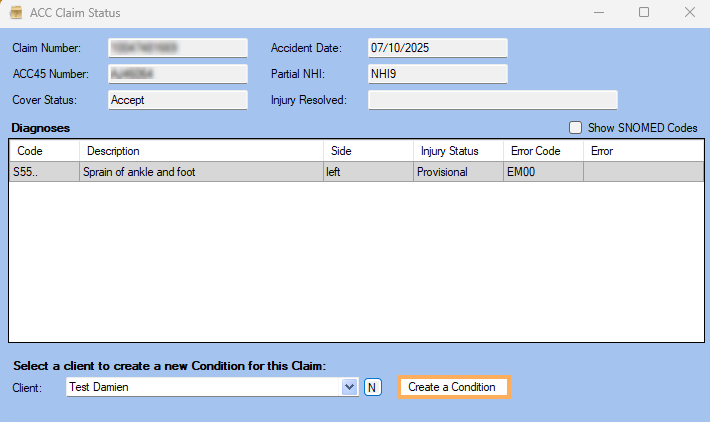
At the ACC Claim Status screen click >> Create a Condition
-
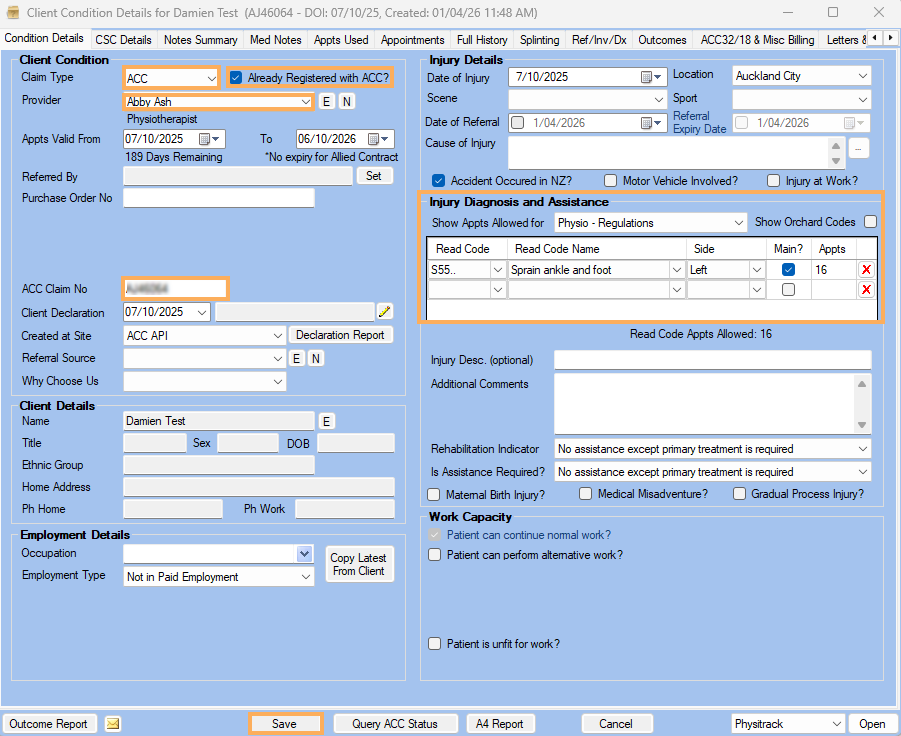
If the ACC Claim Number does not exist on your system already in your system, the Client Condition Details screen will open. The following are automatically updated in the Condition screen from the ACC Claim Query:
-
Claim Type : ACC
-
Already Registered with ACC?
-
Provider
-
ACC Claim Number
-
Read Code
-
Once you have completed the rest of the ACC Condition details as required by your practice click >> Save (Note: the below image only shows the bare details copied over from the ACC Query, it is recommended you complete you practices required process)