


GPM Web HealthLink
From within GPM Web, you can use HealthLink Messaging service to view, edit and delete HealthLink messages as required.
View and Edit HealthLink Messages
There are multiple ways to view the HealthLink messages related to clients. You can do it via one of the following options:
Accessing HealthLink Messages from Medical Notes
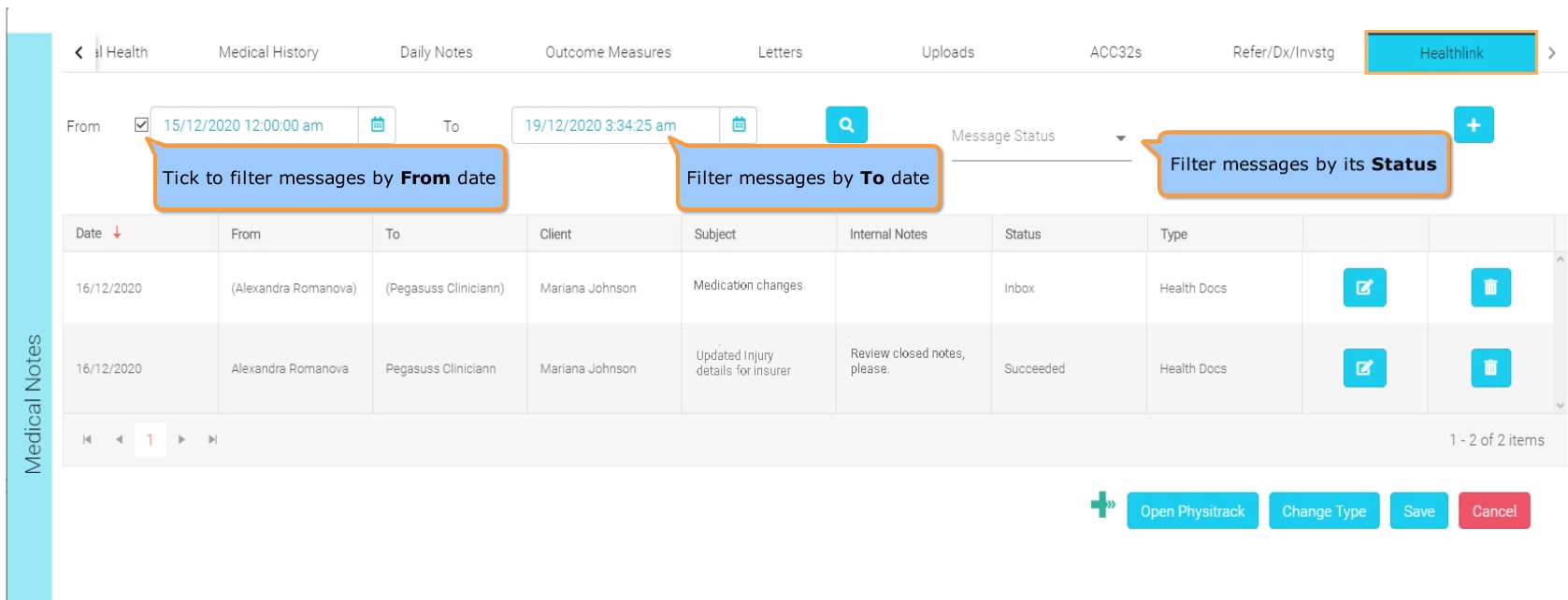
Follow the steps below to view or edit all the HealthLink Messages related to a specific Client from the Medical Notes.
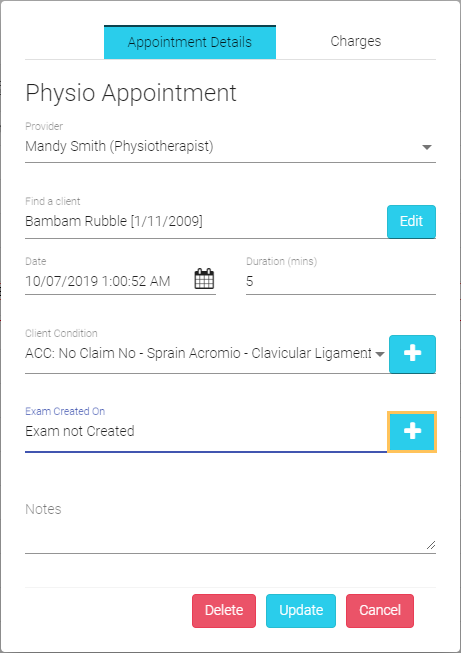
1. Create or edit an
appointment >> Click on  to add
an Exam.
to add
an Exam.
2. Click on the HealthLink tab.
Accessing HealthLink Messages from Clients Section
Follow the steps below to view or edit all the HealthLink Messages related to a specific Client from the Clients section:
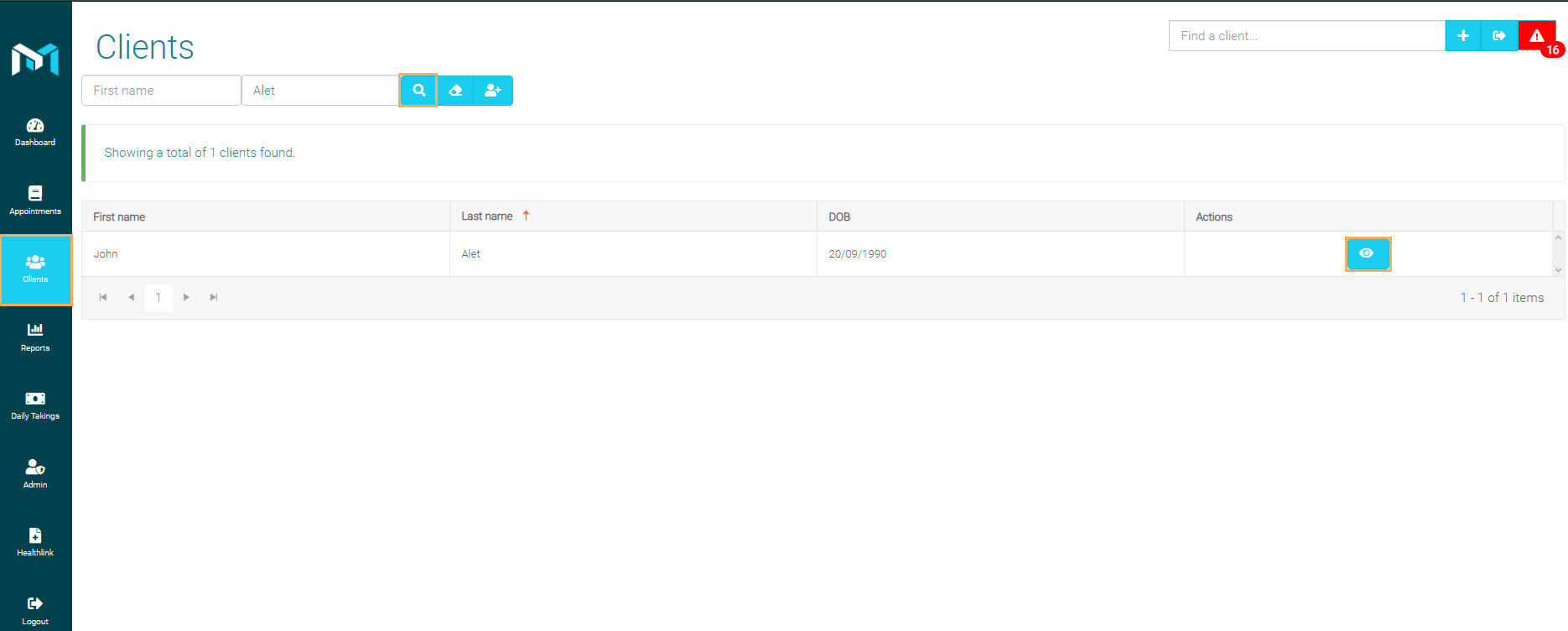
1. Go to the Clients section on the left menu.
>> Enter the Client's first or last name. >> Click
on  to search all options. >> Locate the client and click on
 to edit/view its
details.
to edit/view its
details.
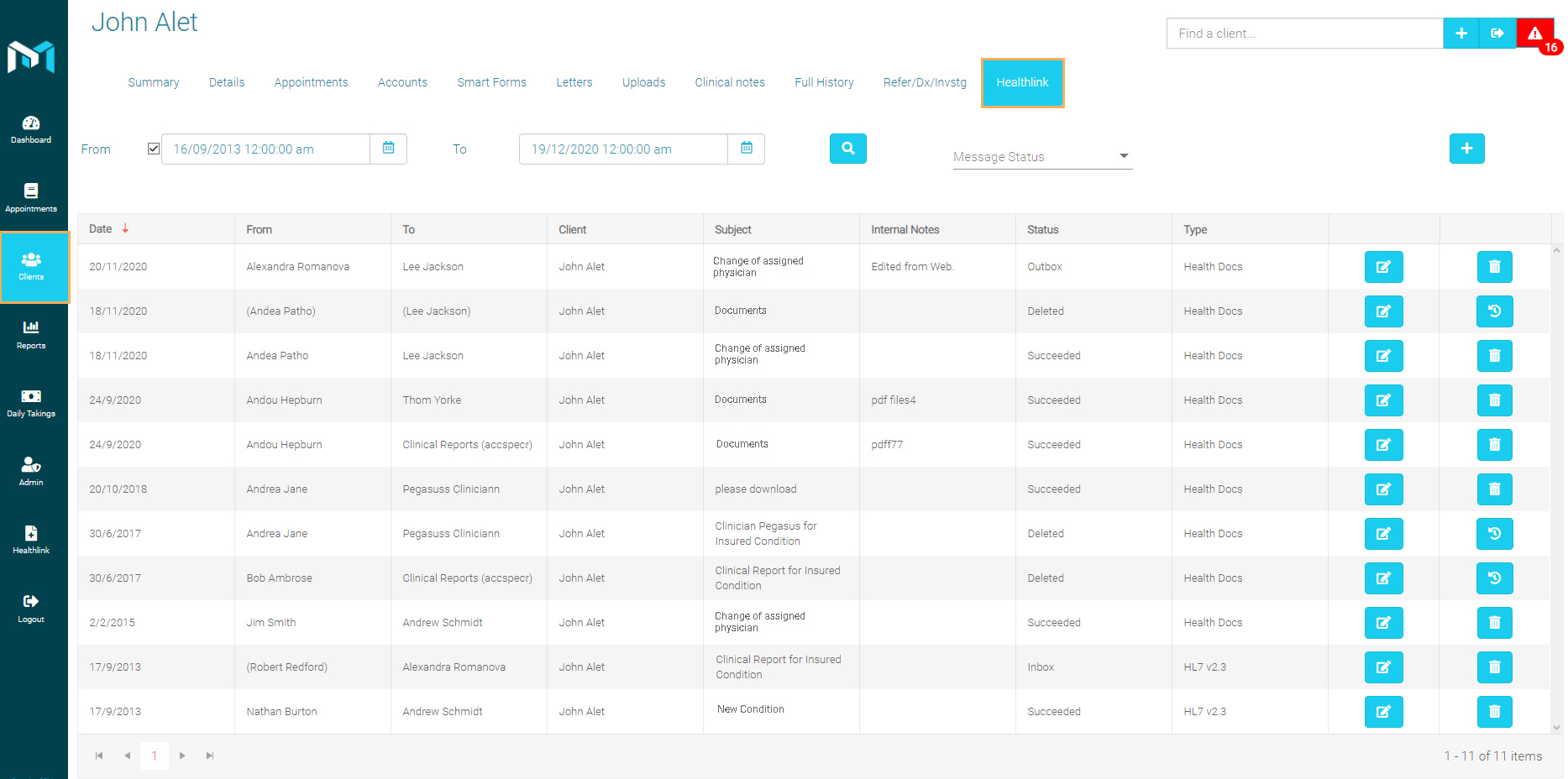
2. Click on the HealthLink tab to show all the HealthLink Messages for this Client. As you can see, this view has the same functionalities as the one found in the Medical Notes section.
Edit HealthLink Messages
After you have reached the HealthLink tab, you can perform several actions regarding the available messages in the grid.
1. Click on  to edit a message.
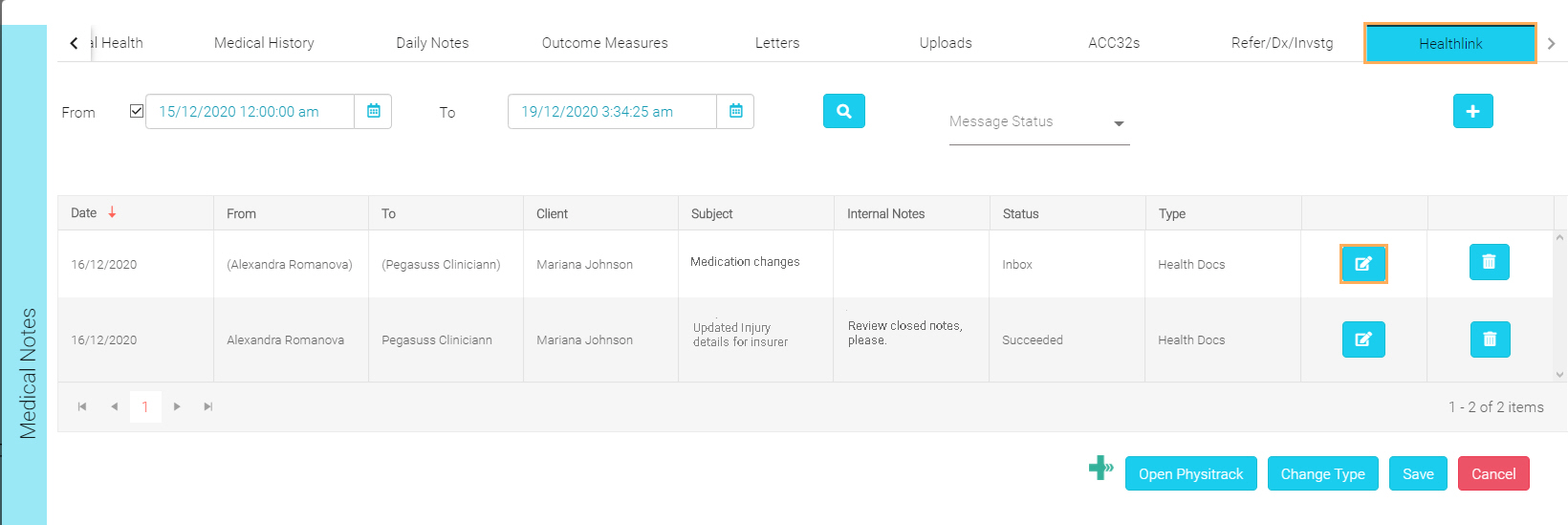
2. Once
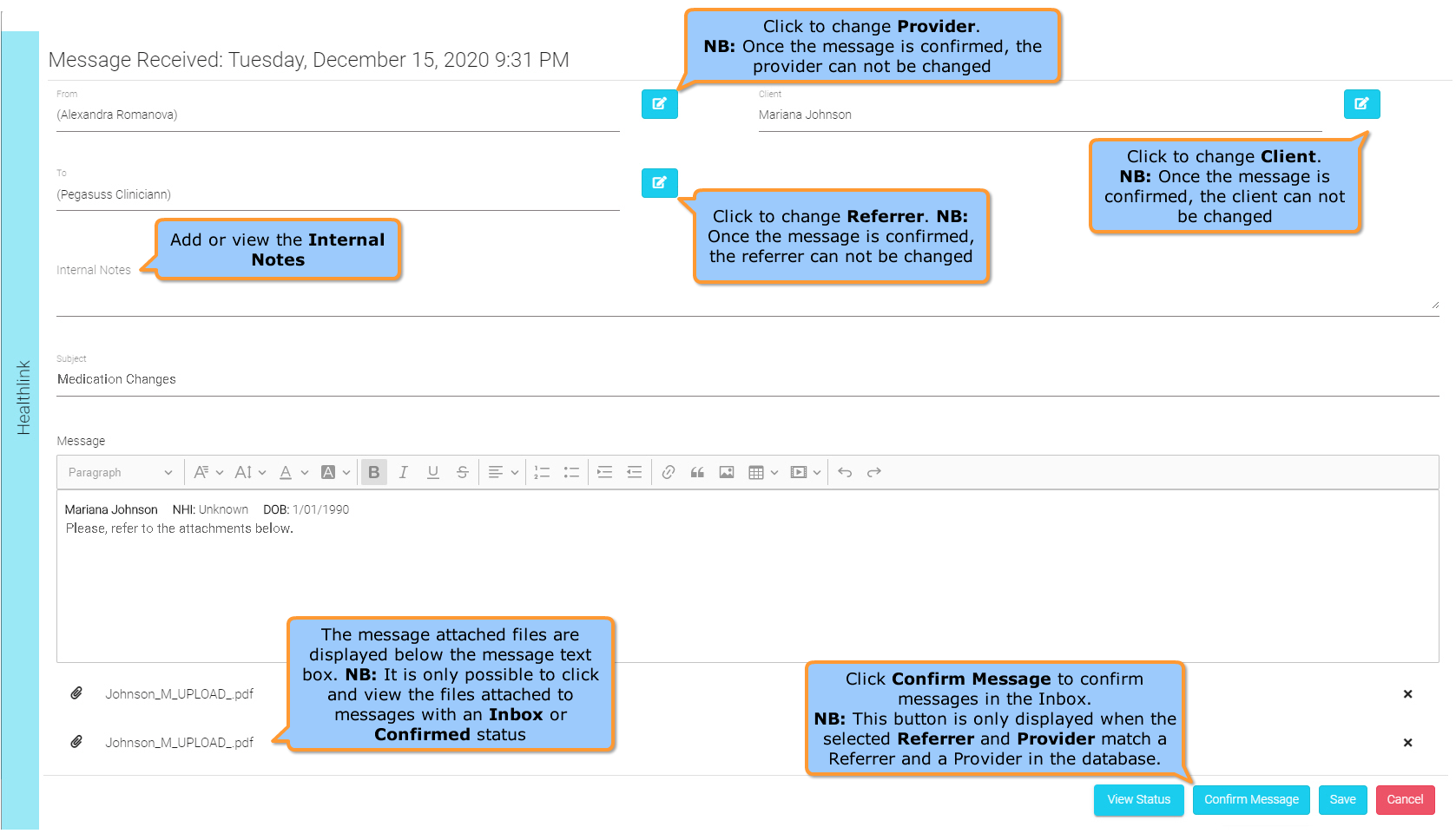
you have clicked , a window will appear with
all the message's information (To, From, message text, files attached, etc.).
Deleting a HealthLink Message
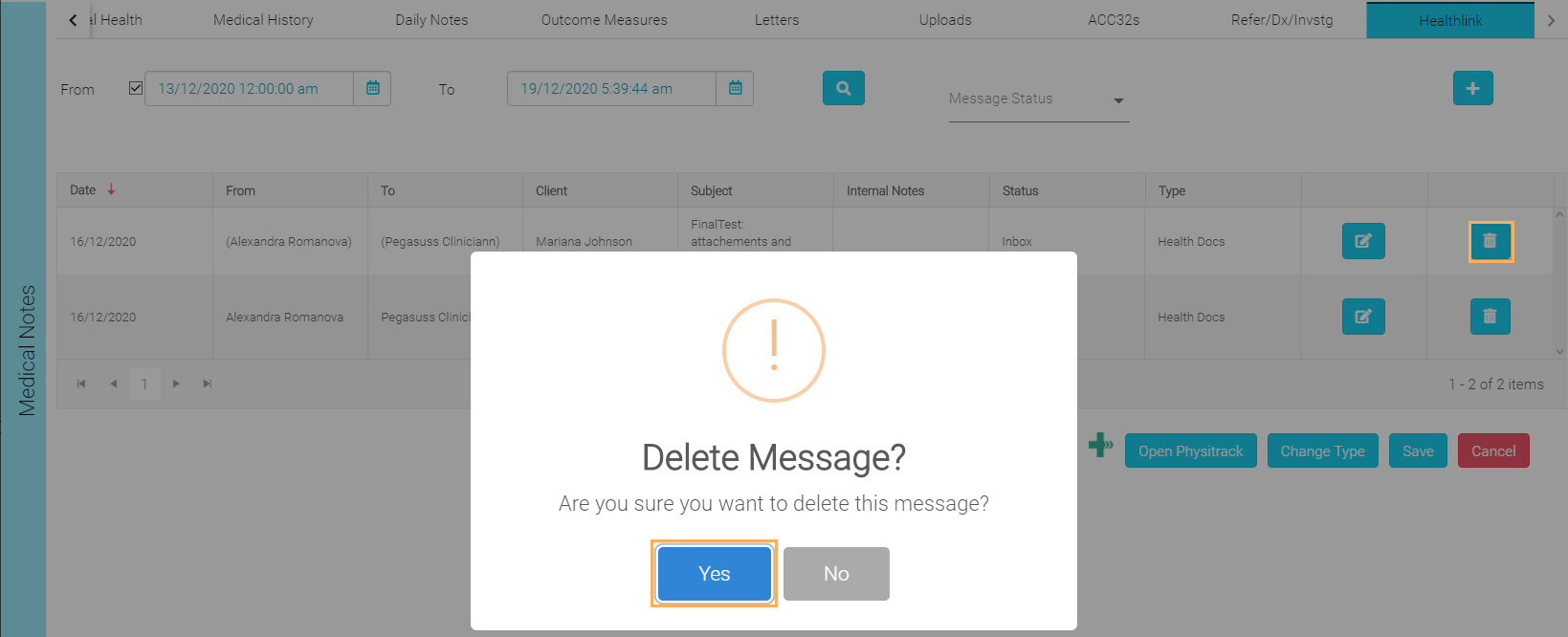
1. Click on  >> Click
on Yes to
delete the HealthLink message.
>> Click
on Yes to
delete the HealthLink message.
2.
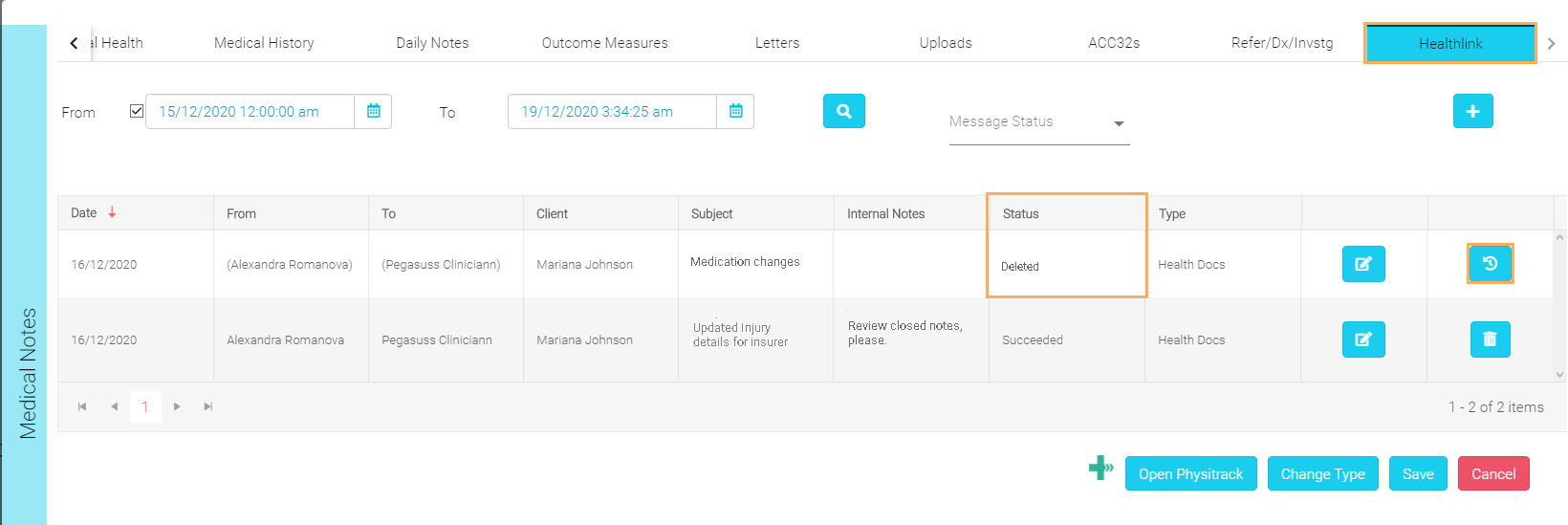
Once you have deleted the message, the
icon will change to the restore icon  and it's status to Deleted.
3. Click
on if
you want to restore the deleted message. >> Click on Yes.
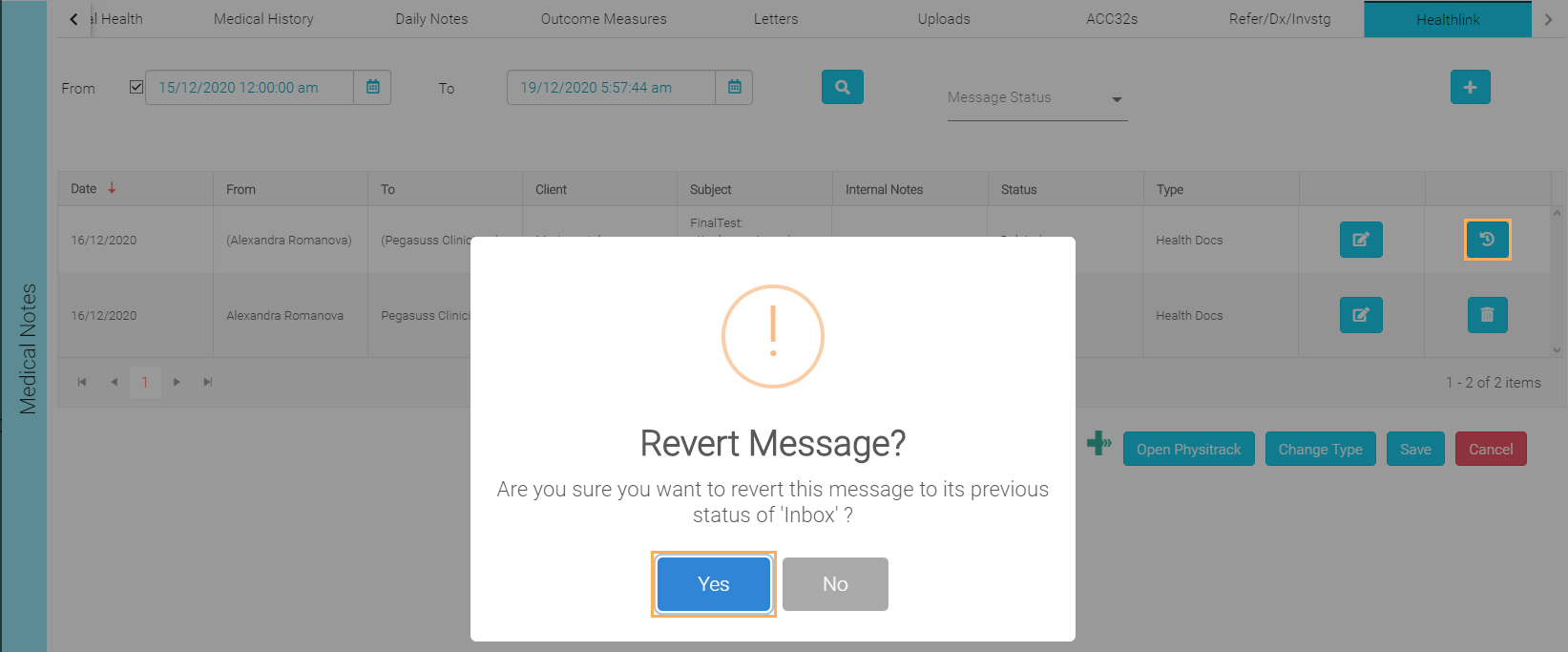
Note: Now, the restored message status will change back to the status prior to deletion.