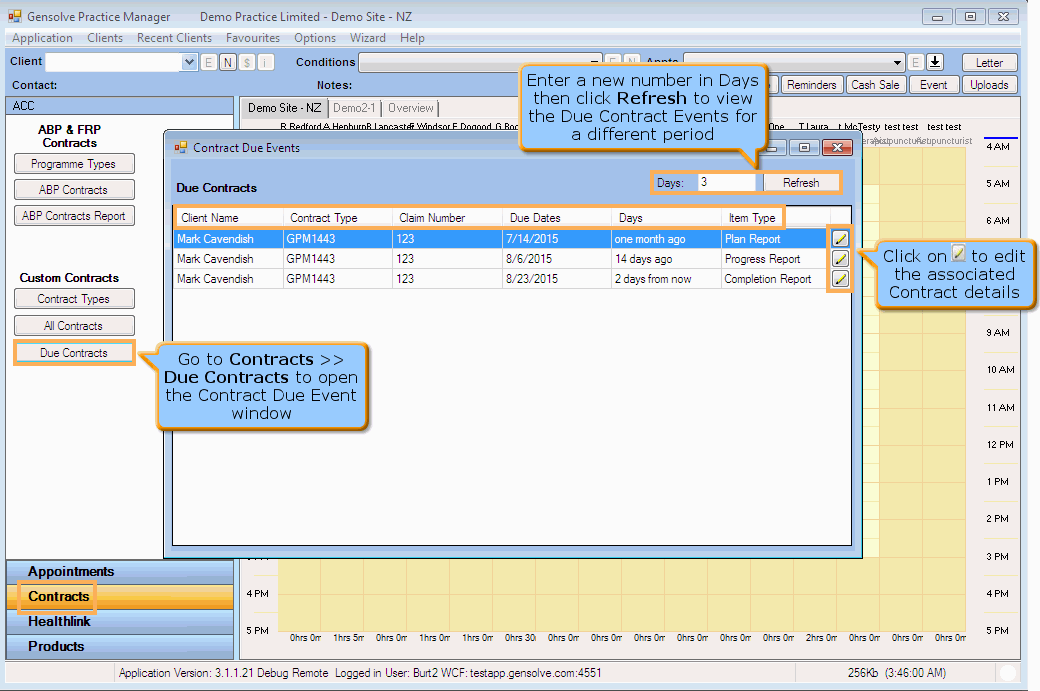
Contract Due Events Window
Follow the process detailed below to learn how to configure and use GPM to create, edit and view all contract due events.
Configure Vendor Settings
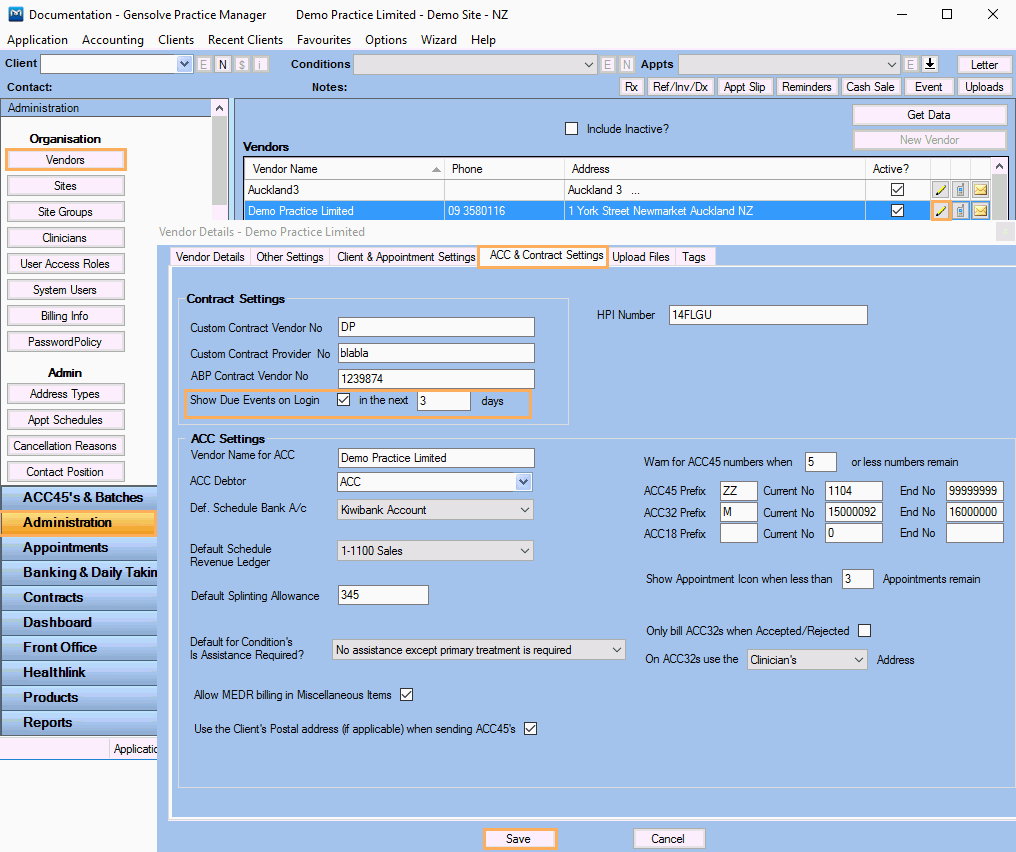
You can configure whether the Contract Due Events window should be displayed when logging in to GPM. For this, you will need to update the Vendor Details settings as follows:
- Go to Administration >> Vendors and click Get Data
- Select a Vendor and click on
 to open the
Vendor Details window
to open the
Vendor Details window - Click on the ACC & Contract Settings tab
- Tick Show Due Events on Login
- Enter the number of days in the future you want to view the due/overdue
events for
For example, entering 8 days means that if the logged in clinician has any Contract Due Dates overdue, or due within the next 8 days, then the Due Events window will display them. - Click Save.
Set Up Contract Due Dates
- Create a new contract for a specific provider and client. For more information see: How to Create a New Contract.
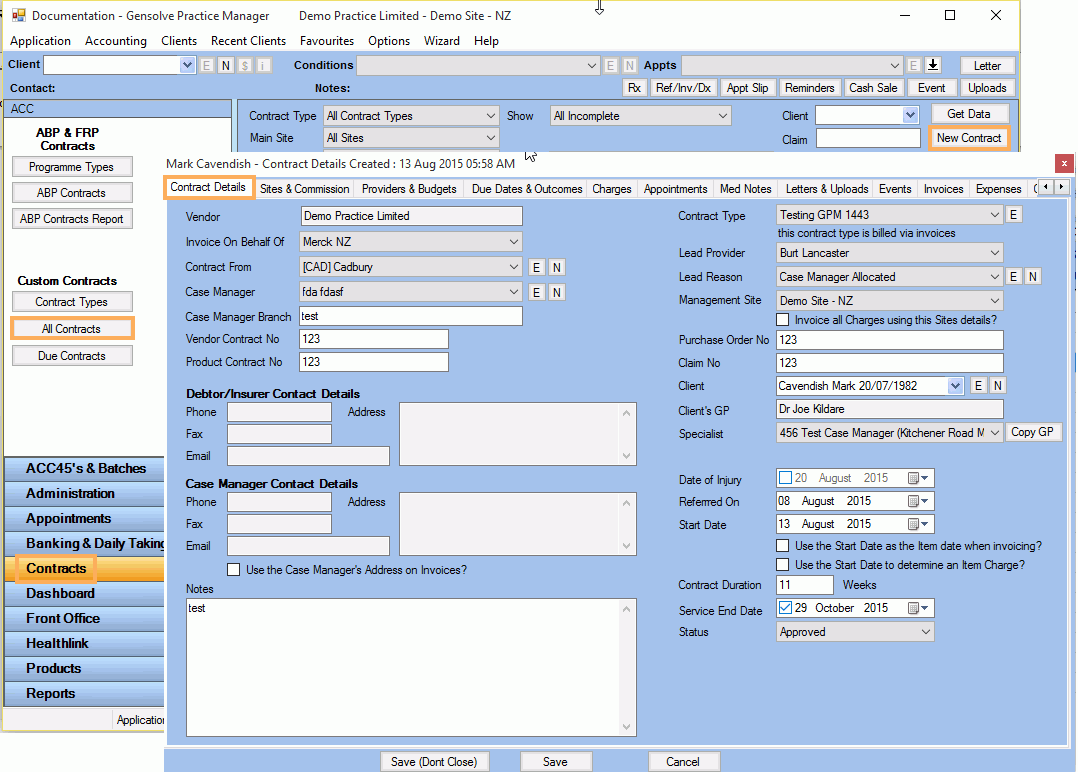
- Click on the Due Dates & Outcomes tab
-
Enter the Plan, Progress and Completion Report Dates (as required).
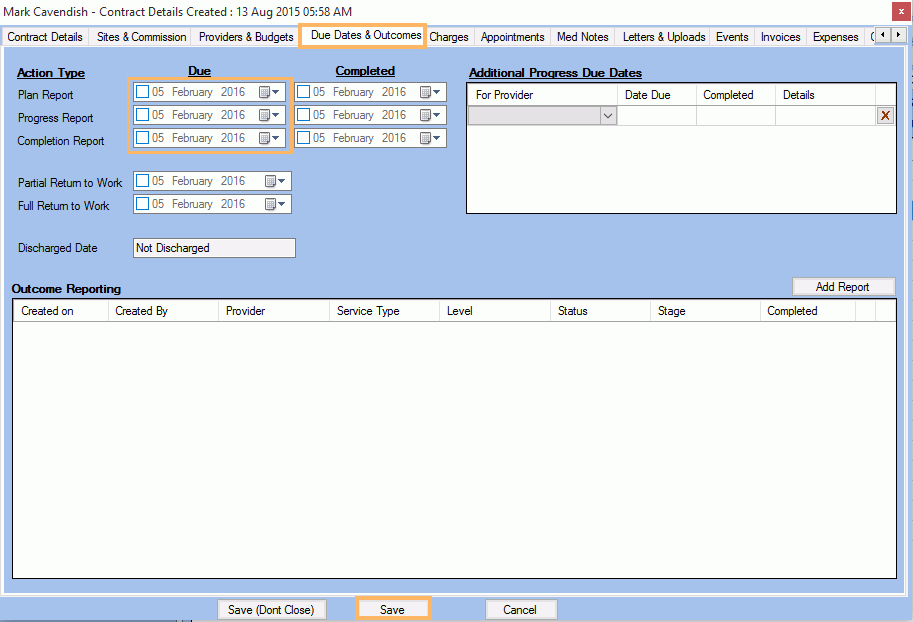
Note: Once the action is marked as Completed, it will not be included in the Contract Due Events Window.
-
Click Save
Log In to GPM
The Clinician will now be able to see the Contract Due tasks when logging in to GPM.
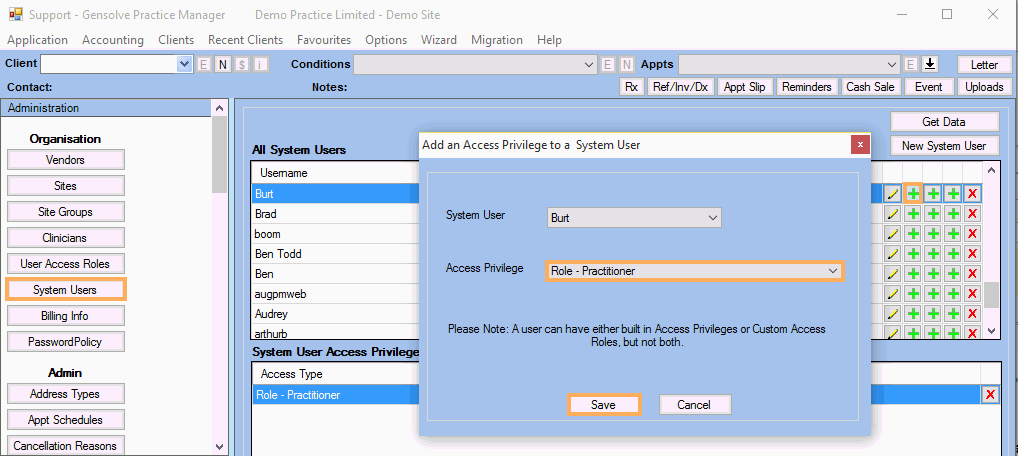
Note: Before the Clinician can log in to GPM, a system user with the necessary access roles will need to be created.
For more information see: How to Create a System User and How to Create a User Access Role.
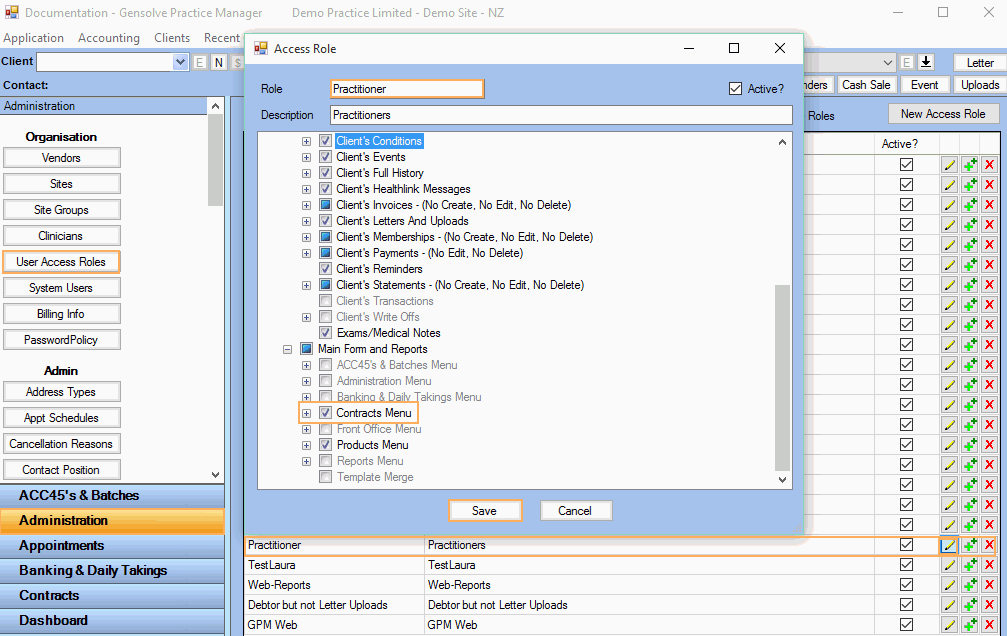
This Role will need to have the "Contracts Menu" permission.
The Contract Due Events Window
Once logged in, the clinician will be presented with a pop-up window showing any contract due tasks that are due or overdue (based on Vendor Settings).
The Contracts Due Event window displays the following fields:
- Client Name: This column shows the name of the client related to the referred Contract
- Contract Type: This column shows the contract type assigned to the Contract
- Claim Number: This column shows the code assigned to the Claim
- Due Dates: This column shows the dates assigned to each Contract's Report (Plan, Progress and Completion)
- Days: This column shows how many days from now the item is due or overdue
- Item Type: This column shows the Report Type related to each item: Plan Report, Progress Report and Completion Report
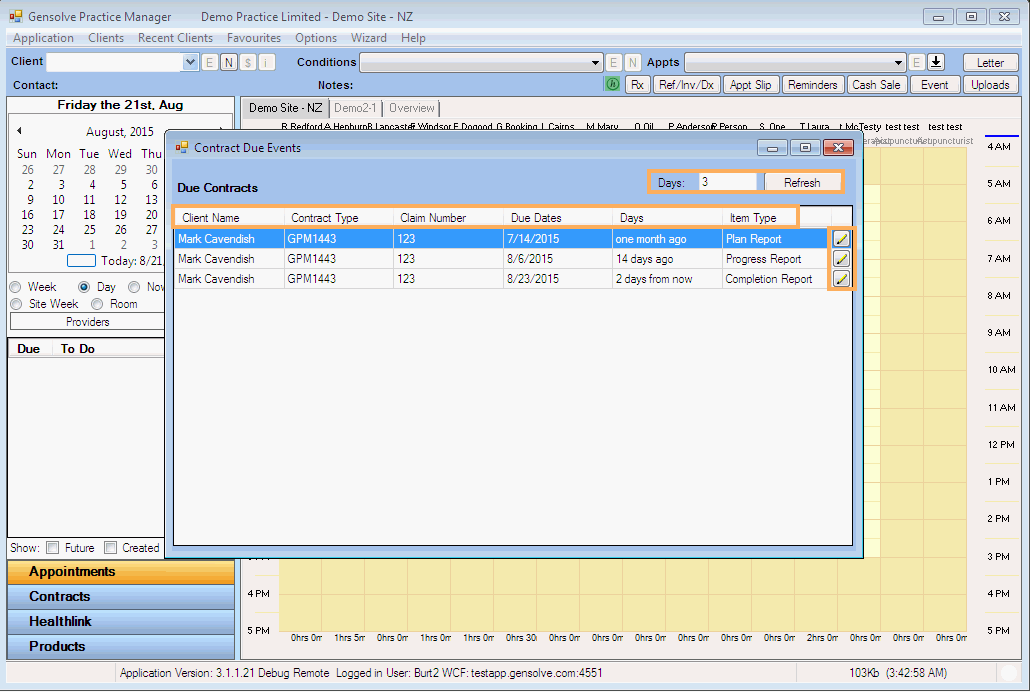
Additional options with the Contract Due Events Window