How to Create a Multiple Payment Receipt
Issue
A client has paid for a membership fee in two separate payments. How do I create a receipt to include both payments?
Solution
Please follow the steps below to create a Multiple Payment Receipt:
- On the Client
Header, click on the
 button next
to the client to open the Client
Details window
button next
to the client to open the Client
Details window - Click on the Accounts tab then on the Payments sub-tab
- In the Payments and Cash Sales History list, ensure that only the 2 payments are included (ticked in the Include? column)
- Click on the View
Multiple Payments Receipt button

- The Receipt Report showing the selected payments
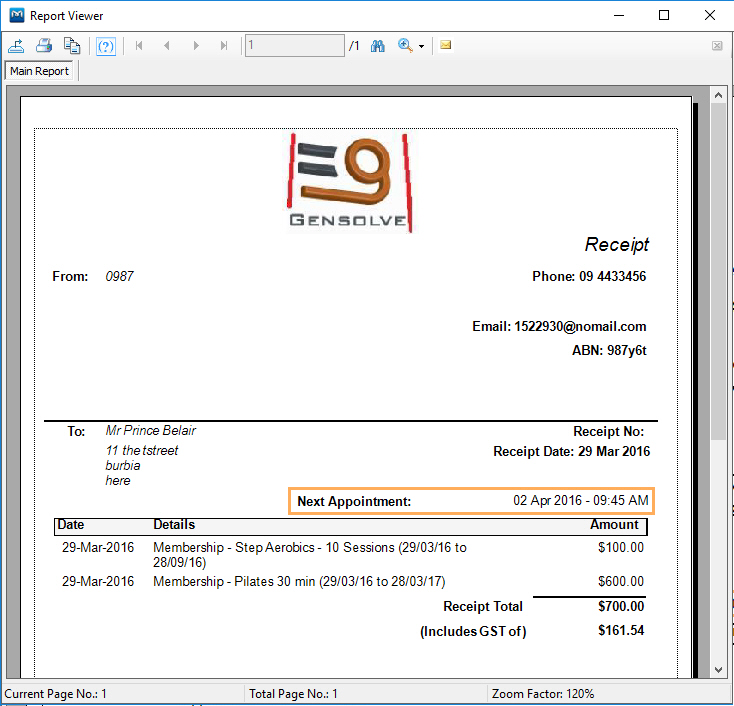
Note: On the Multiple Payment Receipt you have the ability to see the client's next appointment details once it is configured in the Vendor Details window. For more information see: Next Appointment Details in the Invoices