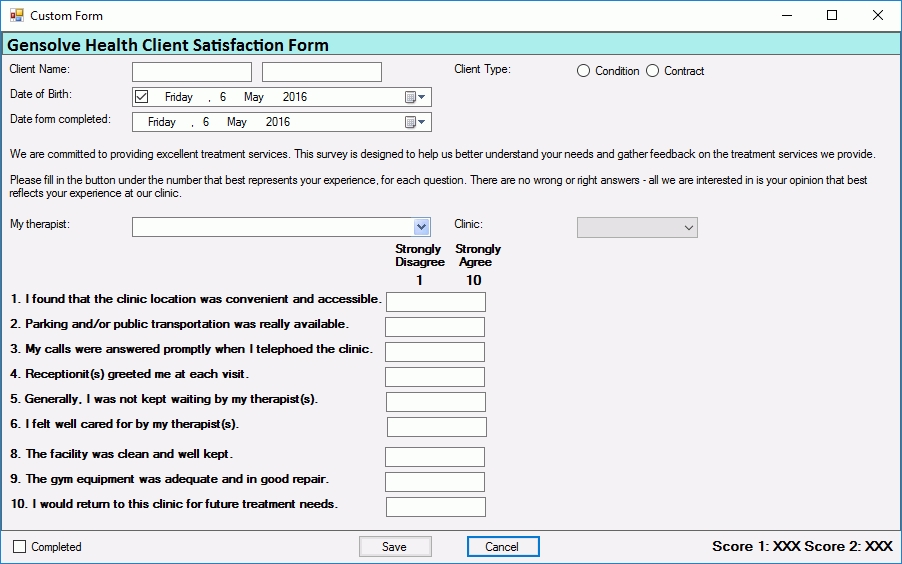


Adding a Number Text Box into a Custom Form
Number Text boxes on a form are useful to force users to enter numbers on a specific field between a predefined range and count their answers towards the form scores.
Follow the steps below to add a number text box into a Custom Form:
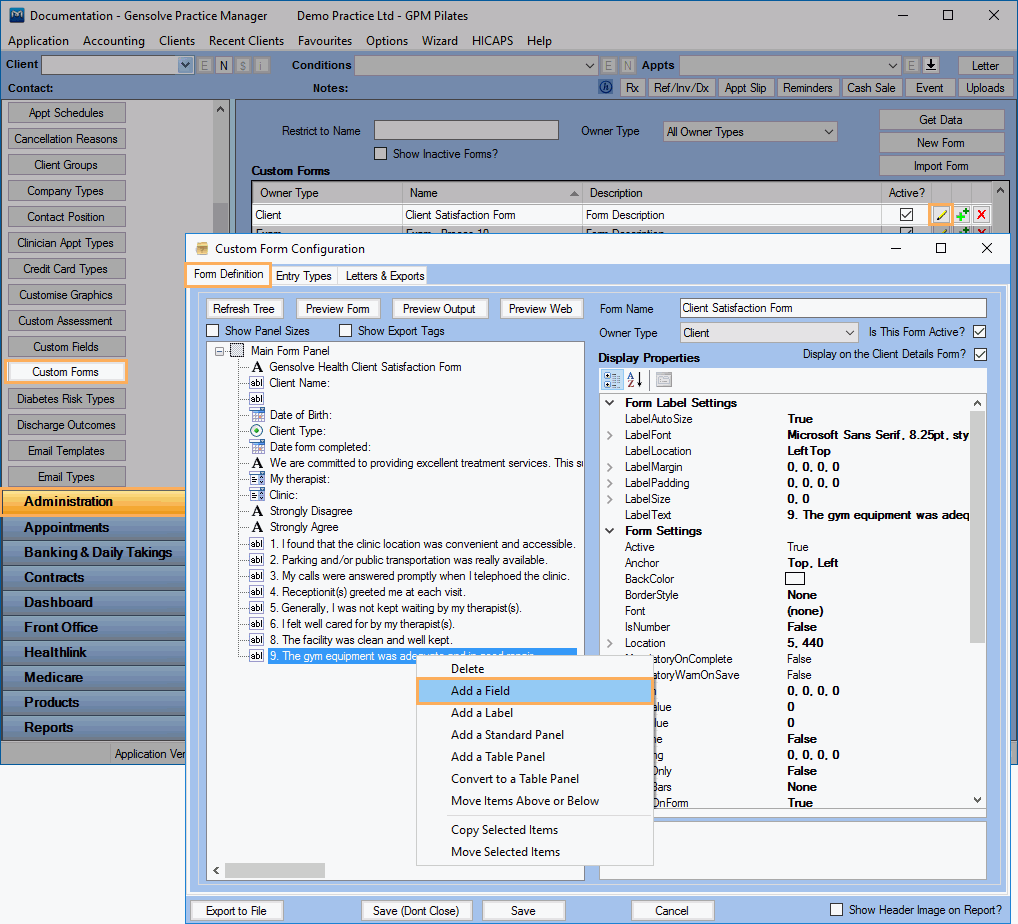
- Go to Administration >> Custom Forms and click Get Data
- Select the Custom Form into which you need to add the Number Text
Box and click on
 to open the Custom Form Configuration
window
to open the Custom Form Configuration
window - Right mouse click to open the Context menu and select Add
a Field
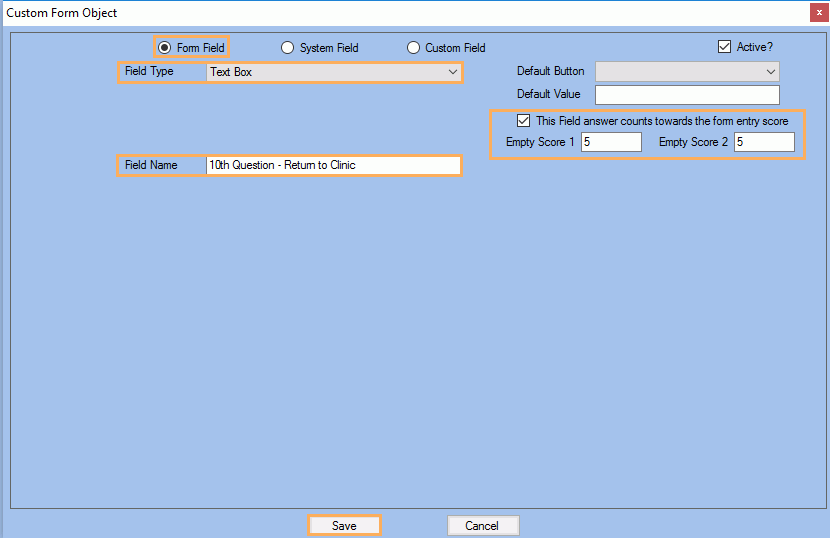
- Select Form Field
- Select the Text Box field type
- Enter -if applicable the Field Name
- Tick "This Field answer counts towards the form entry score" (NB: this is optional).
- Enter the values to be added to score 1 and score 2 in case the field is left empty
Note: Any different value entered by the users into the field will be summed up to both scores.
- Click Save
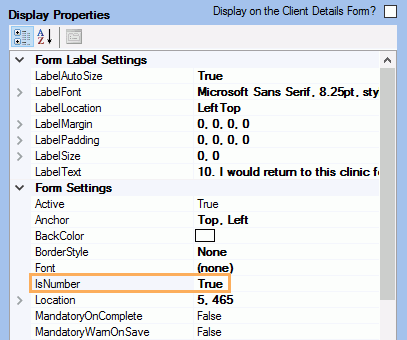
- Select the field you have just added
- Set the IsNumber property to True
Note: This will force the users to only enter a digit. Otherwise, it will automatically be set to the Min value.
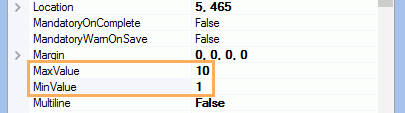
- Enter MaxValue and MinValue
Note: These values -if set will restrict the values entered by the users. If the users enter a smaller or bigger value, it will automatically be set to the Min and Max values respectively.
- Click Save.