


How to Create a Client Letter in Word Online
Prerequisites
The user must have a licensed Microsoft 365 account. For more information, please refer to Microsoft 365.
The user has been enabled for Office Online. Please refer to How to Configure Users to Open Word and Excel Files with Office Online.
A letter template has been created. Please refer to How to Create a Letter Template or How to Create a Letter Template in Office Online.
IMPORTANT:
Word Online supports only a subset of features compared to the full desktop version. Some of its limitations include:
- Layout controls (such as margin editing, page borders, line numbers) are either absent or very limited online.
- Formatting tools like advanced styles, custom table features, and the navigation pane are missing or only lightly supported.
- Tables and pagination may behave differently. For example, a long table might appear on a single continuous page online, but in the desktop version it may be split across multiple pages. Section breaks and page boundaries may also not render accurately in the browser.
When you view or print a document in Word Online, the document looks the same as it does in Print Layout view in the Word desktop app. For more details, please refer to the official documentation: Differences between using a document in the browser and in Word.
If you have any questions regarding Microsoft Word Online functionality, please contact the Microsoft team through Microsoft Q&A, by clicking Ask Question.
Office products require an Office 365 subscription. Please refer to Office 365 to view available products and services.
We will focus on Office Online, showing you how to create letters using Word Online and how to upload files into AEM:
Follow the steps below to create a letter for a client:
1. Click on  to edit a Client >>
Go to Letter
and Uploads tab >> Click on New
Letter >> Select a Letter
Template >> Click on
Create the letter.
to edit a Client >>
Go to Letter
and Uploads tab >> Click on New
Letter >> Select a Letter
Template >> Click on
Create the letter.
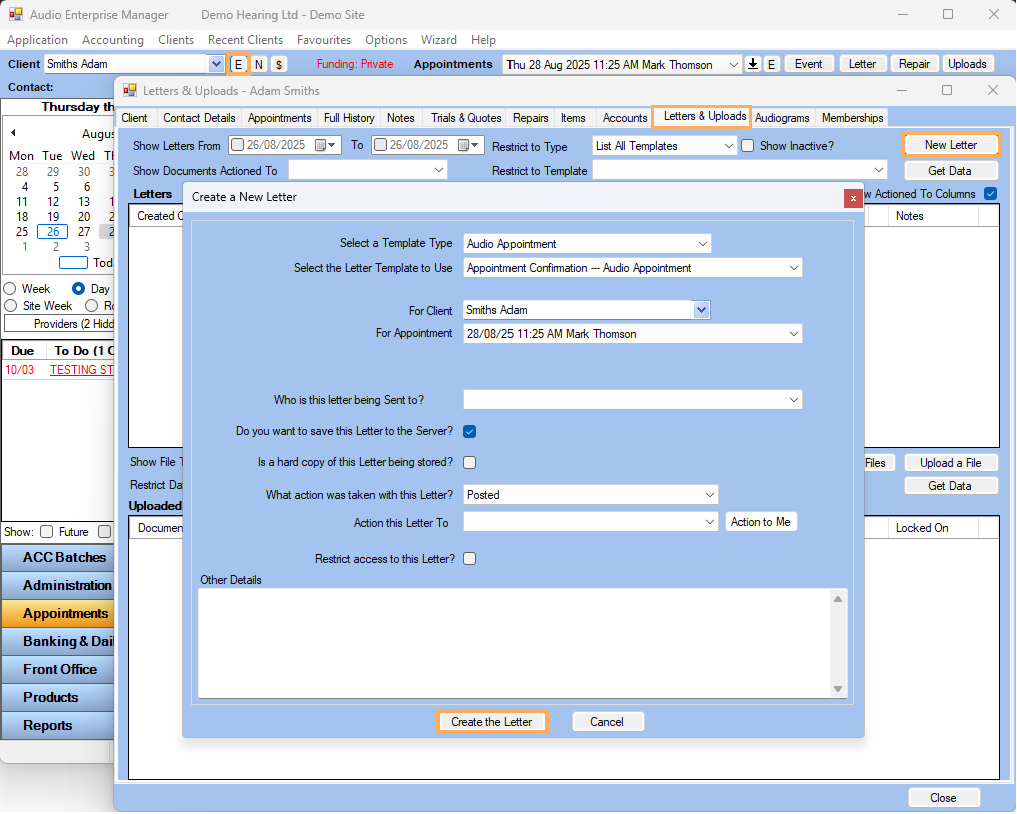
The letter will be automatically created in AEM and opened in Word Online.
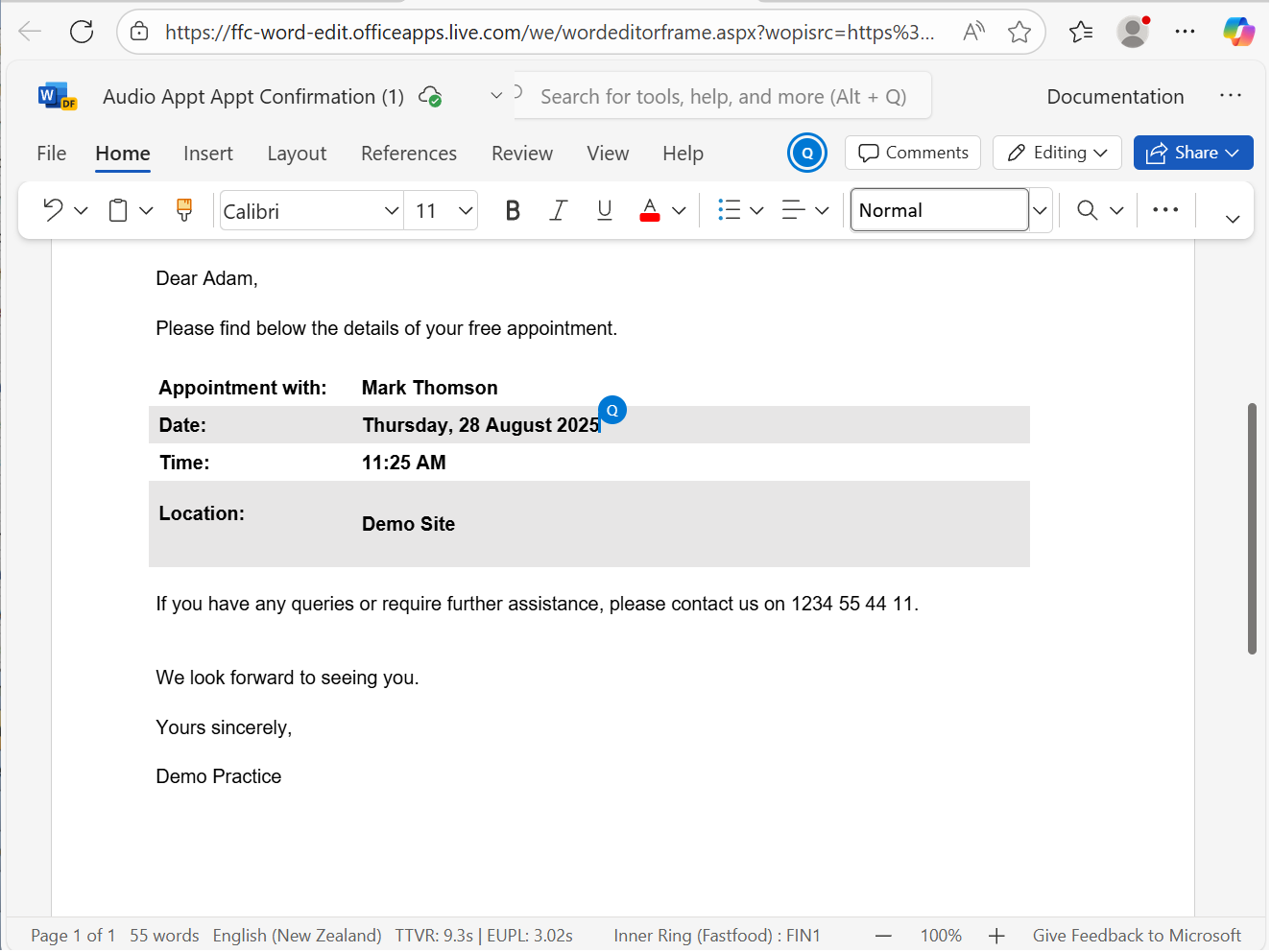
Note: Every change you make while working in Word
Online is automatically saved to AEM
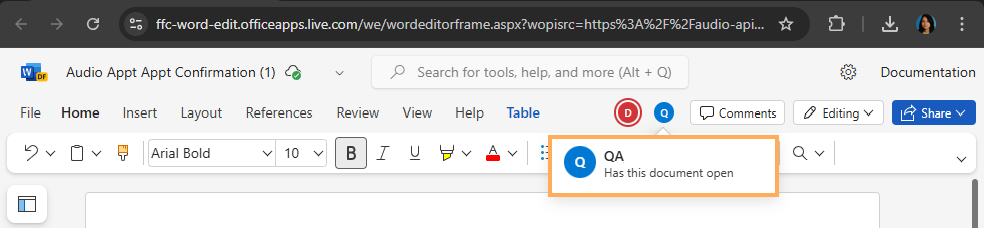
in real time. You can also collaborate with another user at the
same time by clicking on 
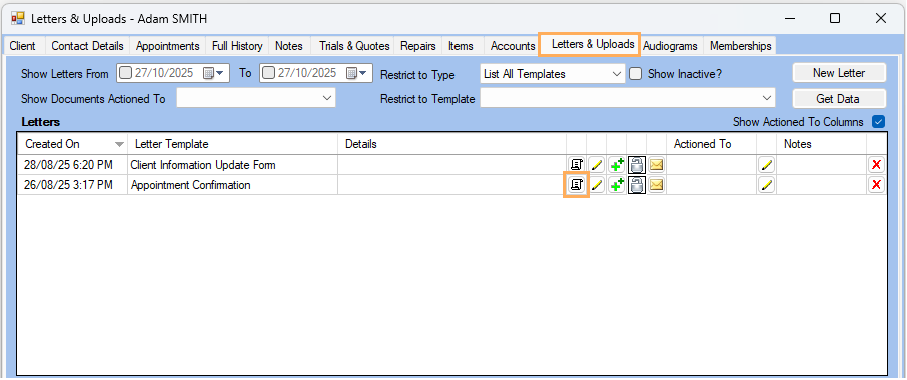
and all edits will be captured instantly.
Once you finish, simply close the browser tab and the document will already be securely saved to AEM. If your organization uses a mixed system, where some users can open documents in the Word desktop app and others are configured to view them in Office Online, please note that changes will only appear in the desktop version once the online user has closed the file. This is because the desktop version of Word does not support real-time co-authoring.
Supported File Types
With Office Online, you can quickly open and edit many Word and Excel files right in your browser. To help you understand what’s supported, here’s a simple list of the file types that work best online
- Word Online
You can view: .doc, .docx, .docm, .dotx, .dotm, .odt
You can edit: .docx, .docm, .odt.
Note: Old Word files (.doc) can only be viewed online. To edit them, you need to convert them to the newer .docx format. To convert .doc to .docx, use the desktop version of Word. Please refer to the official Microsoft documentation for Saving doc to docx or dorm.
- Excel Online
You can open: .xlsx, xls
Note: You can edit: All of the above, but please note that macros will not run online.
Unsupported Files
.rtf files cannot be opened or edited in the online version due to Office Online limitations.
Note: To edit RTF files, use the desktop version of Word. Please refer to the official Microsoft documentation for RTF files in Word Online.