


How to Create an Email Template
You can send an email directly from within Audio Enterprise Manager using the Gensolve E-mail Sender.
Refer to this tutorial to see how an email template is applied: How to Send a Report via Email.
Follow the steps below to know how to create an new email template to use when sending e-mails with attachments such as invoices
1. Click on Administration >> Email Templates >> New Email Template
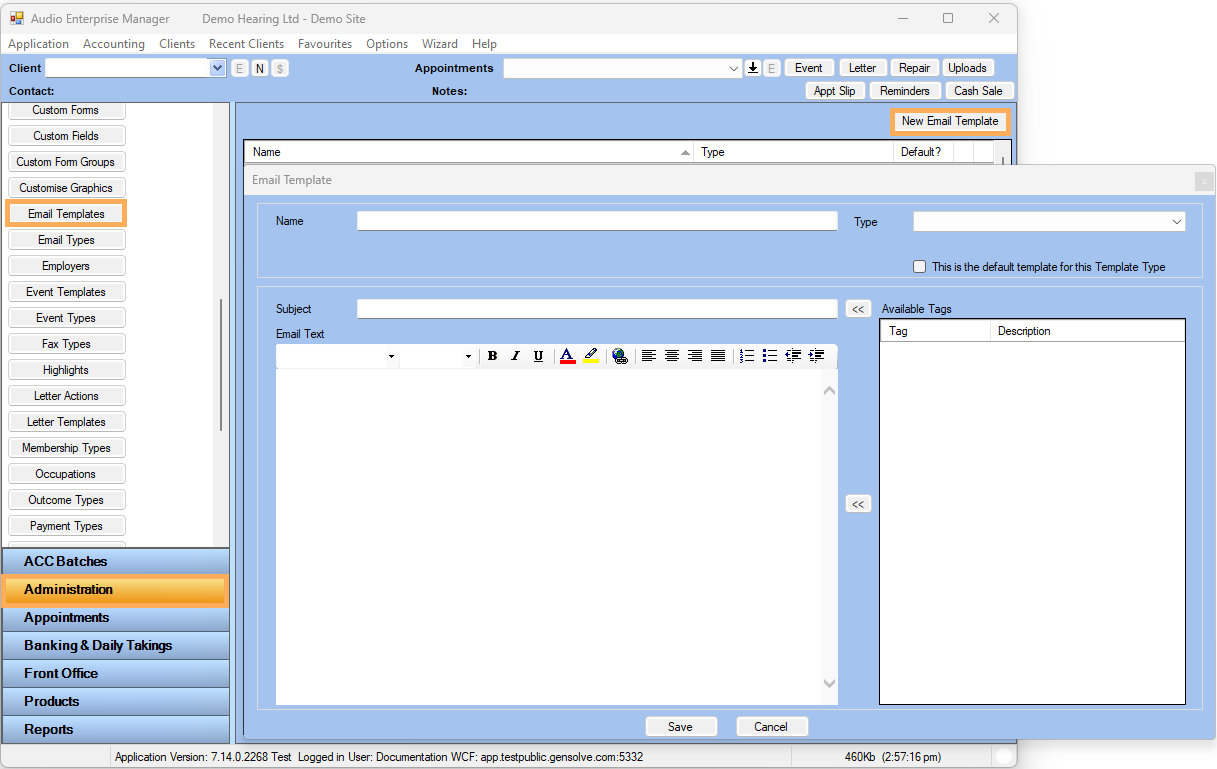
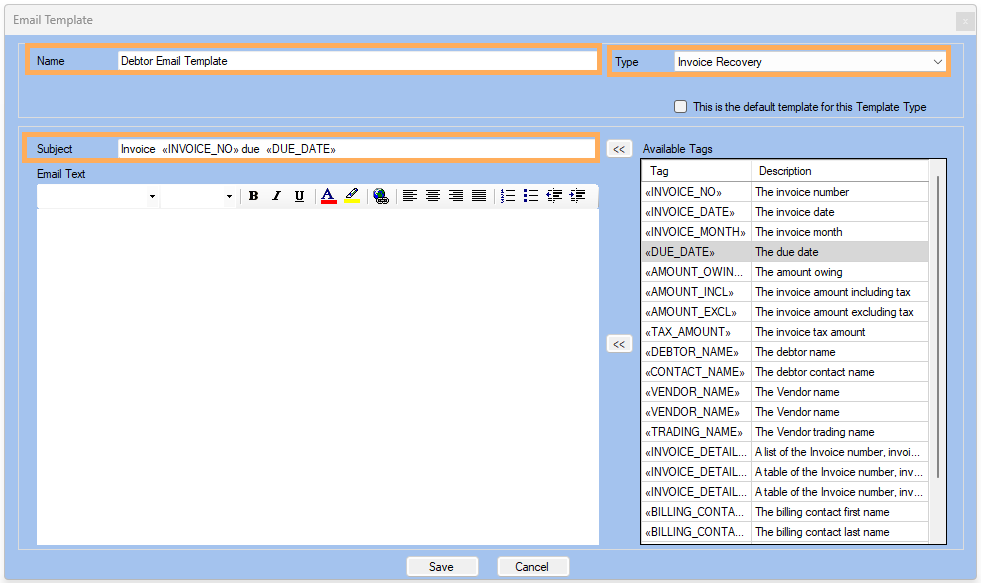
2. Enter Name >> Enter Subject >> Select Type
Note: In this example, we will select the Invoice Recovery. However, you can also create email templates for any of the following types:
- Appointment Reminder: Notify clients of upcoming appointments.
- Appointment Slip: Send next appointment details (time, date, location).
- Audio Quote: Send a quote-letter email to the insurer with the valid from/to dates.
- Cash Sale: Confirm a purchase of a product already paid.
- Client: General communication with a client and/or GP.
- Client Appointment: Confirm or follow up on a booked appointment (time, date, location).
- Creditor Payment: Notify a creditor of a payment made.
- Custom Forms: Share or request completion of custom forms.
- Debtor Payment: Acknowledge or confirm receipt of payment from a debtor.
- Debtor Statement: Provide a summary of outstanding balances.
- Expense: Notify or confirm an expense entry.
- Invoice Recovery: Remind debtors about unpaid invoices.
- Telehealth Appointment Reminder: Send reminders for online/telehealth appointments.
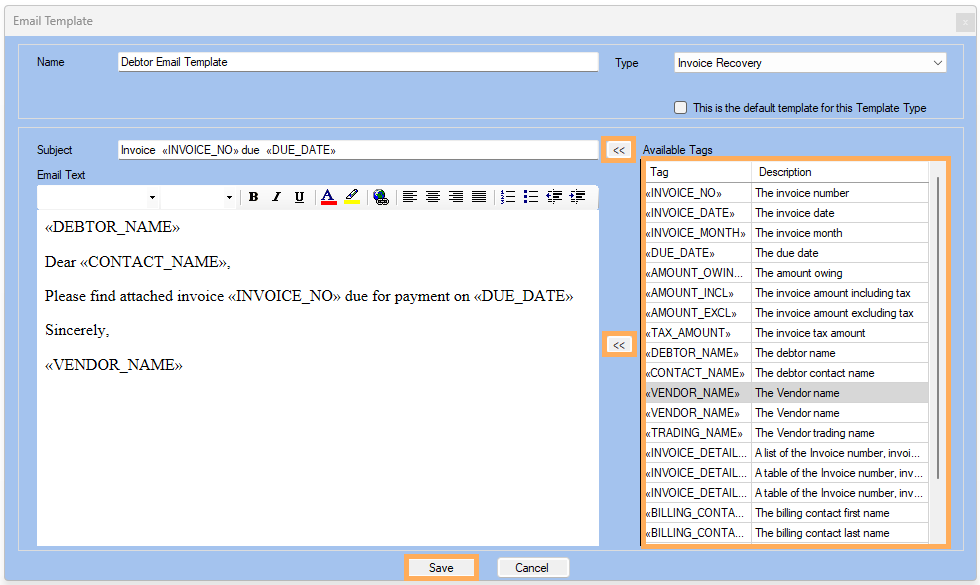
3. Use the Available Tags to customize the email as needed
4. Click on  to insert the selected tag into
the Subject and /or Email Text
to insert the selected tag into
the Subject and /or Email Text
5. Click on Save
6. The new Email Template is displayed
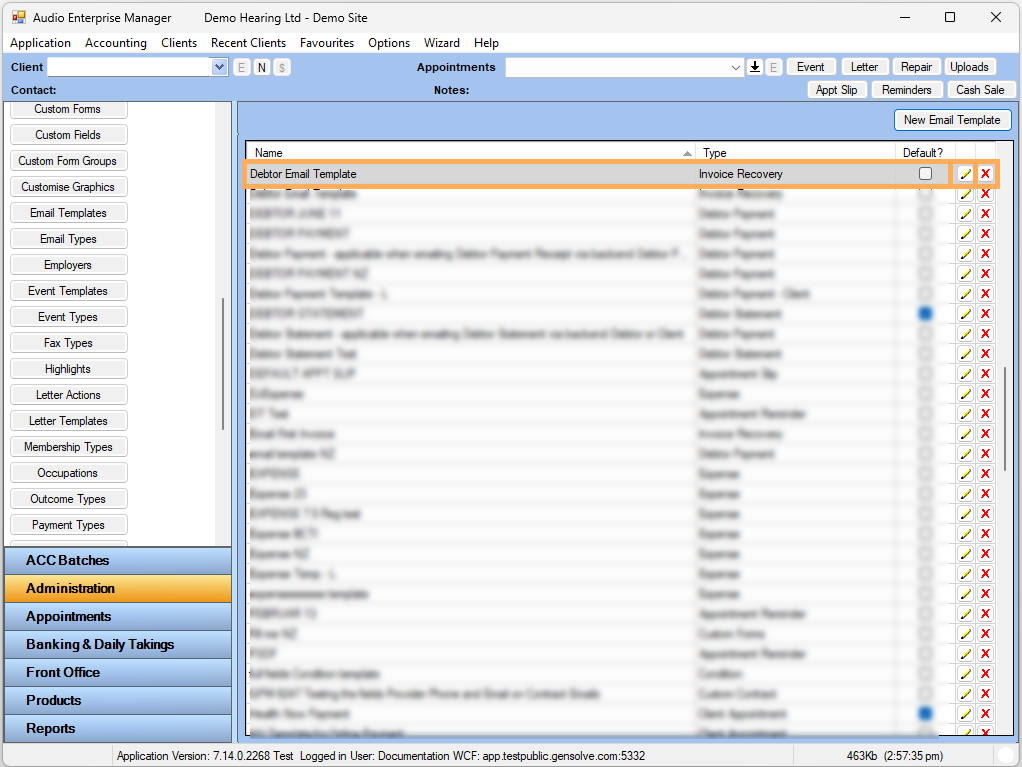
NOTE : If you need to modify an existing template,
click on the  icon to open and update it.
To delete a template, click on the
icon to open and update it.
To delete a template, click on the  icon, which
will remove it permanently from the list.
icon, which
will remove it permanently from the list.