


Files Are Not Syncing in OneDrive
Issue
Some users may notice that their files are not appearing in the cloud even though they saved them in the OneDrive folder. This can cause confusion if changes made locally do not reflect online, or if files are missing when accessed from another device.
Reason
OneDrive is not running – the sync client may be closed or not started.
No internet connection – files cannot be uploaded without an active network connection.
File path or name issues – long file paths or invalid characters can prevent syncing.
Sync paused – OneDrive sync may have been paused manually.
Storage full – OneDrive or the local device may not have enough available space.
Solution
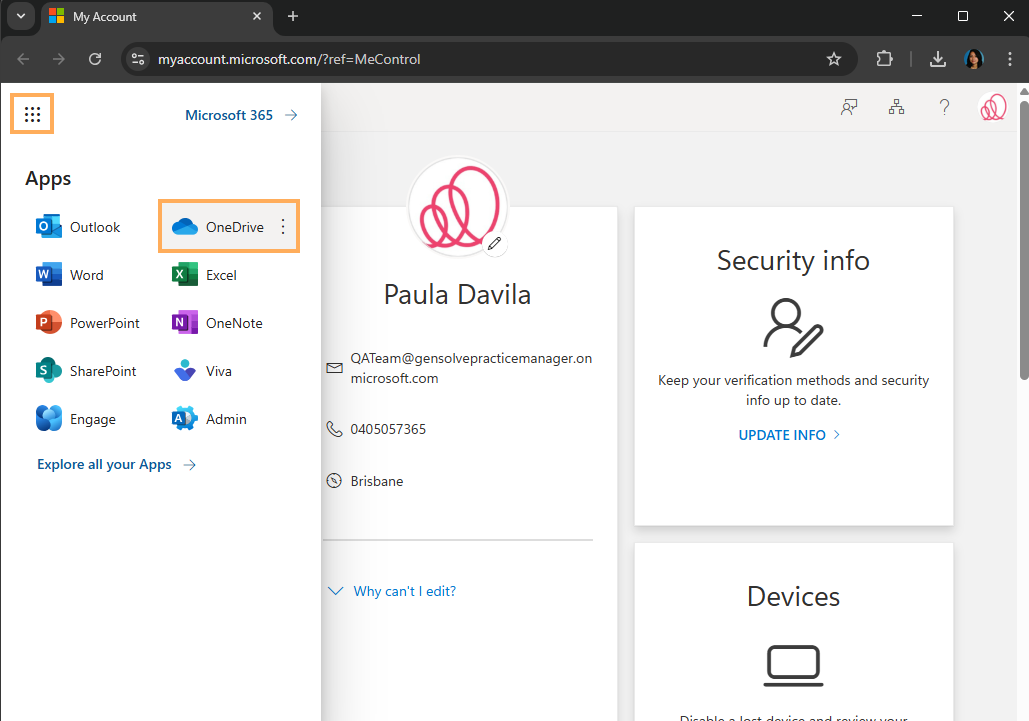
1. Click on  >> Click on OneDrive
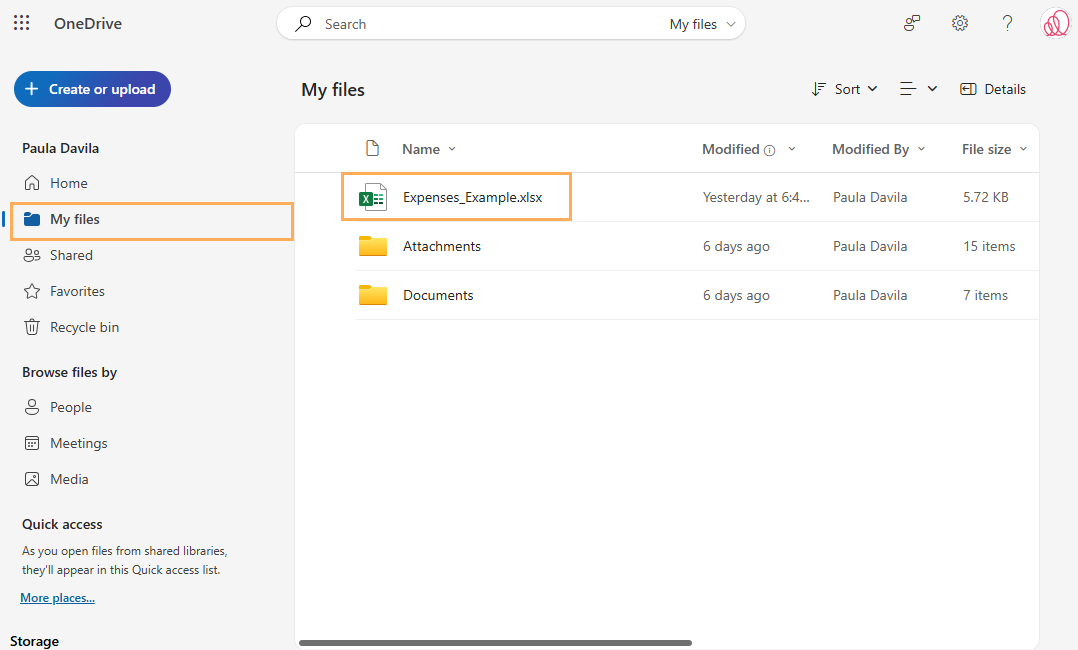
2. Locate the file in OneDrive and check that it is in the same path and has the same name.
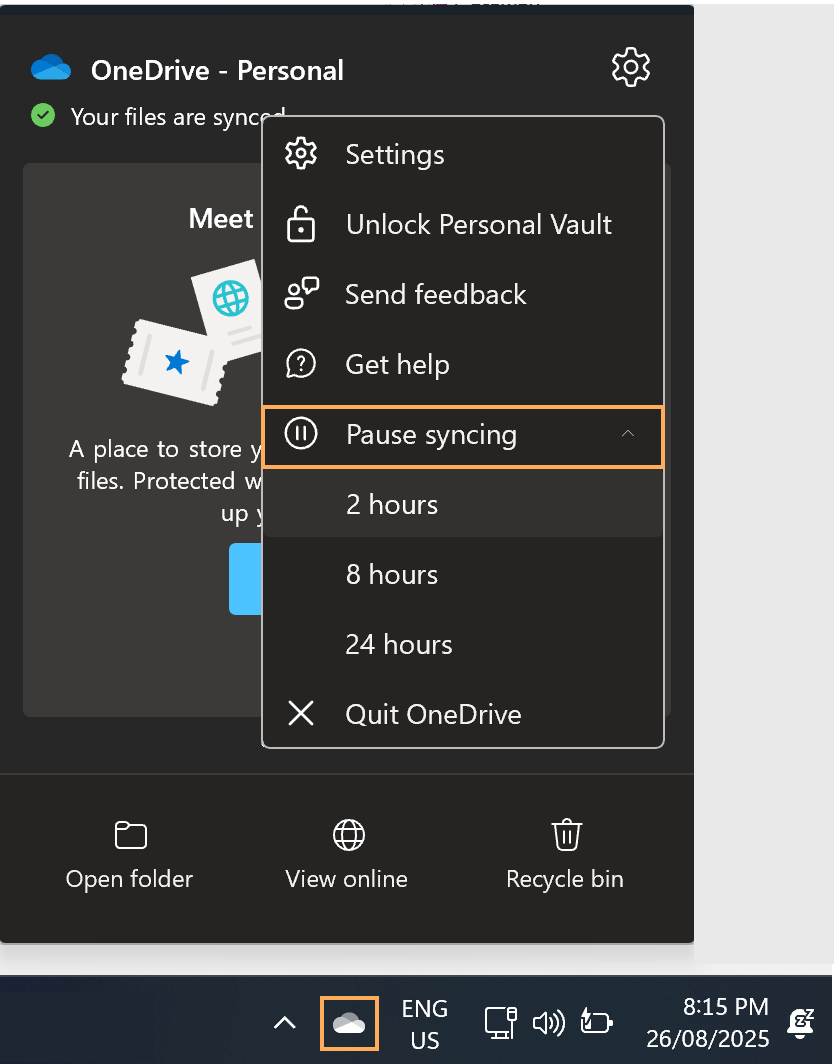
3. Try forcing a manual sync by right-clicking the OneDrive icon and selecting pause syncing for 2 hours
The cloud icon may also help identify the issue, so please review Microsoft’s official documentation for more details Fix OneDrive sync problems.
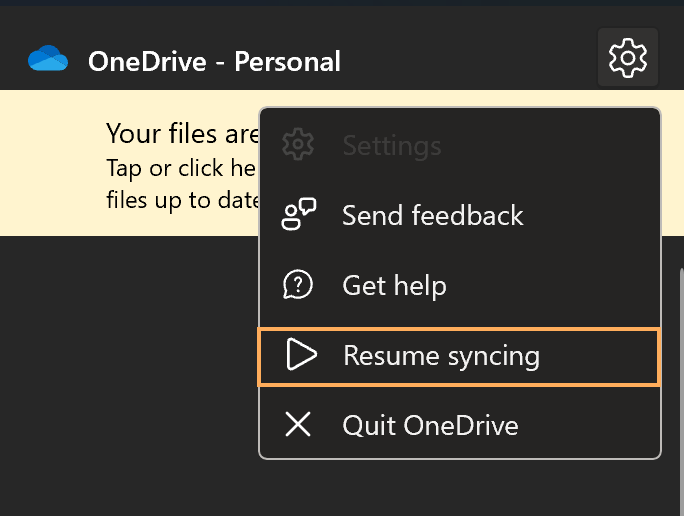
4. Resume syncing
If OneDrive is not syncing, check Microsoft’s official documentation Troubleshoot issues with OneDrive.