

How to Locate an Invoice
Issue
Follow the instructions below to easily locate invoices or schedules.
Solution
Locating Debtor Schedules
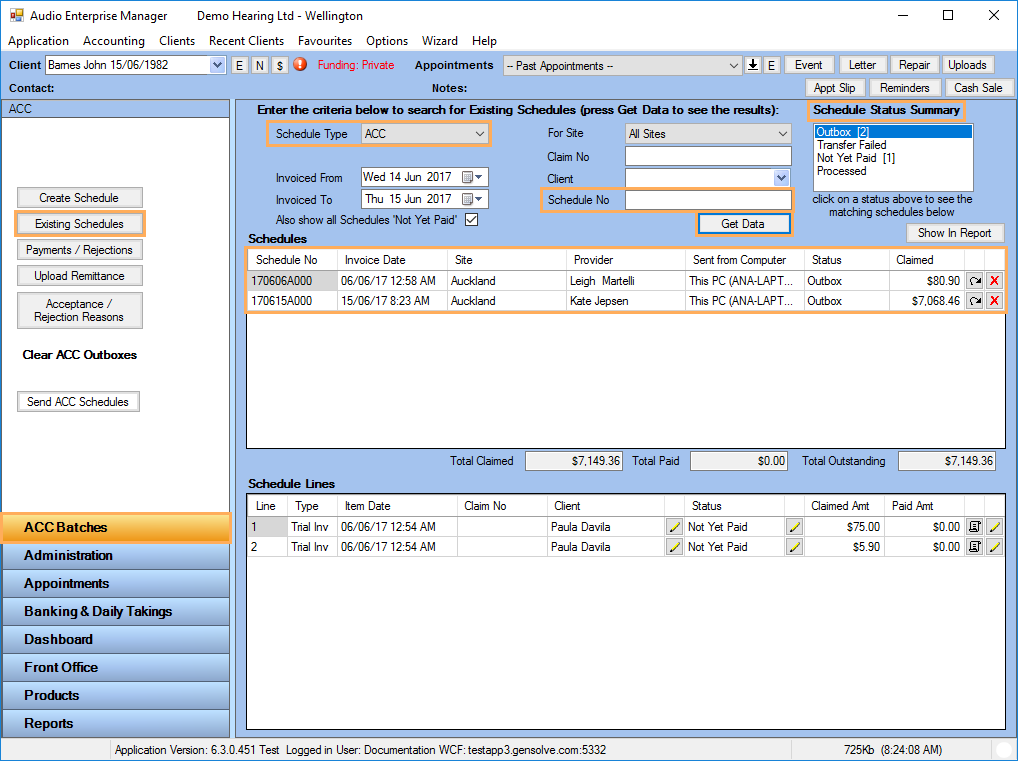
Invoices with an A are ACC Schedules (e.g. 170606A000). To locate these invoices:
-
Go to ACC Batches >> Existing Schedules
-
Set the Schedule Type ACC. If known, enter the schedule number in the Schedule No field
-
Click Get Data. The invoices matching the specified criteria are displayed in the Schedules grid.
Note: The Schedule Status Summary box shows how many schedules of each status match your specified criteria.
Click on the status in the Schedule Status Summary box to display the matching schedules.
Locating Debtor Invoices
Debtor Invoices can be created manually or as a batch.
To locate these invoices:
- Go to Accounting Form >> Money In >> Invoices
- Select the required Debtor (and any other filter). If known, enter the invoice number in the Invoice No field
- Click Get Data. The invoices matching the specified criteria are displayed in the Invoice History grid.
Note: As with most grids in AEM, you can click on a column header to change the order (eg. click on Invoice No to order invoices by invoice number).

Locate Client Invoices
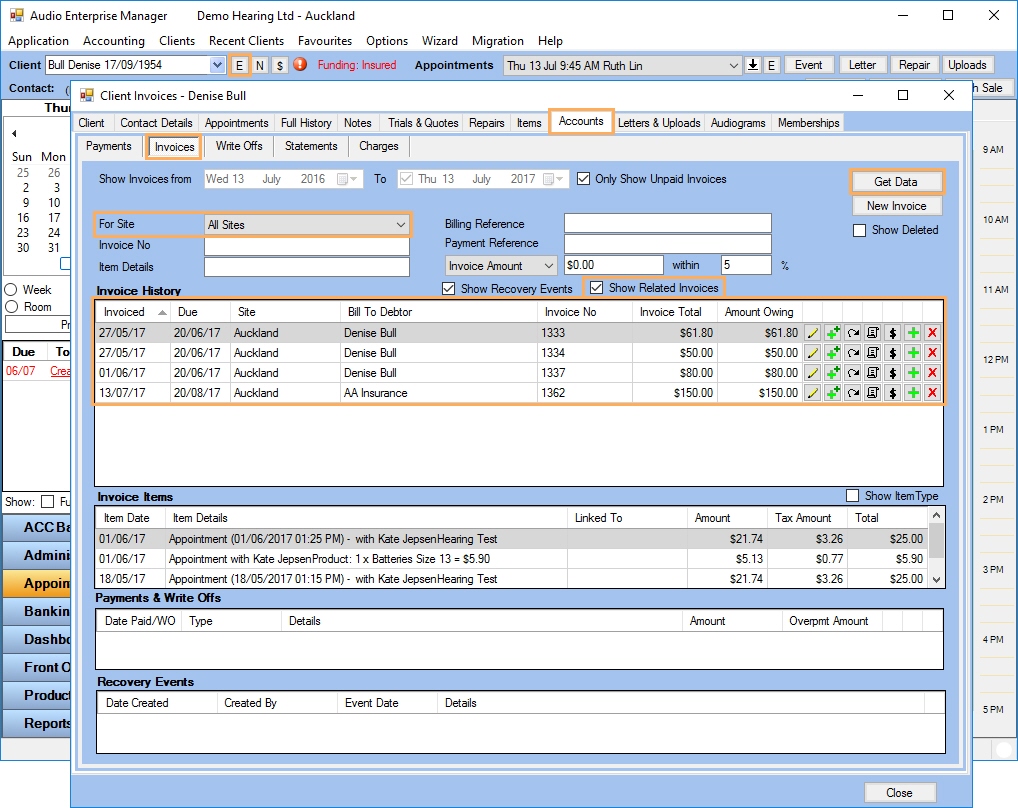
To list invoices linked to a client:
- Select a client and open the Client Details window
- Select the Accounts tab then click on the Invoices sub-tab
- Select the filtering criteria (ticking the Show Related Invoices will include debtor invoices related to the selected client)
- Click Get Data. The invoices matching the specified criteria are displayed in the Invoice History grid.